Creating a New Report
A new report is created using a wizard, which guides the user through successive configuration stages. The wizard is launched with the + button in the top right corner of the reports module, then selecting the New report command from the menu.
The wizard consists of six steps, shown as successive stages on the progress bar at the top of the window:
- Type – selecting the report type
- Variables – selecting the tags (variables) included in the report
- Functions – selecting the aggregation functions
- Period – specifying the time range and schedule
- Options – additional formatting and presentation settings
- Report – summary and saving the report
Each step should be filled in in sequence. You move to the next stage with the NEXT button, and back to the previous one with the BACK button. The CANCEL button closes the wizard without saving changes.
Tip
Switch between the wizard's steps by clicking the tabs above the image. Click the image to see a description of the given step.
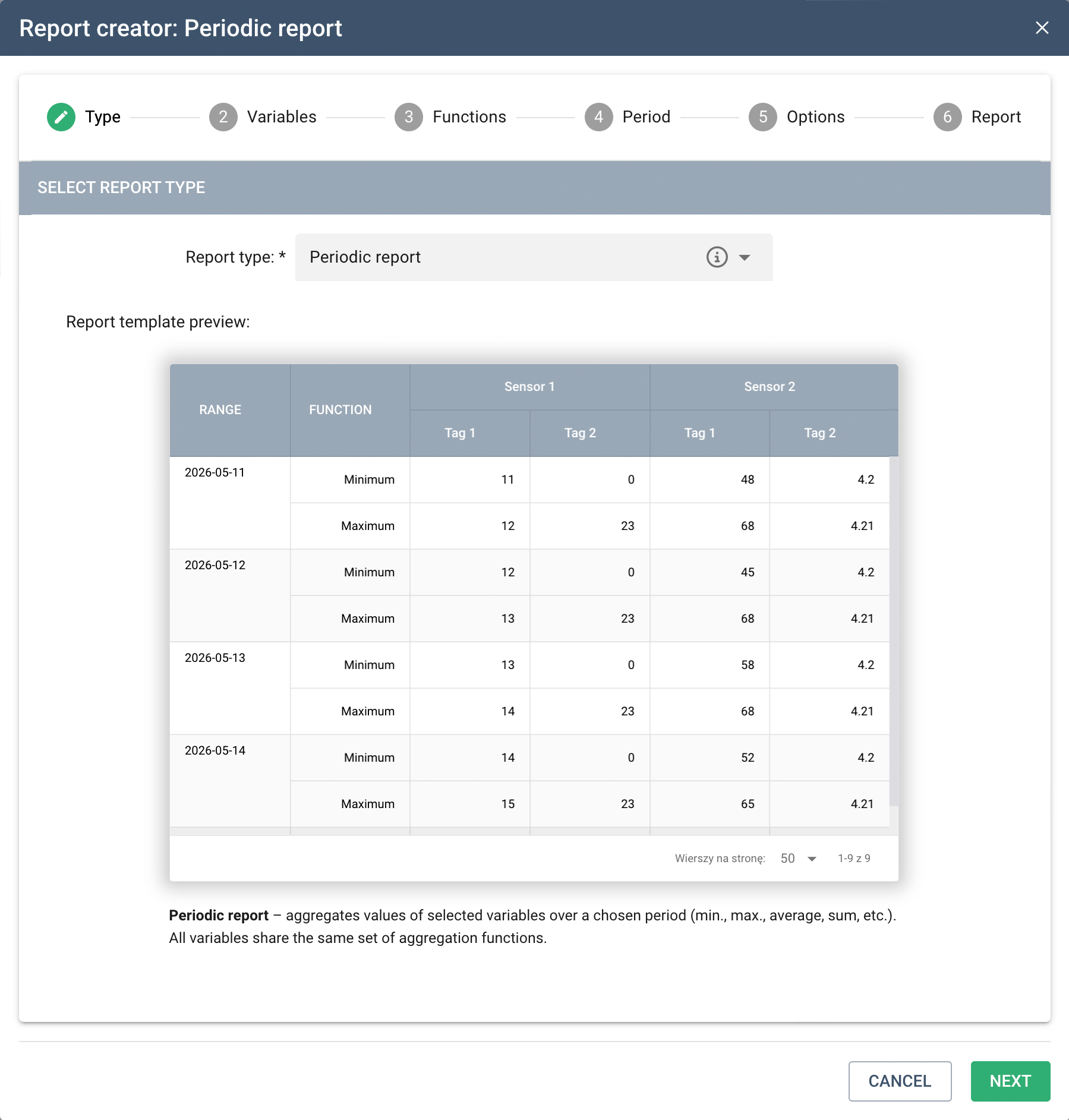
Step 1: Report Type
In the first step, select the report type from the drop-down list. Four types are available:
-
Periodic report – aggregates the values of selected variables over a given time period. For each tag, the selected aggregation functions are calculated (e.g. minimum, maximum, average, sum, difference). The report period can optionally be split into sub-periods – different aggregation functions can then be applied for the sub-periods and for the entire period. All variables share the same set of functions.
-
Periodic report with individual aggregation – a variant of the periodic report in which a different set of aggregation functions can be assigned to each variable. Allows for more detailed analysis when individual tags require a different processing method.
-
Latest variable values – displays the most recent values sent by devices for the selected tags. It does not contain aggregation functions – it presents the current, up-to-date state of the variables.
-
Raw data – includes all readings sent by the selected tags within the given time period, without any aggregation or summaries. Lets you analyze the full measurement history in raw form.
Once the report type is selected, a template preview is automatically displayed below the drop-down list – a sample report illustrating the data structure and layout, so the user knows what to expect before proceeding with further configuration.
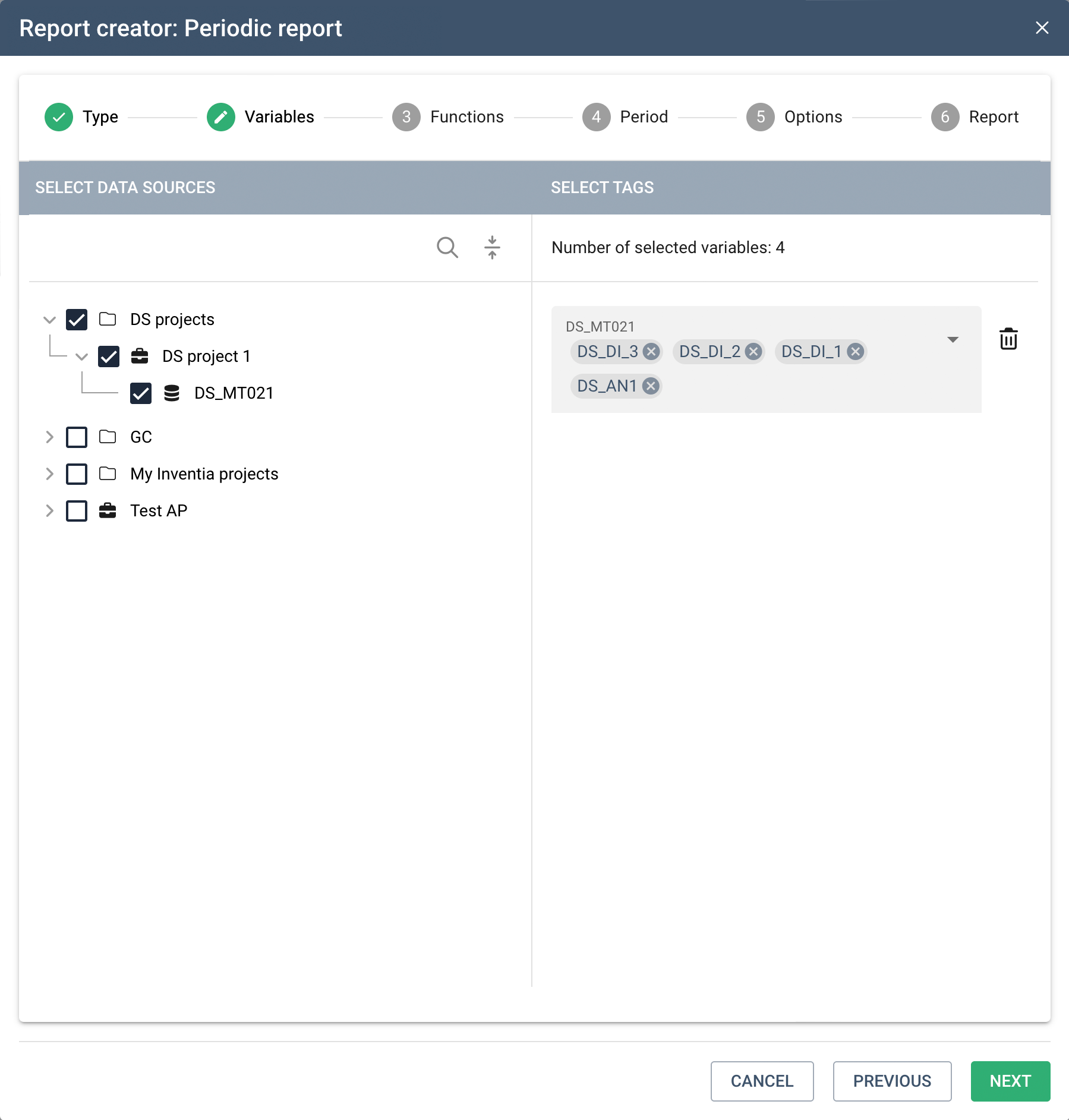
Step 2: Variables
In the second step, we select the variables (tags) whose data will be included in the report. The screen is divided into two sections.
Left section – Select data sources contains a project tree with the available data sources (devices). Checking the checkbox next to a source adds it to the report – it then appears in the right section. Multiple sources can be selected at once, including from different projects.
Right section – Select variables (tags) displays a list of the selected sources. For each of them, you need to specify the particular tags to be included in the report. The total number of variables selected so far is shown at the top of the section.
Tags for a given source are selected from the drop-down list available under its name. The list contains all tags available for that source and supports a search function – letting you quickly find a tag by name. A Select all option is also available.
Selected tags are displayed as labels (chips) below the source's name and can be removed individually with the button. An entire source, along with its selected tags, can be removed using the trash icon to the right of its name.
A source for which no tag has been selected yet is marked with a red error indicator – you can only proceed to the next step once tags have been specified for all added sources.
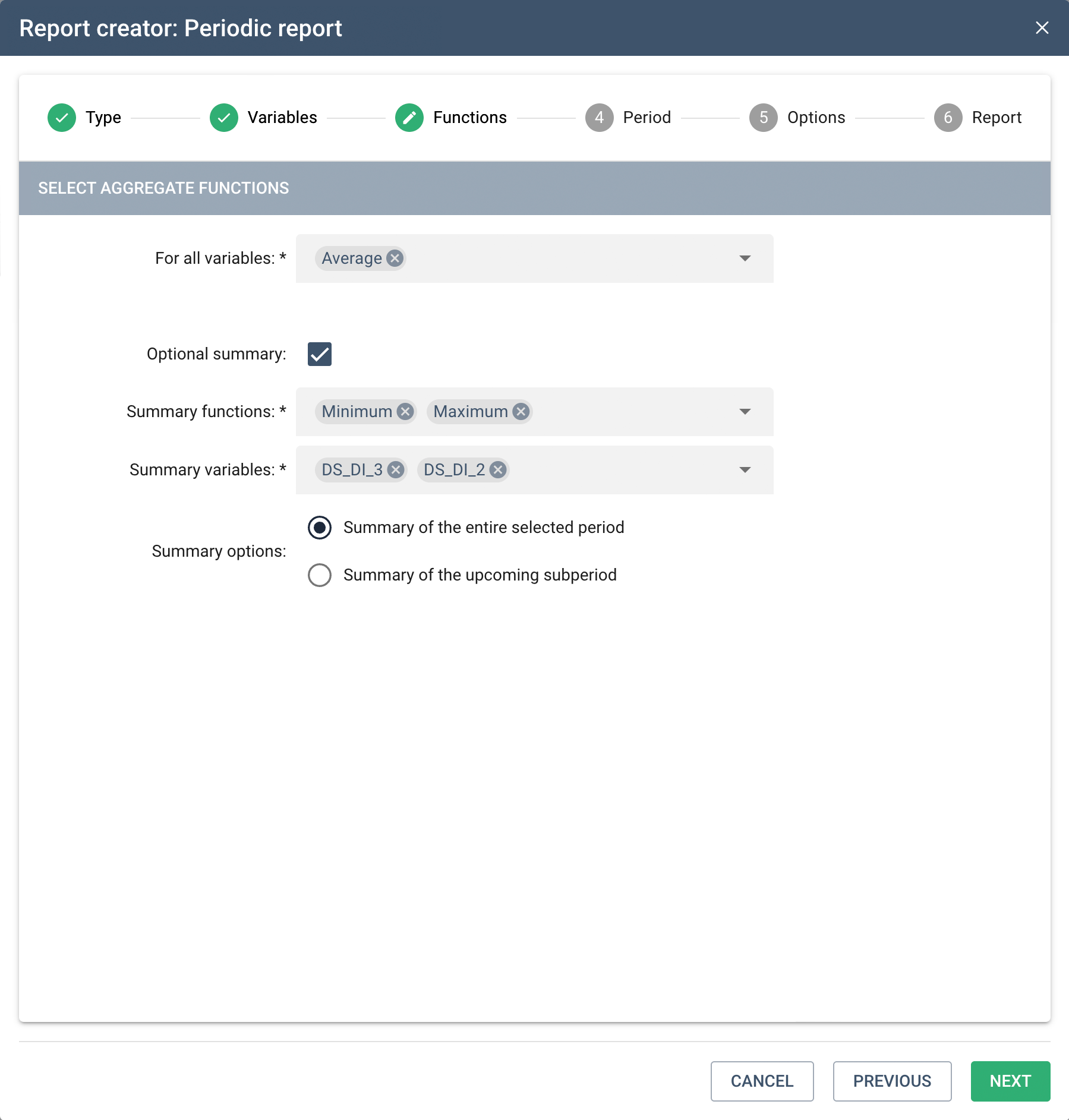
Step 3: Aggregation Functions
In the third step, we define how the data is to be calculated and presented in the report. The content of this step differs depending on the selected report type.
Functions available only for certain report types
This wizard step is active only for reports that use data aggregation. For the raw data report and the latest variable values report, this step is skipped.
The following aggregation functions are available for selection:
- Minimum
- Maximum
- Average
- Sum
- Count
- List of values
- Standard deviation
- Variance
- First value
- Last value
- Difference
- Increments
Periodic report
For a periodic report, we select one common set of aggregation functions applied to all variables. Several functions can be selected at once – they will appear as separate rows in the report table for each sub-period.
Optional summary – once the checkbox is checked, additional settings become available:
- Summary functions – the aggregation functions applied in the summary row (the same list as above).
- Variables to summarize – specify which of the previously selected tags should have a summary row. Not all variables need to be included in the summary.
- Summary options – specify the scope of the summary:
- Summary of the entire selected period – the summary row covers the entire report period.
- Summary of the future sub-period – the summary row relates to the next sub-period.
Periodic report with individual aggregation
For a report with individual aggregation, the aggregation functions are selected separately for each variable. Tags are grouped by data source, and a separate drop-down list with function selection is available for each of them.
Custom aggregation function descriptions: Each function can be given its own name displayed in the report table's header. Fields for entering custom descriptions appear below the list of selected functions for a given variable. Leaving a field blank will display the function's standard name.
As with the periodic report, an Optional summary option is available, letting you specify selected variables to summarize and the summary's scope.
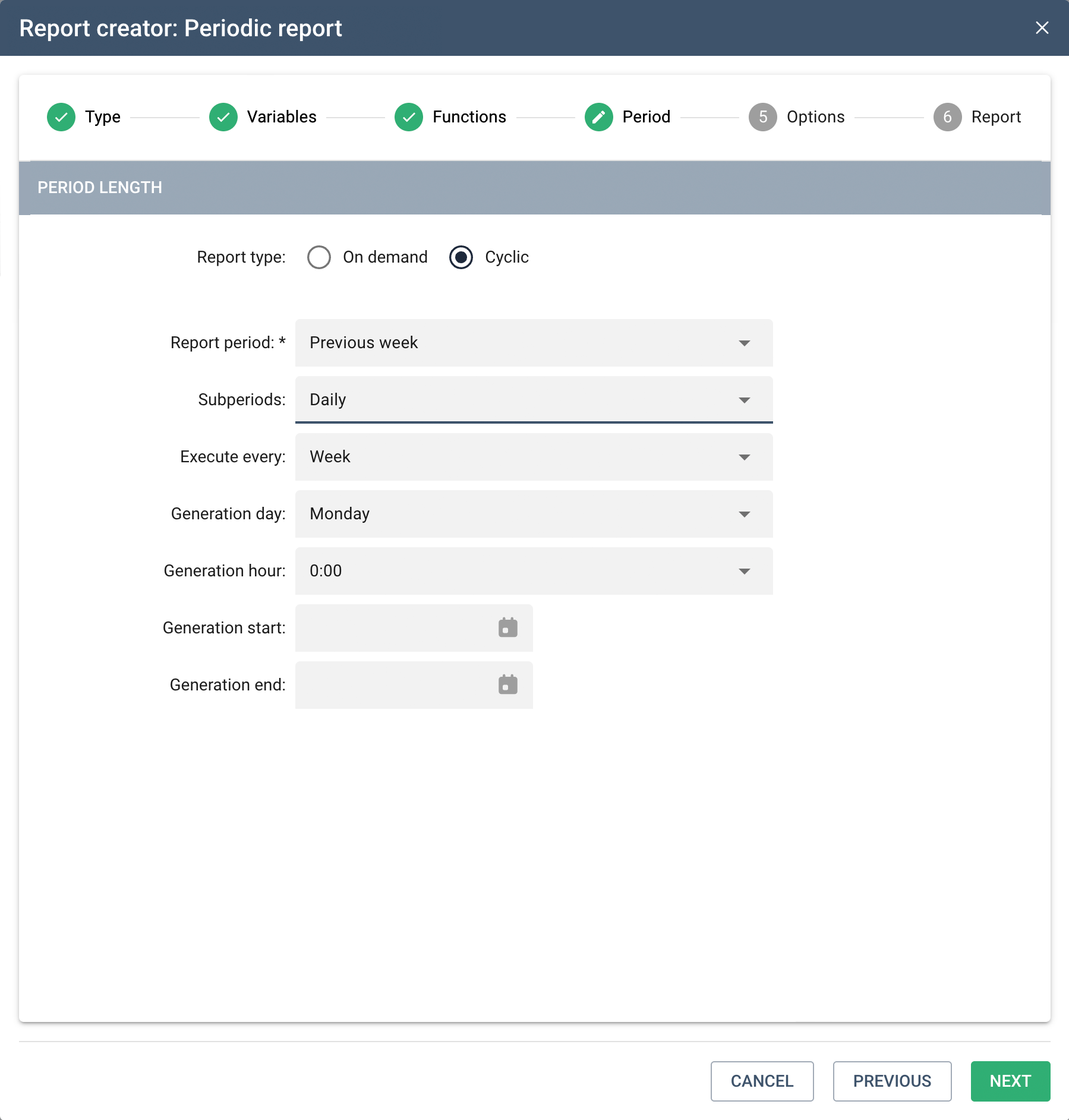
Step 4: Period
In the fourth step, we specify the report's time range and how it is generated. First, select the report kind: On demand or Periodic. Depending on this choice, different period configuration options are available.
On-demand report
An on-demand report is generated manually by the user at any time.
Available period options:
- Select dates – once this option is selected, specify the start date and time (default 00:00:00) and the end date and time of the period (default 23:59:59).
- Specify the number and length of periods – define the number of periods and their length (Minutes, Hours, Days, Weeks, Months, Years); the system calculates the range backwards from the moment the report is generated.
- Today
- Previous day
- Current week
- Previous week
- Current month
- Previous month
Sub-periods can optionally be specified:
- No division
- By minute
- Hourly
- Daily
- Weekly
- Monthly
- Yearly
Availability of selected sub-periods
The availability of individual sub-periods depends on the length of the selected main period – the system only offers options shorter than the period. For example, for a daily period, sub-periods can be at most hourly, and for a weekly period – at most daily.
Periodic report
A periodic report is generated automatically according to a defined schedule.
Available period options:
- Specify the number and length of periods – define the number of periods and their length (Minutes, Hours, Days, Weeks, Months, Years). The system calculates the range backwards from the moment the report is generated.
- Previous day
- Previous week
- Previous month
- Custom days of the month – lets you specify a custom range of days within the month by providing the day number for the start and end of the period (e.g. from the 1st to the 14th day of the month).
For each period, optional sub-period configuration is available (No division, By minute, Hourly, Daily, Weekly, Monthly, Yearly), with the same restrictions resulting from the length of the main period.
Regardless of the selected period, a schedule for automatic generation must be configured for a periodic report:
- Run every – the generation frequency: Day, Week, or Month.
- Generation day – the day of the week (e.g. Monday) or day of the month on which the report will be generated. The availability of this option depends on the selected frequency.
- Generation time – the time at which automatic report generation is triggered.
- Generation start – an optional date from which the schedule starts to apply.
- Generation end – an optional date after which the schedule stops applying.
Date ranges for periodic reports
Periodic reports with the Yesterday, Previous week, and Previous month periods always cover a full, completed period – the previous full day, the previous full week, or the previous full month, respectively – regardless of the configured generation day and time. If a different date range is required, select the Custom days of the month or Specify the number and length of periods option.
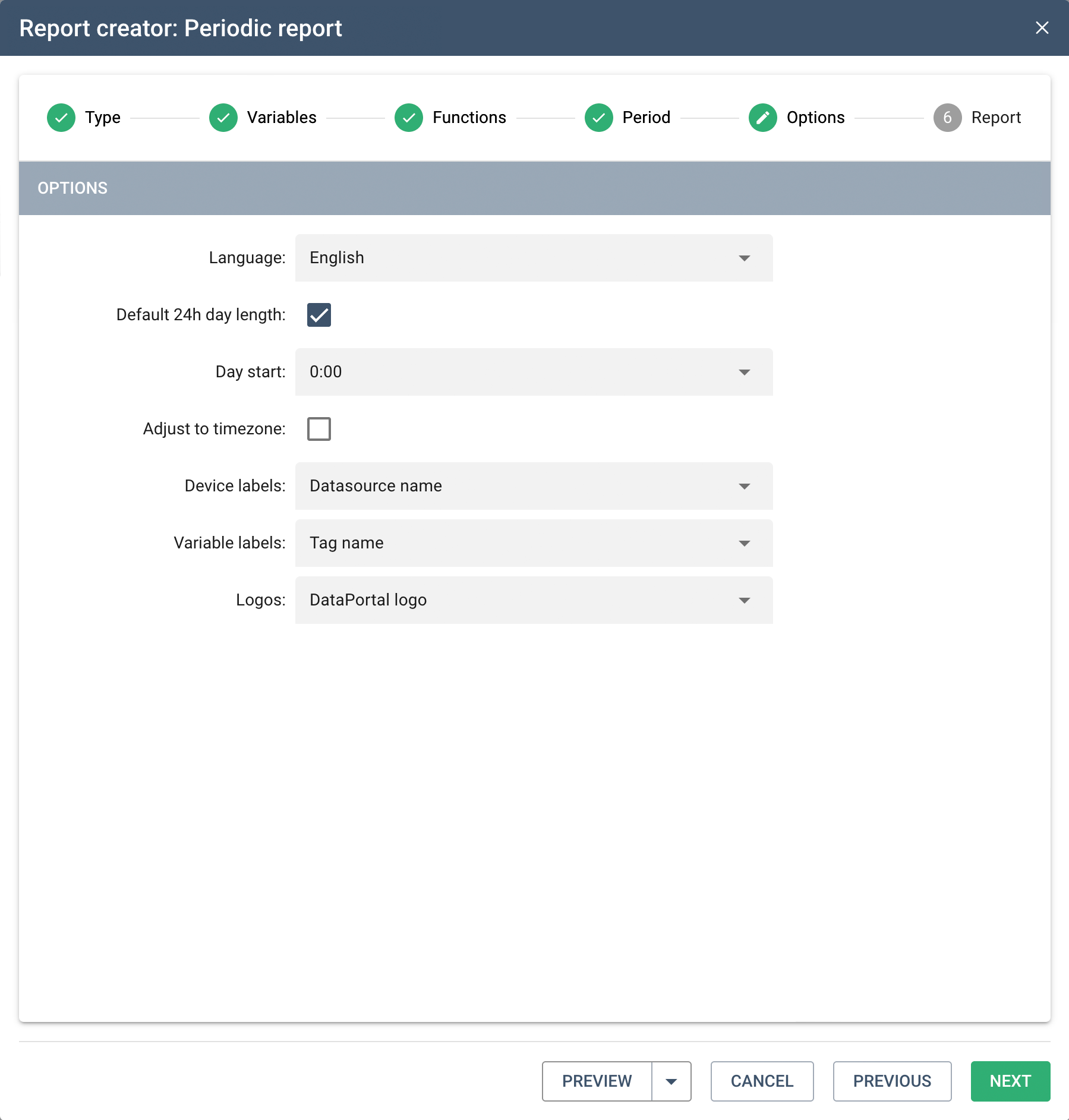
Step 5: Options
In the fifth step, we configure additional parameters affecting how the report is generated and formatted.
- Language – the language in which the report is generated (column labels, headers, aggregation function names).
- Default 24h day length – if checked, the system assumes a standard 24-hour day. Unchecking this option reveals the Measurement day length field, where you can set a custom length for the billing day (useful, e.g., in gas metering, where the billing day may start and end at a time other than midnight).
- Start of day – the hour from which each day in the report is counted (default 0:00).
- Adjust to time zone – if checked, the data is adjusted to the user's or project's time zone.
- Device labels – how devices are described in the report headers:
- Data source name
- Data source description
- Data source name and description
- Variable labels – how variables (tags) are described in the report headers:
- Tag name
- Tag description
- Tag name and description
- Logos – the logo displayed in the header of the generated report:
- Account logo
- DataPortal logo
- Account and DataPortal logo
- No logo
Report preview
From this point, the report is ready to preview. Click PREVIEW to check the result. If you want to download the report right away, click the arrow next to the button and select a format — PDF or XLS.
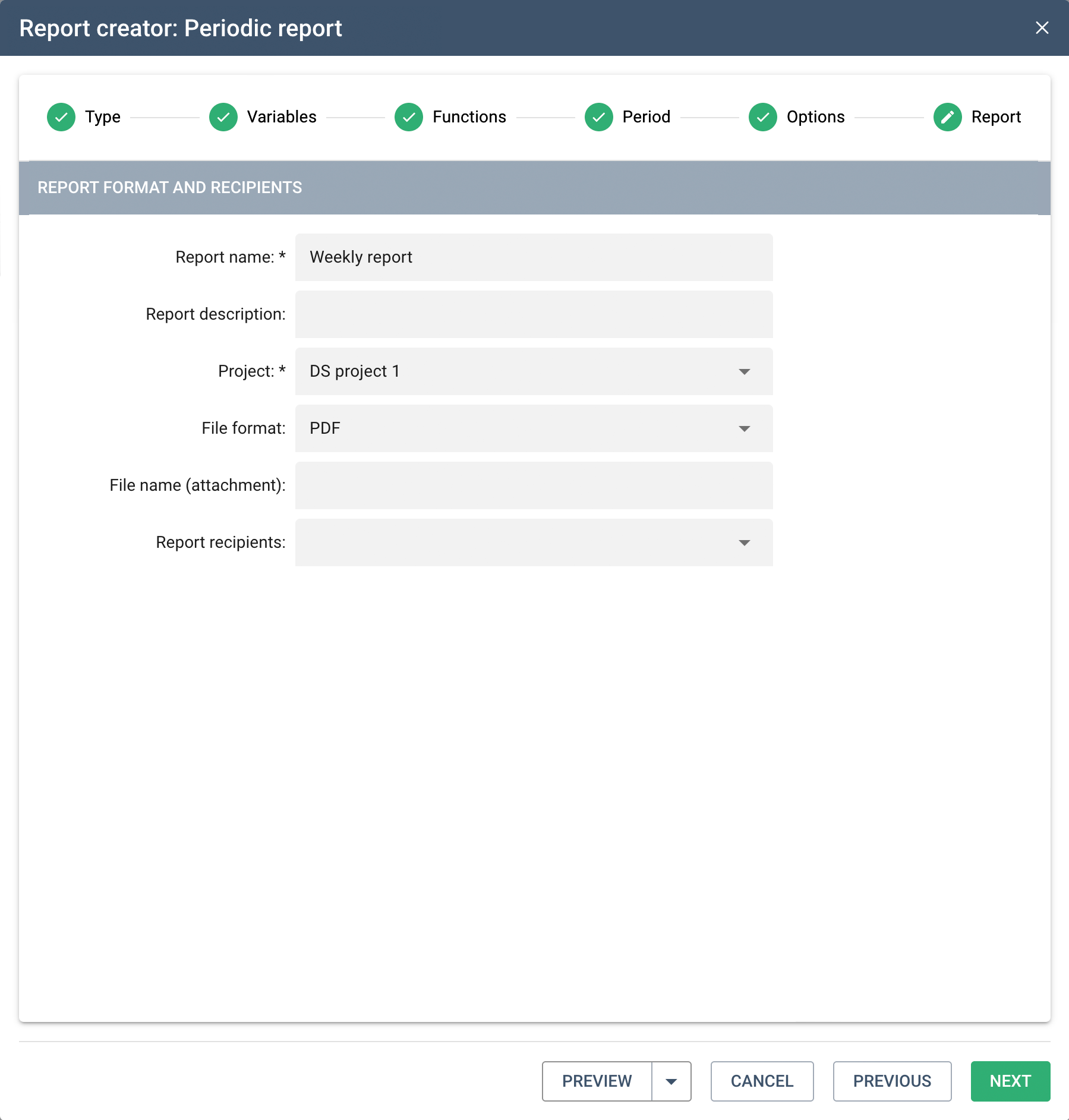
Step 6: Report
In the last step, we define the report's name, file format, and recipients.
- File format – the format in which the report file will be generated (e.g. XLS).
- File name – the name of the generated report file (filled in automatically based on the configuration, can be edited).
- Report name – the name of the report displayed in the report list and in the header of the generated file. Required field.
- Report description in the file – an optional description visible in the generated file.
- Project – the project the report will be assigned to and under which it will be visible in the project tree. Required field. The list of available projects is limited to those for which data sources were selected in step 2.
- Report recipients – an optional list of users or e-mail addresses to which the report will be automatically sent after being generated (applies to periodic reports).
Once all fields have been filled in, the wizard provides the following buttons:
- PREVIEW – generates and displays a preview of the report before saving; the drop-down menu next to the button lets you select the preview format.
- CANCEL – closes the wizard without saving changes.
- SAVE – saves the report configuration and closes the wizard.