Interface Layout
The DataPortal system interface has been designed to allow intuitive navigation between the various sections of the system. The screen is divided into several main areas that let the user quickly access the data and functions they need.
Tip
By clicking the tabs above the image below (Main menu, Project tree, Application header, Main area) you can highlight the corresponding interface area on the screenshot. Clicking the image will take you to a detailed description of the selected area.
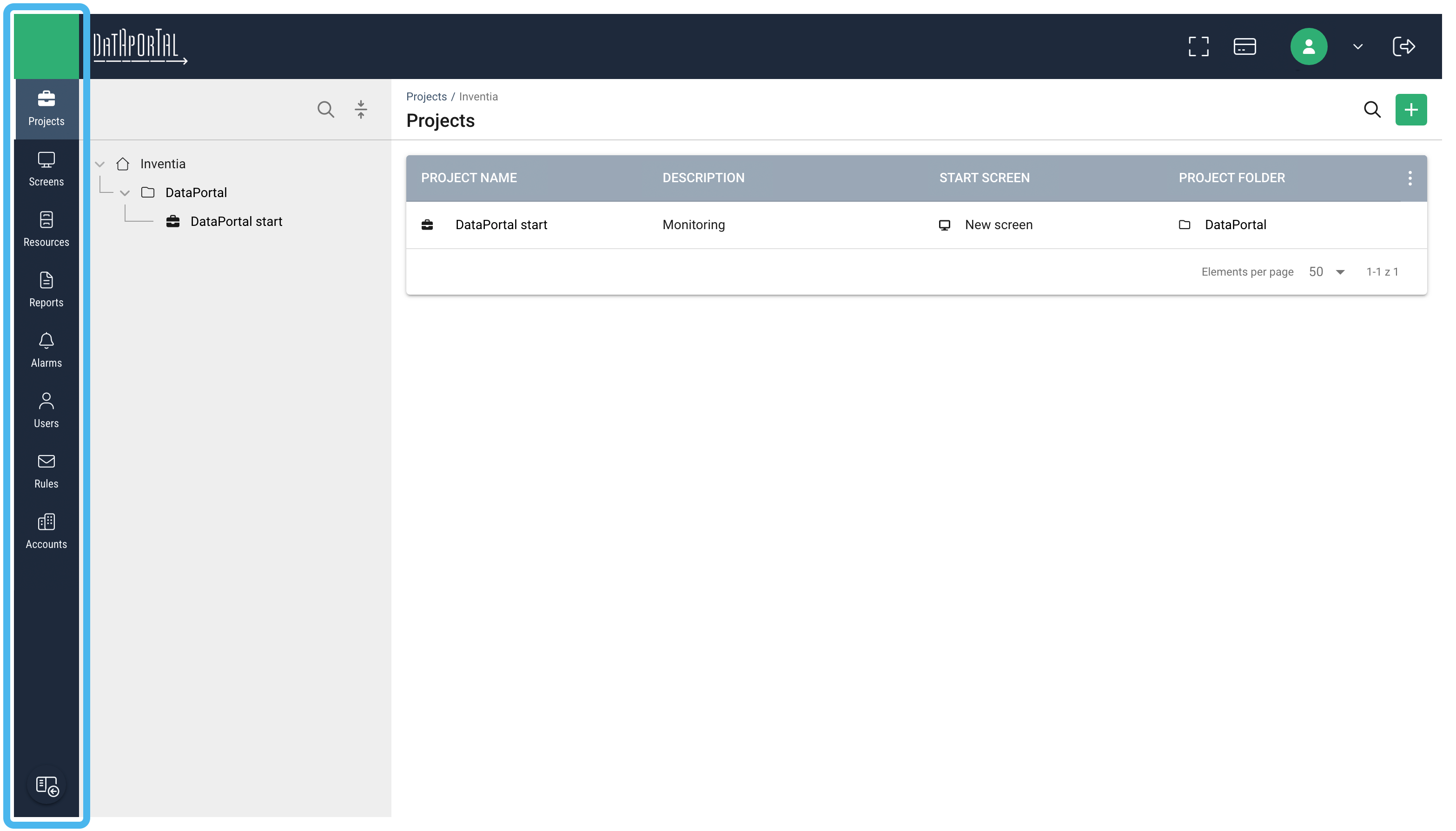
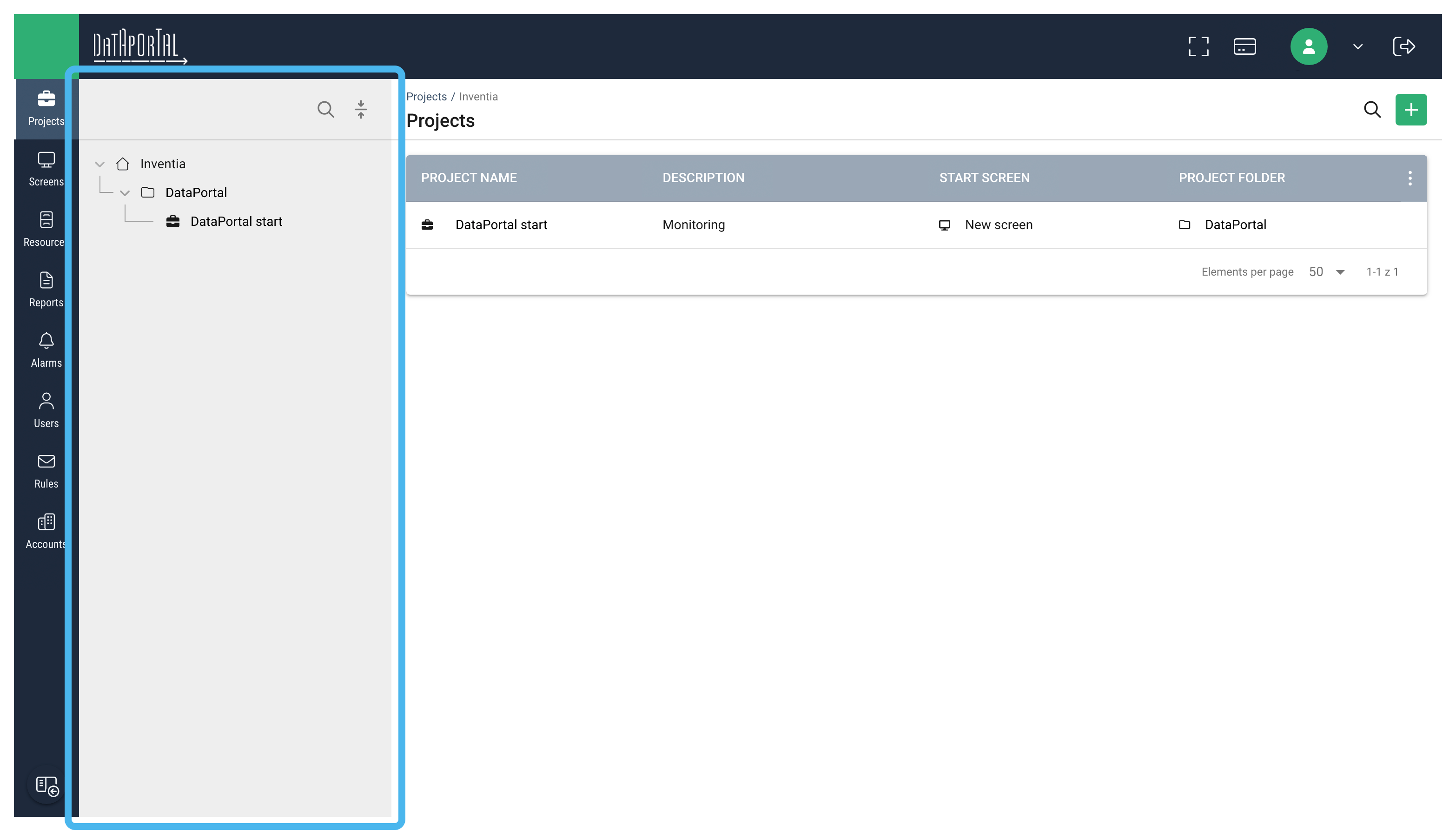
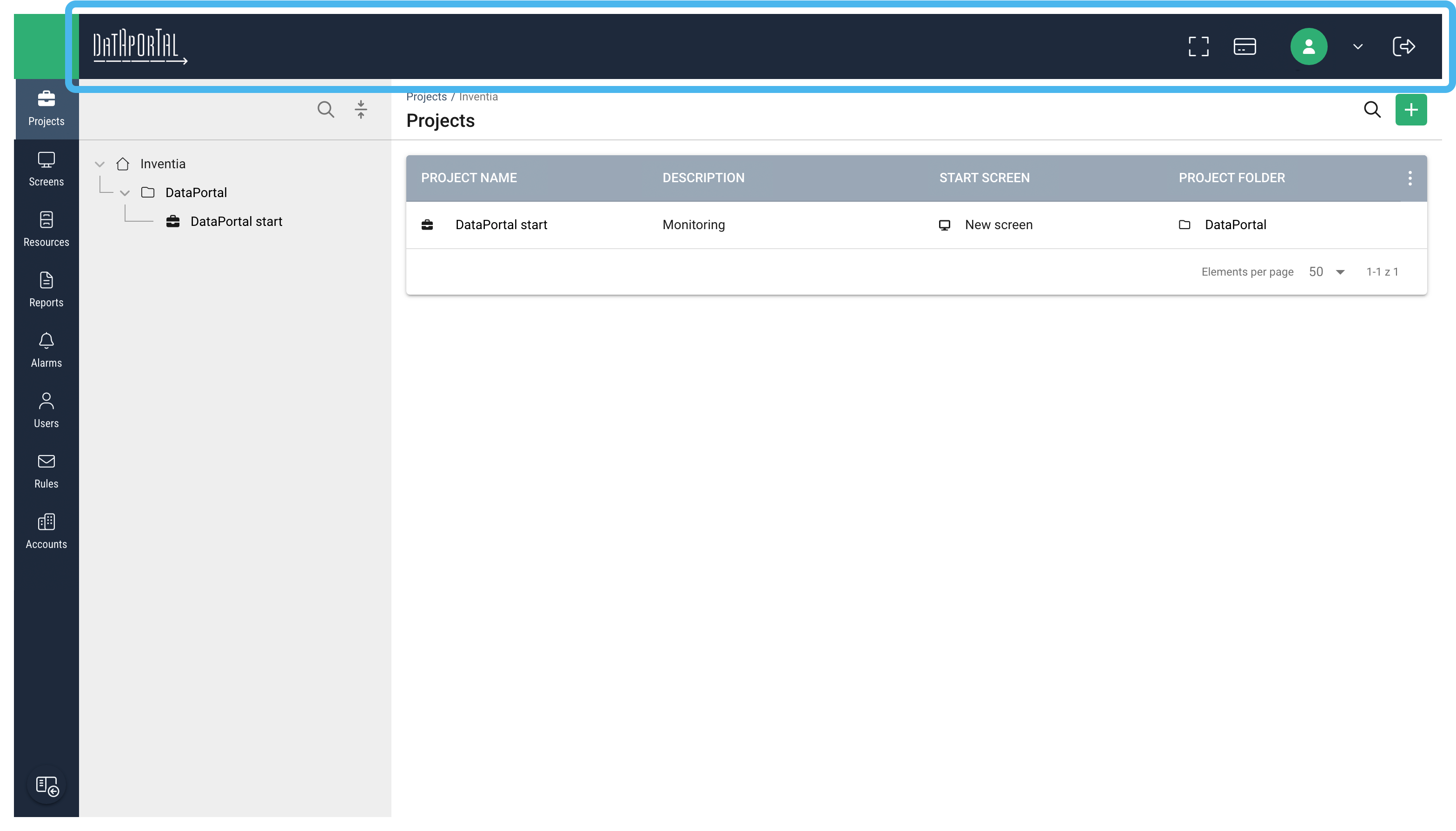
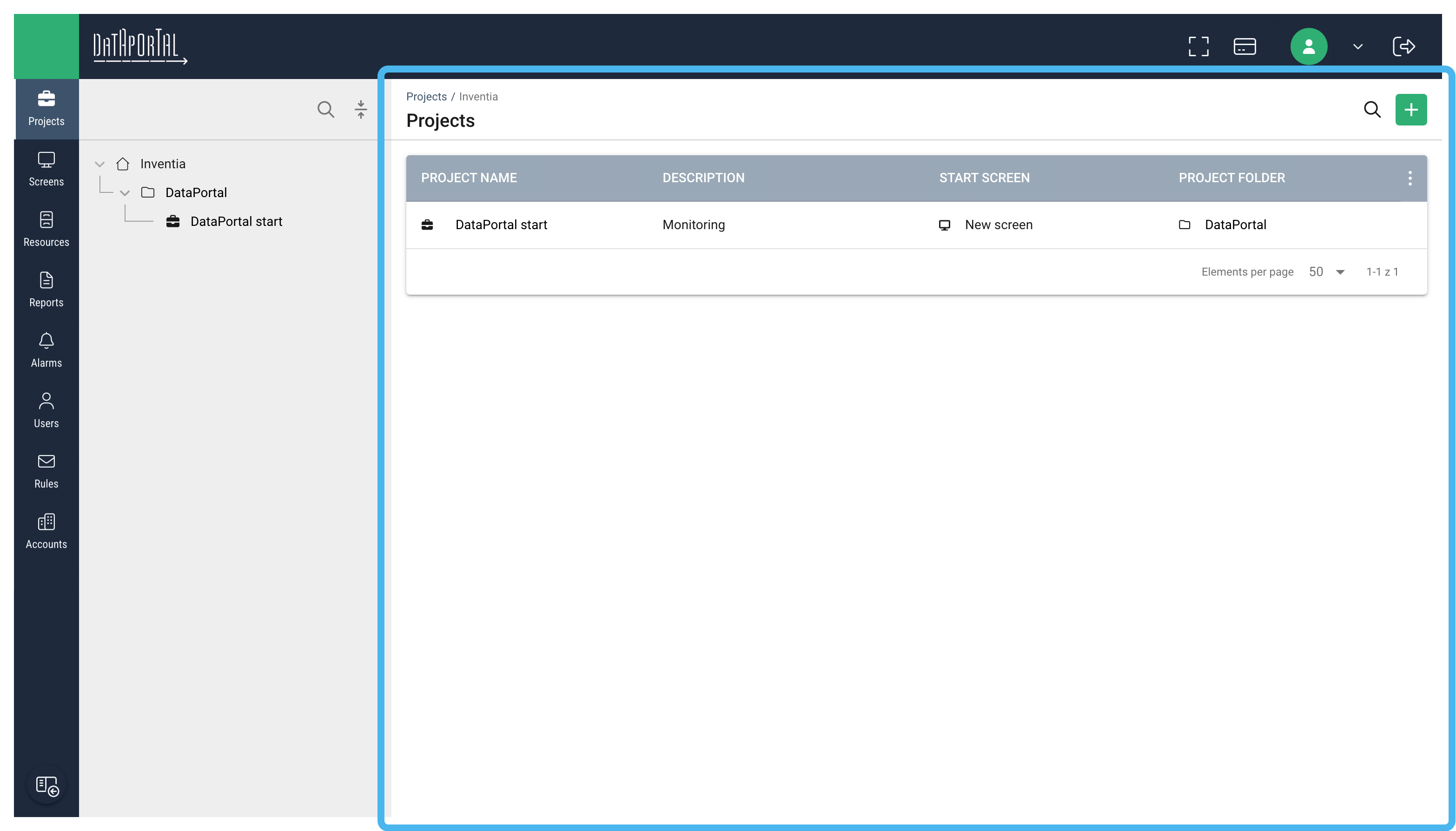
The main interface elements are described below:
Navigation panel (side menu)
On the left side there is a vertical navigation panel that lets you switch between the system's main modules:
- Projects – managing the organizational structure in which all resources are grouped,
- Screens – managing, creating, and editing synoptic screens,
- Resources – devices, sources, tags, and SIM cards,
- Reports – access to editing and generating reports from data sent by devices,
- Alarms – list of alarms generated by the system,
- Users – user management,
- Rules – managing SMS and e-mail notification templates sent when an alarm occurs,
- Accounts – managing sub-accounts for integrators.
Project/folder tree
Next to the navigation menu is a panel showing the structure of folders and the projects contained within them.
Tree functions:
- displays all folders together with their projects,
- lets you expand and collapse subfolders, as well as the entire structure at once (the button above the tree is used for this: /),
- enables quick filtering of resources associated with projects in a given directory or with a single project,
- enables searching by folder or project name (the button above the tree),
- the context menu allows you to add elements, rename them, move elements between folders, delete them, go to details, etc.
Tree structure depends on the module
The folder tree may look different depending on the module. For the Screens module, screen folders and screens will also be visible.
Hiding the tree panel
You can quickly hide and show the project tree panel. This is done using the icon visible at the bottom of the left navigation panel:
Highlighting the selected element
After selecting a tree element (e.g. a subfolder or project), all elements containing it are highlighted with bold text and color. This makes it clear which element is active, even after collapsing a branch, and at the same time signals that the table on the right is filtered.
Header bar
In addition to the system logo, the header bar contains a toolbar with:
- Full screen icon – switches the system view to full-screen mode,
- Account selection field (visible to integrators),
- User icon (access to profile and settings),
- Additional menu with display mode selection, language, and information about the application,
- Logout icon – ends the active user session.
Main area
The largest part of the screen is the working area, where data is displayed according to the selected tab: a table of projects, screens, resources, reports, or users.
Clicking a selected row in the table displays the details of the selected element. In the dialog box that appears, you can go on to edit that element.
Linking the project tree to the results table
The project tree acts as a filter for the data displayed in the main working area. This means that selecting any branch of the tree — a folder, subfolder, or a specific project — automatically limits the table's contents to elements within the selected structure.
- Selecting a folder will display all projects located in that folder (and its subfolders).
- Selecting a specific project will narrow the view on the right to only the resources associated with that project.
Changing the selection in the tree immediately updates the data in the table, making navigation easier in large structures. As a result, the project tree provides a quick and intuitive way to filter information, without the need for additional filters or manual searching.
Breadcrumbs
The breadcrumb navigation visible above the table shows the user's current location within the folder structure and allows you to quickly return to any higher level. Each element of the path is clickable, making it easy to switch between folders without using the tree on the left.
Tip
Clicking a selected branch or project in the tree filters the contents of the table displayed to its right. The fact that the data is filtered is indicated by the last breadcrumb segment, highlighted in red.
Search and filtering
Above some tables (e.g. in resources) there is a set of tools for quickly finding the information you need: a search field, filters, and a filter reset button. A detailed description of these functions can be found in the next chapter.
Add action menu 
Every module in the system (except alarms) has a plus button in the top right corner that opens an action menu. Depending on the module, this menu may contain additional commands such as:
- Add new element (e.g. project, screen, device),
- Import data,
- Export data.
Pagination
At the bottom of the screen, in the table footer, you can set the number of items displayed per page.