Alarm Summary
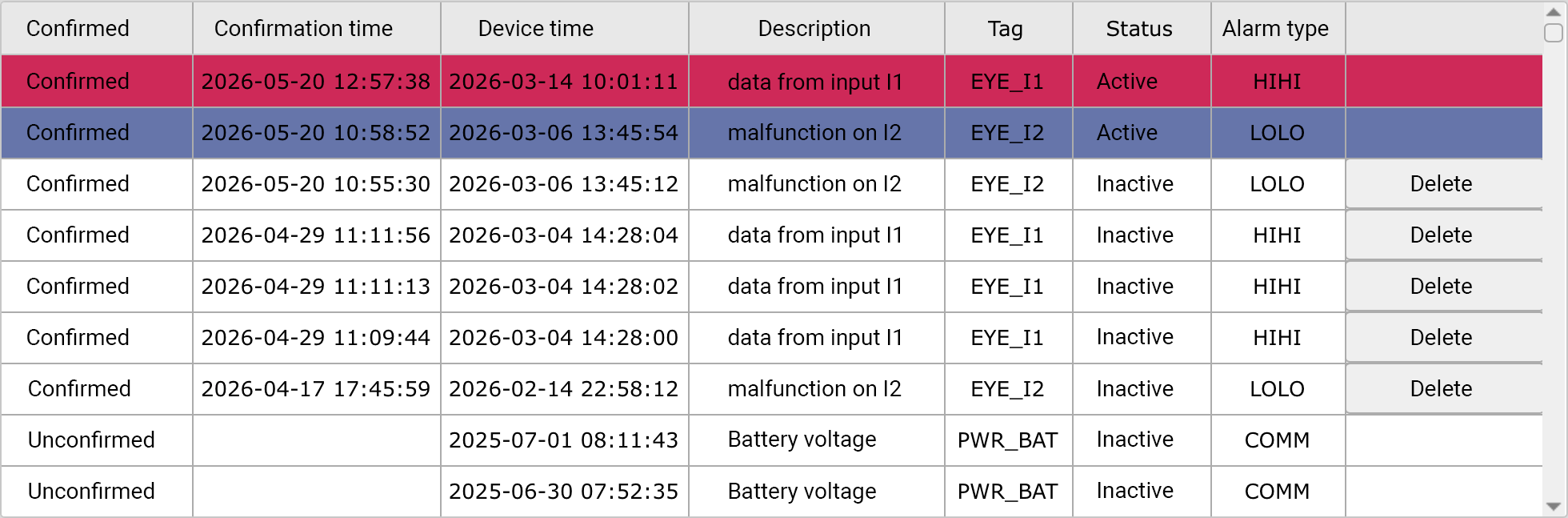
The Alarm summary is an advanced object used to present the list of alarms recorded in the project in tabular form. This tool provides a live view of alarm status, lets you analyze them, and perform alarm-handling operations in animation mode.
Inserting the alarm summary onto the screen
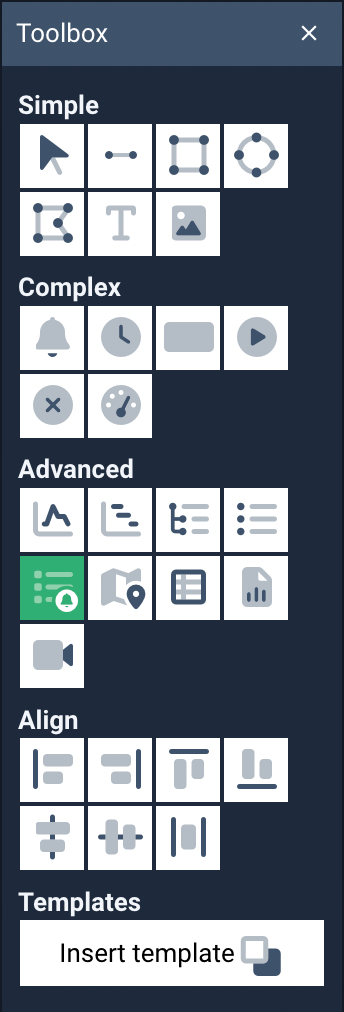
The alarm summary is added to the screen in the standard way:
- by selecting the Alarm summary tool from the Toolbox,
- clicking on the screen at the place where the table should be inserted or
- drawing the area where the summary should be placed.
The object's size can be changed in design mode. If there is a large number of alarms, the table's content is automatically scrolled.
Configuring the alarm summary
To go to the tool's configuration:
- double-click the Alarm summary object on the screen
or - select the object and click the Edit button in the Properties panel.
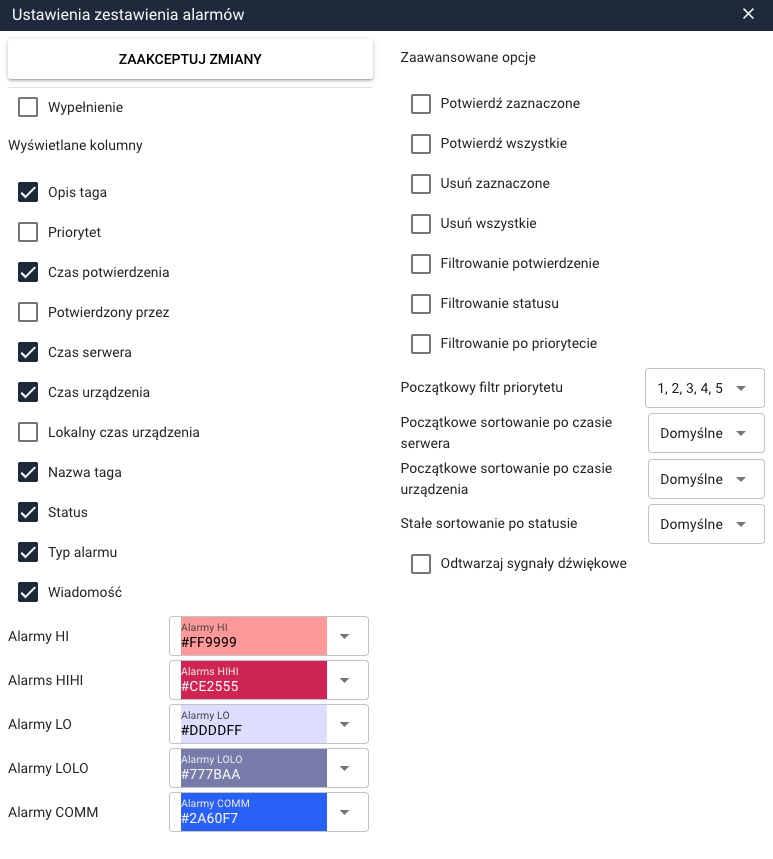
The Alarm summary settings window will open, offering all the configuration options related to appearance, filtering, and handling alarms.
Displayed columns
The alarm summary is presented as a table, whose range of information can be configured by the user. The available columns include, among others:
- tag name,
- tag description,
- alarm type,
- alarm status,
- priority,
- alarm message,
- server time,
- device time,
- local device time,
- acknowledgment time,
- the user who acknowledged the alarm.
The visibility of individual columns can be freely turned on or off in the object's settings.
Operations on alarms
The alarm summary lets you perform basic operations on alarms, such as:
- acknowledging selected alarms,
- acknowledging all alarms,
- deleting selected alarms,
- deleting all alarms.
The availability of individual operations can be configured. Checking the checkbox next to a given option causes the corresponding button to be displayed in the summary, letting that operation be performed.
Filtering and sorting
The object offers the ability to:
- filter alarms by status,
- filter alarms by acknowledgment,
- filter alarms by priority,
- specify the initial priority filter,
- set the initial sorting by server time,
- set the initial sorting by device time.
This lets you tailor how alarms are presented to the user's needs right from the moment the screen is launched.
Sound signaling
The alarm summary can optionally play sound signals notifying of new alarms appearing, which improves the effectiveness of the operator's response.
Alarm coloring
Individual colors can be defined for particular alarm types, including for:
- HI alarms,
- HIHI alarms,
- LO alarms,
- LOLO alarms,
- COMM alarms.
These colors are used in the table to quickly identify the type and significance of an alarm.
Fill
The Fill option causes the alarm table to be displayed across the entire screen, regardless of the object's size set during design.
This lets the Alarm summary be used as a full-screen view for monitoring the system's state.
The alarm summary is a basic operator tool, enabling effective monitoring, filtering, and handling of alarms in the system.