Simple Objects
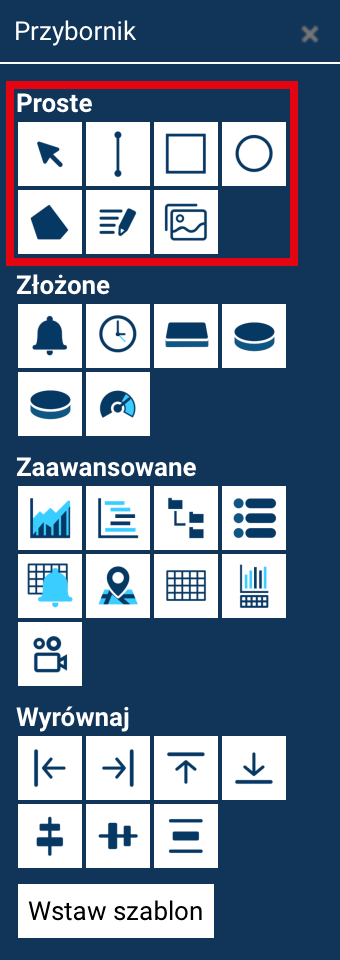
Simple objects are the basic graphical elements available in the Designer. They let you quickly create lines, shapes, and auxiliary constructions used both in technical drawings and in extensive visualizations. Each of them has its own set of properties and characteristic edit handles, which let you precisely adjust their appearance and position on the screen.
Properties of simple objects
Simple objects — such as lines, rectangles, or ellipses — have, in addition to position, size, and angle of rotation, a set of common visual properties that determine their appearance on the screen. These include: fill, stroke, and opacity. These parameters let you control the object's color scheme, style, and degree of transparency, letting you adapt its appearance to the visualization project.
Fill
The Fill property specifies how the interior of a simple object is filled.
This does not apply to lines — for a line, the parameter is displayed but ignored.
For the other objects, four fill modes are available:
- Solid color
- Gradient
- Pattern
- No fill
Each fill type is described in detail in the following sections.
Solid color
When Color is selected, the object is filled with a single, fixed color.
The color is presented in HEX format, e.g. #BBBBBB.
Clicking the color value field opens a color picker, which lets you:
- enter a color in HEX format,
- enter a color in RGB format,
- select a color from the palette (a rectangle of colors),
- use the slider on the right to adjust the color's saturation
(the higher the position on the slider, the more saturated the color).
To confirm the selection and close the picker, click the color value field again.
Gradient
Once Gradient is selected, the Edit gradient button is displayed, which opens the gradient configuration dialog box.
A gradient is defined by the following parameters:
-
Colors
- Primary color
- Secondary color
Both are selected in the same way as a solid color.
-
Gradient type
The following are available:
- Linear — a smooth transition from the primary color to the secondary color.
- Linear reversed — a transition from the primary color, through the secondary color, and back to the primary color.
- Radial — a color transition from the center of the object outward, in the form of a spreading circular gradient.
- Concentric — a gradient made up of successive, evenly spaced circles transitioning between colors (works for selected objects).
-
Mix
The Mix parameter specifies the share of both colors in the gradient. You can enter a numeric value or set it with the slider.
-
Angle
The Angle parameter defines the direction of the gradient transition (for linear gradients). It is also available as a numeric value and a slider.
Once the gradient parameters are set, click ACCEPT CHANGES to confirm the selection.
Pattern
Instead of a color or gradient, you can select Pattern.
The object is filled with a repeating motif drawn in the selected color.
The available patterns are: vertical lines, horizontal lines, diagonal lines to the right, diagonal lines to the left, grid, checkerboard, dot pattern, custom (for SVG objects created outside DataPortal, containing their own pattern definitions).
For the pattern, you also select a drawing color using the color picker.
No fill
The None option leaves the interior of the object transparent.
The object will only be visible through its outline (stroke).
Stroke
Regardless of the fill type, every simple object can have a stroke (shape outline). It is defined by:
Stroke color
The stroke color is selected from the color picker — in HEX or RGB, as described in the section on fill color.
Stroke thickness
This parameter specifies the width of the stroke in pixels.
Enter the value manually or use the arrows next to the edit field.
Stroke style
Available options include: solid line, dashed line, dotted line, and several additional decorative patterns.
The stroke style affects both the object's outline and the appearance of the line (for a Line-type object).
Opacity
The Opacity property determines the object's transparency.
- A value of
1.00means fully opaque. - Lower values increase the object's transparency.
Opacity can be set by entering a value or adjusting the slider.
The parameter affects both the object's fill and stroke.
Animations
All properties of simple objects can be animated, i.e. changed smoothly or in steps depending on the values of the tags associated with them. The animation mechanism lets you dynamically change the appearance and behavior of objects in response to current process data.
Animation configuration
A detailed description of the available animation types, how to configure them, and examples of their use are described in the chapter on animations — see: → Object Animation.