Object Explorer
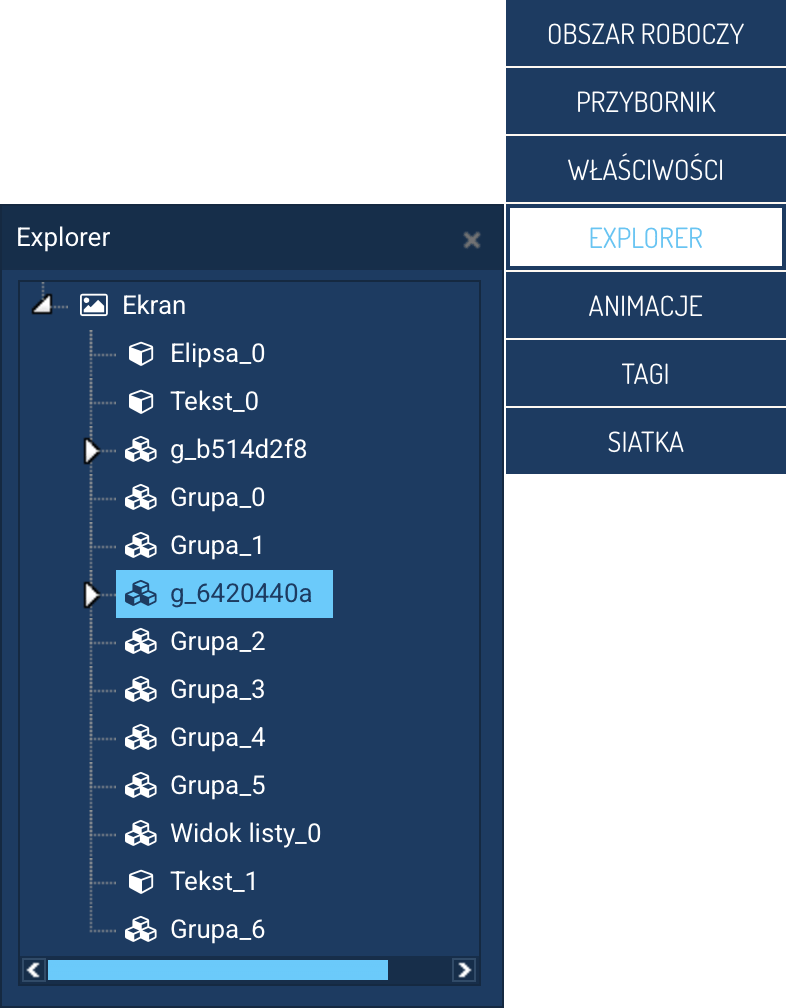
The Explorer panel serves a function similar to the layer panels known from graphics programs. It lets you browse all the objects found on the screen, manage their structure, and perform operations on layers and compound elements.
Unlike classic graphics editors, the order of objects here is reversed:
layers are added to the end of the list, so the element that is on top is visible at the end of the tree.
Object tree structure
Every object placed on the screen gets its own position in the Explorer tree. Objects are presented using icons that make it easier to identify their type:
- A single cube – a simple object (e.g. rectangle, line, text, image).
- An icon made up of several cubes – a compound object, made up of multiple elements.
- A path group – objects generated as a single graphical element but made up of multiple internal paths.
Multi-path objects can be expanded to see all their component parts (e.g. the SVG paths making up a complex drawing).
The tree in the Explorer lets you quickly:
- find an object,
- select it on the screen,
- rename it,
- delete or copy it,
- go to editing tools.
Object context menu
Right-clicking an object displays a context menu with the available operations:
- Delete – removes the object from the screen.
- Rename – lets you give the object a readable name.
- Copy / Paste – lets you copy objects within the screen.
- Copy all animations – copies the set of animations assigned to the object.
- Paste animation – lets you transfer the copied animations to another object.
The context menu provides quick access to the most commonly performed operations.
Changing the layer order
The display order of objects (layers) can be changed:
- by selecting the object in the Explorer tree or on the screen,
-
by choosing the Top or Bottom command in the top menu of the Designer.
-
Top – moves the object one layer towards the top (i.e. downward in the tree).
- Bottom – moves the object underneath other elements (i.e. upward in the list).
This lets you precisely control the visibility of objects and how they overlap.
Grouping and ungrouping objects
To make it easier to work with a larger number of elements on the screen, the Designer lets you create object groups. Grouping lets you treat multiple objects as a single element – they can be moved, scaled, or have their properties managed together.
Selecting multiple objects
To group elements, you first need to select them. This can be done in two ways:
- Outlining objects with the selection tool – dragging the mouse with selection mode enabled will select all elements located within the selected area.
- Selecting objects individually – click successive elements while holding down the Shift key to add them to the current selection.
Creating groups
Once you have selected the desired elements, choose the Group command from the top menu of the Designer.
You can group:
- individual paths,
- multiple simple objects,
- compound elements,
- other existing groups.
The system automatically assigns a name to the new group, but it is recommended to change it to something more descriptive, to make it easier to navigate the object structure.
Ungrouping objects
To ungroup an existing group, follow these steps:
- Select the group in the Explorer panel.
- Choose the Ungroup command from the top menu of the Designer.
This command splits the group into its component elements.
Ungrouping works both on groups made up of objects and on path groups created automatically when importing complex graphics.
Grouping and ungrouping allow for better organization of screen elements, especially in more complex projects.
Summary
The Explorer panel is a key tool for working in screen design mode. It lets you:
- manage the structure of objects,
- organize layers,
- work with compound objects,
- perform quick editing operations,
- control the display order of elements.
By presenting objects in the form of a hierarchical tree, the user gets a full overview of the structure of the screen being designed.