Placeholders
Placeholders allow you to create universal SCADA screens that can be dynamically linked to different tags while the system is running. This eliminates the need to create many identical screens for similar devices or technological objects.
A placeholder acts as a stand-in for the actual tag. It does not itself store a value, does not collect data, and is not directly linked to a device. However, it can be used in animations, indicators, and other screen elements in the same way as a standard tag.
While a screen is running, a placeholder can be dynamically swapped for an actual tag using an appropriate action or script. This allows data sources to be switched automatically without having to reload the screen.
This mechanism is based on placeholder and tag groups, in which the links between placeholders and actual tags are defined. This means a single screen can serve many similar devices or installations, with the values shown on the screen automatically switched according to the selected group.
Adding a placeholder
-
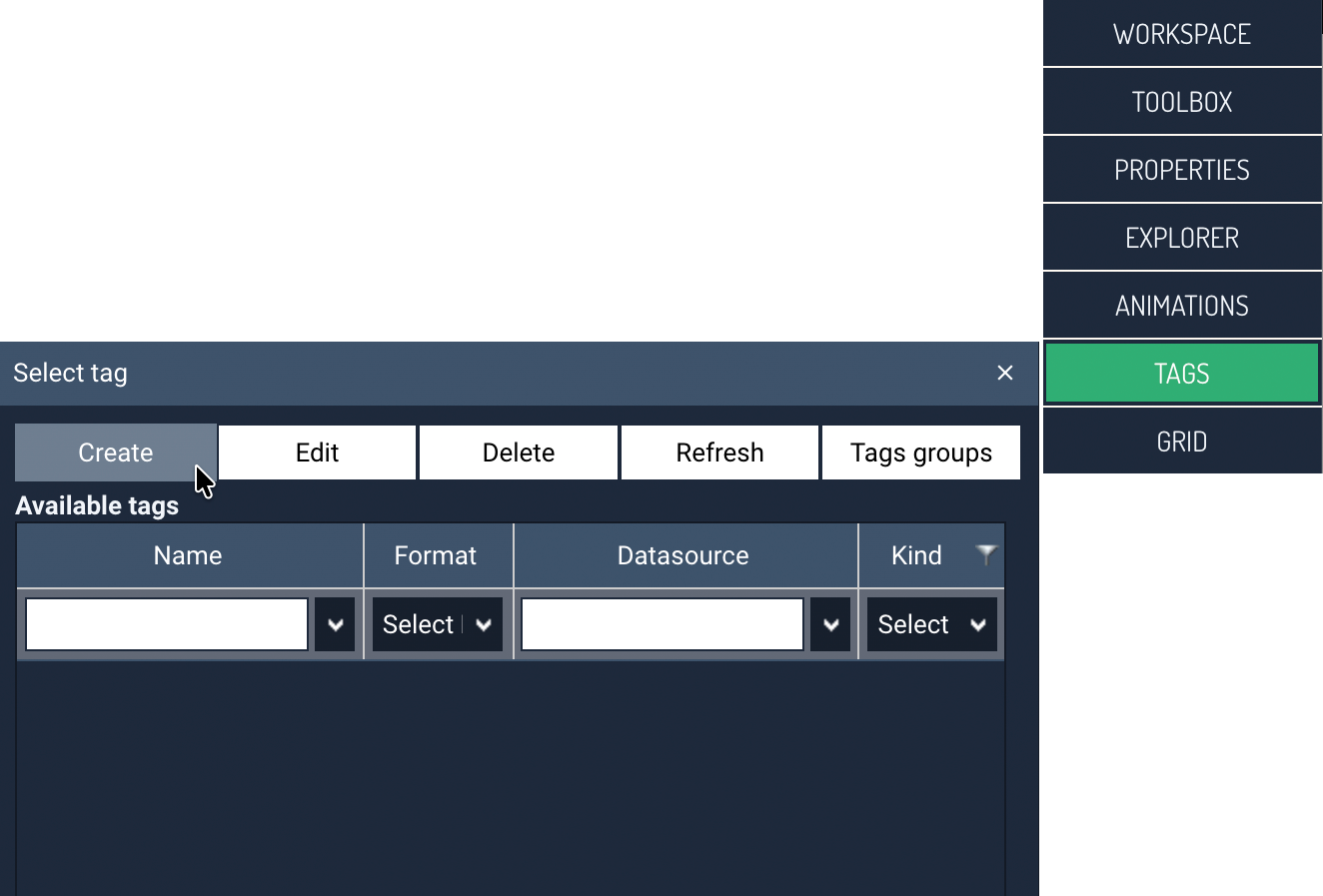
Choose the TAGS command in the tool panel to go to creating a new variable.
-
In the tags panel, click the Create command.
-
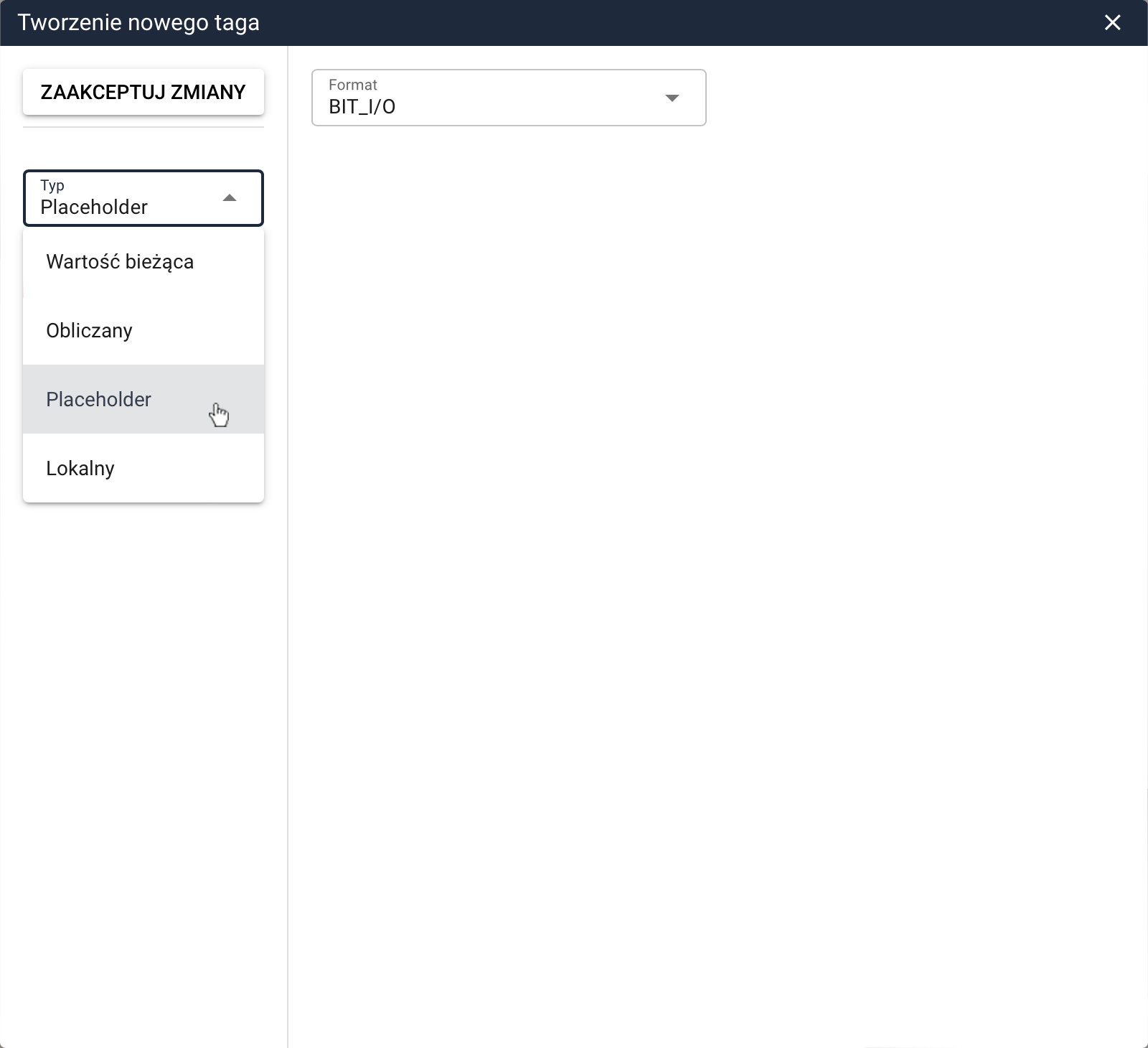
In the next step, select Placeholder as the tag type and enter the name of the new placeholder.
-
Then select the placeholder's format. The placeholder's format should match the format of the target tag that will be substituted for it — this is used to verify that the placeholder is compatible with the tag assigned to it.
Creating a placeholder group
Once a placeholder has been created, you need to define a tag group, which specifies the link between placeholders and actual tags. It is the tag group that determines which tag is to be substituted in place of a specific placeholder while the screen is running.
If a screen uses multiple placeholders, the tag group should contain the corresponding number of links — one for each placeholder used on the screen.
To add a placeholder group:
-
Choose the TAGS command in the tool panel to go to creating a new variable.
-
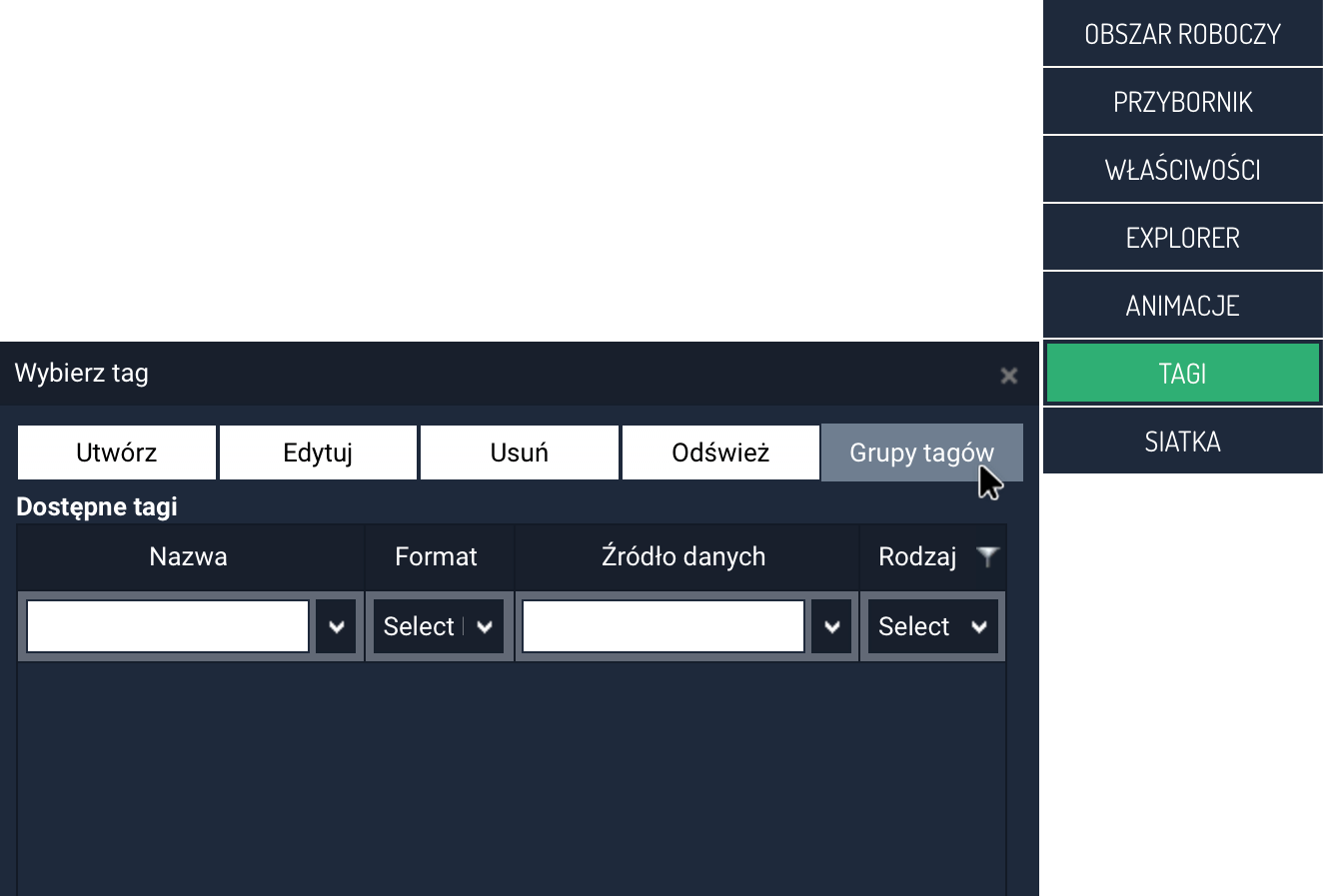
In the tags panel, click the Tag groups command.
-
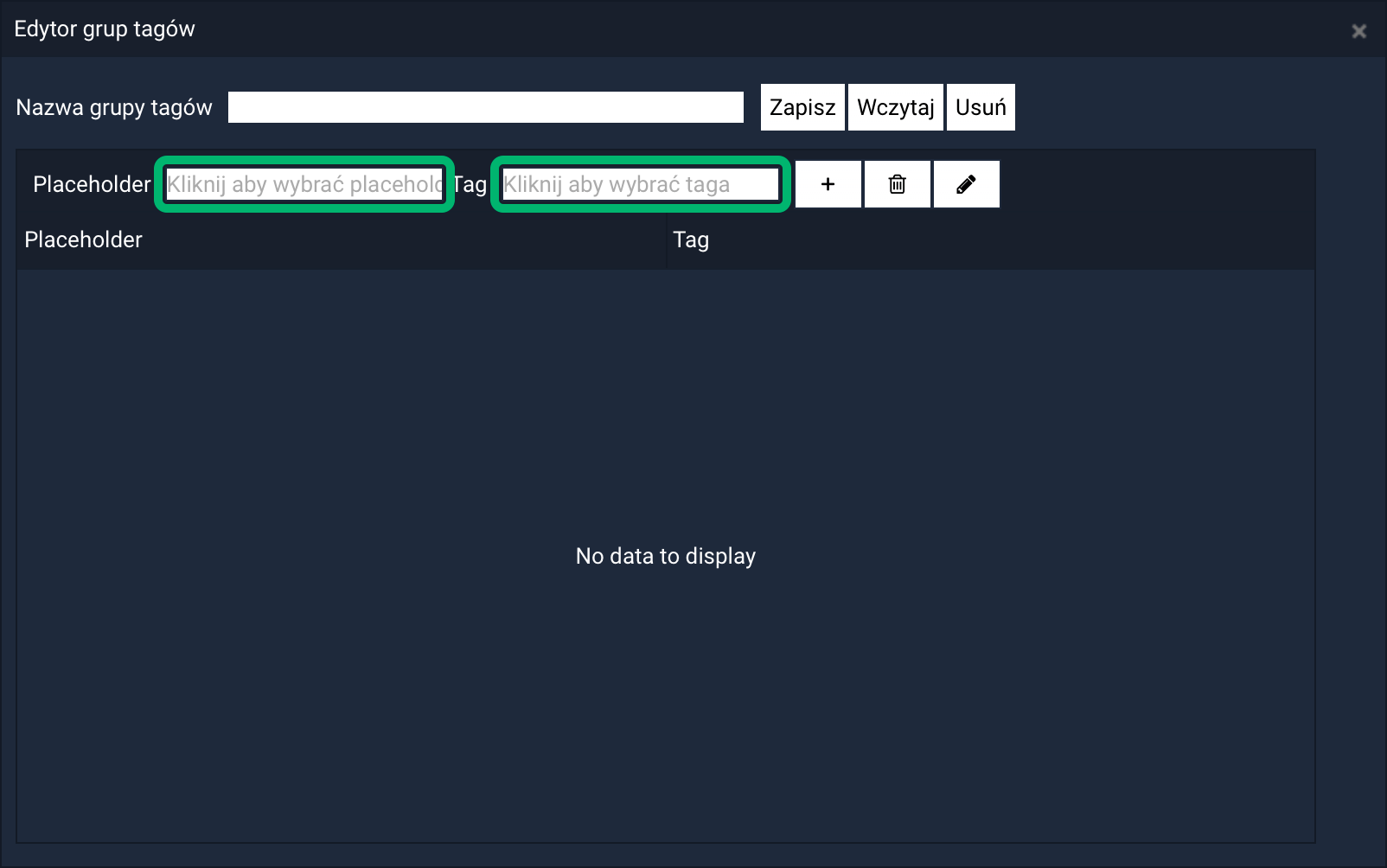
In the Tag group editor window, select the Placeholder - to do this, click the Click to select placeholder field. Clicking it opens the tag selection window, where you indicate the appropriate placeholder (you can use tag type filtering to make this easier) and confirm your selection with the Select tag button.
-
Then select the actual tag linked to the placeholder. To do this, click the Click to select tag field. Clicking it opens the tag selection window, where you indicate the appropriate tag and confirm your selection with the Select tag button.
-
After entering the appropriate placeholder and the appropriate tag, click the button to add the linked pair to the group.
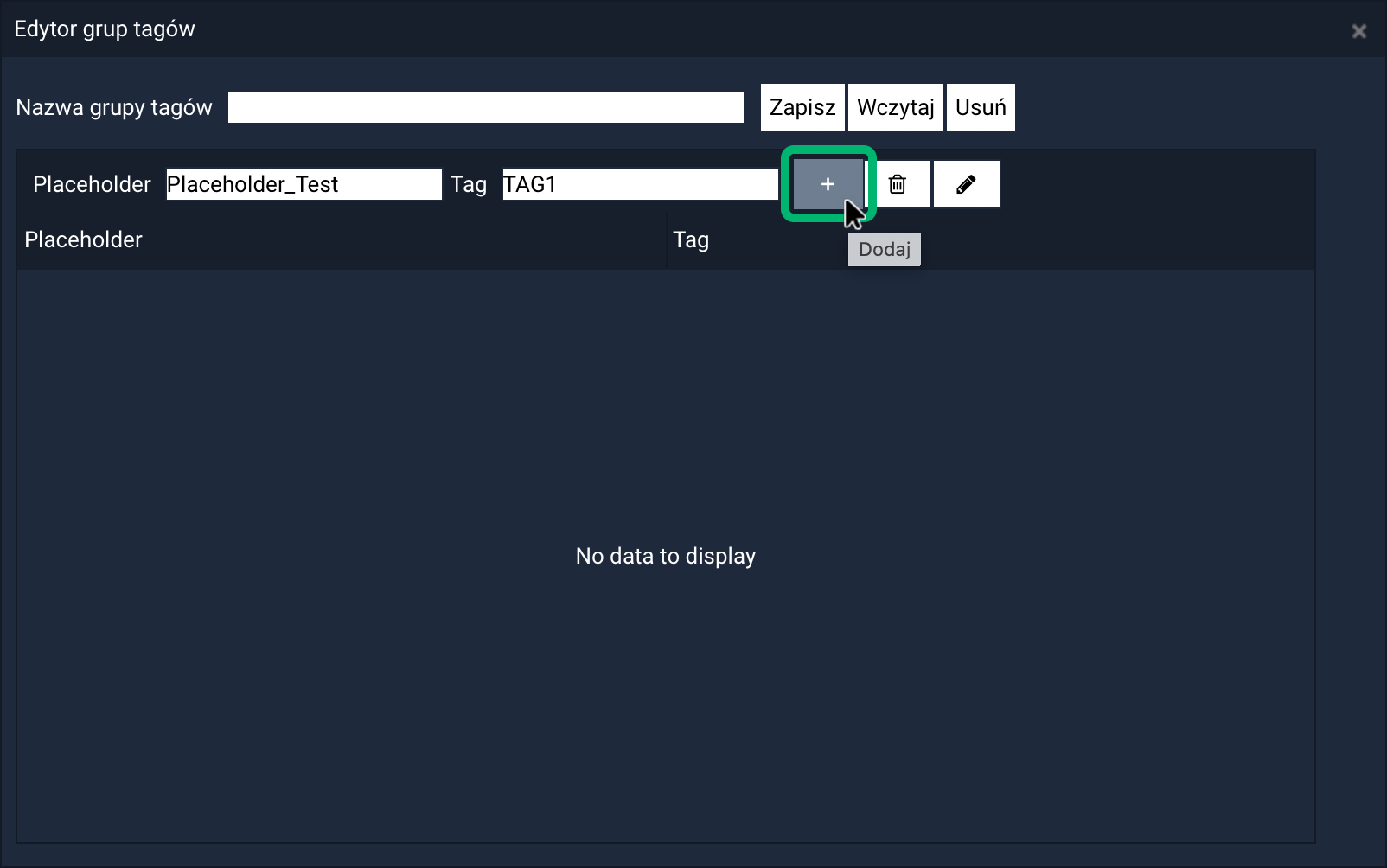 If needed, you can add further placeholder links.
 -
Finally, enter a name for the group and click the Save button.
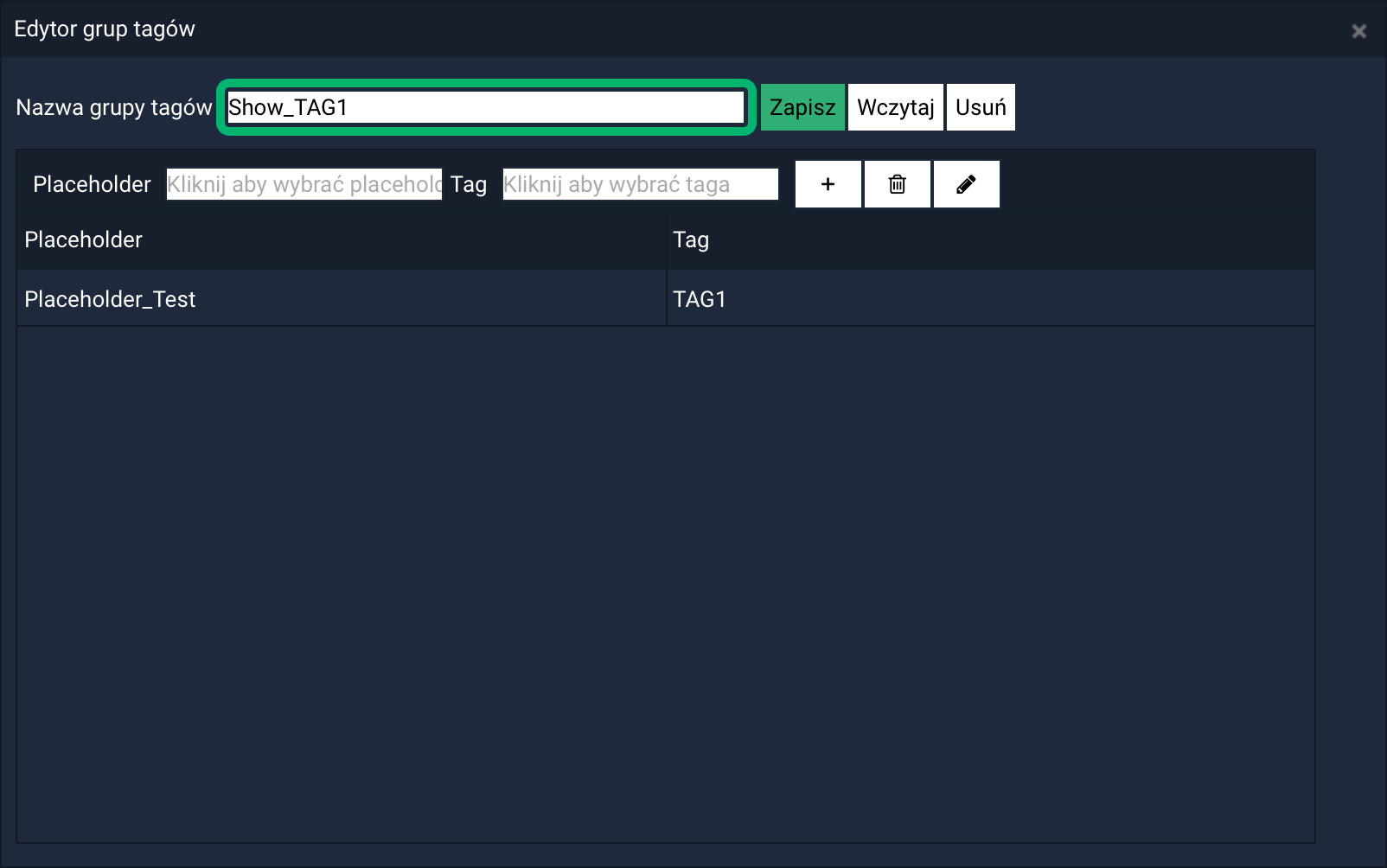
This creates a group of placeholder-to-tag links, which is used to substitute the actual tags on screens (when they are opened or when an action is triggered by the user).
Example of using placeholders
In the example below, we'll show a simple mechanism for dynamically switching the value of one placeholder between two different tags using two buttons.
-
Create a new placeholder (following the instructions described above). In our example, this will be a placeholder named
Placeholder_Testwith the formatINT2. -
Add an object to the screen that will use the placeholder — this could be, for example, a text field with value animation, an indicator, or an object derived from a template.
As the tag responsible for the animation, specify the created placeholderPlaceholder_Test. -
Create two tag groups that will handle substituting different tags for the placeholder.
The example uses the groups:Show_TAG1Show_TAG2
-
Add two buttons to the screen, e.g.
Button 1andButton 2. -
For the first button, configure the LOAD TAG GROUP action:
- double-click the button to open the Action editor,
- select the LOAD TAG GROUP action,
- specify
Show_TAG1as the placeholder group.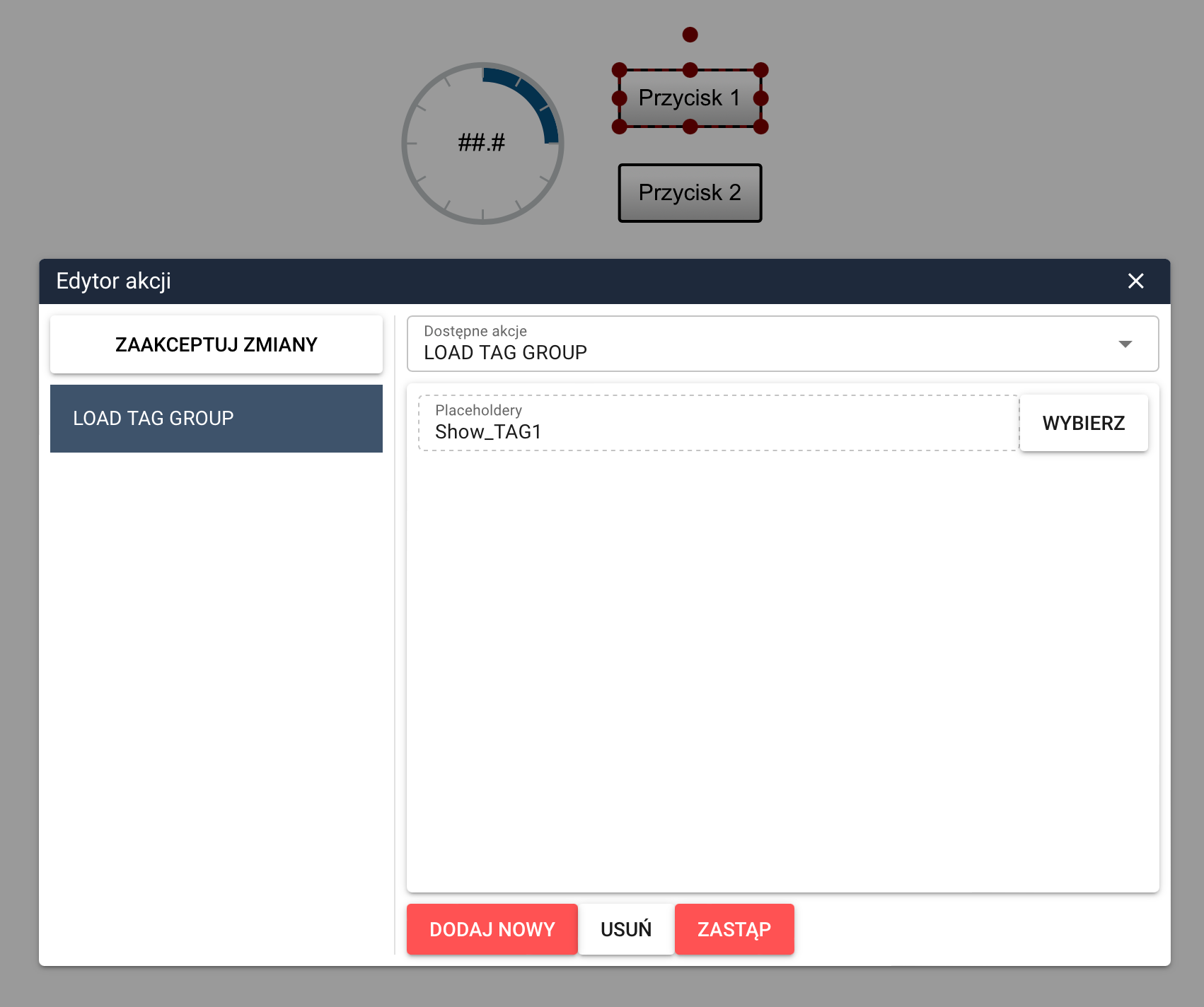
-
Configure the second button in the same way, specifying the
Show_TAG2group.
After clicking the Button 1 button, the value of tag TAG1 will be displayed on the indicator.
Clicking the Button 2 button will swap the placeholder and display the value of tag TAG2.
Managing groups from the Resources module
Placeholders and tag groups can also be created and edited from the resource management module. For more information, see the chapter Management->Resources->Tags