Buttons
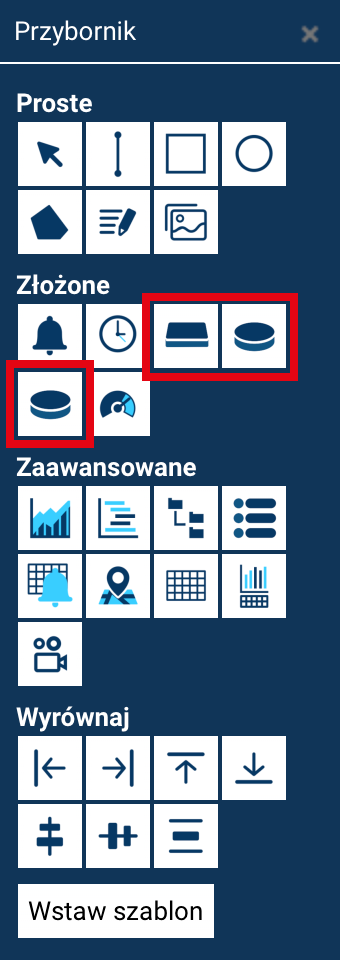
The Designer module offers three types of buttons, shown in the Toolbox as compound elements:
- Button – a standard rectangular button with a label.
- Round button – a circular button with a directional arrow.
- X button – a round button with an X icon.
All buttons are used to trigger defined actions.
Inserting a button onto the screen
To add a button:
- Open the Toolbox.
- Select Button, Round button, or X button.
- Click on the screen at the place where you want to put the button.
Once inserted, the button can be moved, scaled, and rotated.


Button properties
Once a button is selected, the properties panel shows, among others:
- Name
- Color
- Text (for the rectangular button)
- Text size, Font, Style, Font color (for the rectangular button)
- Arrow direction (for the round button)
- Position X / Y
- Width, Height, Angle
The Edit script button opens the action editor.
Editing actions assigned to a button
Actions assigned to a button can be edited in two ways:
- by double-clicking the button on the screen,
- by selecting the Edit script option in the properties panel.
This opens the Action Editor, which consists of two parts:
- Left column – the list of currently assigned actions.
- Right part – the list of "Available actions".
Available functions:
- ADD NEW – adds the selected action to the button.
- DELETE – removes the selected action.
- REPLACE – swaps the selected action for another one chosen from the list.
A button can perform any number of actions, which are triggered in the order shown in the left column.
Once configuration is complete, click ACCEPT CHANGES.
Actions triggered by a button
A button can perform one or several actions. The following are available:
- OPEN SCREEN – opening another screen.
- SEND VALUE / INSERT VALUE / TOGGLE VALUE – operations on tags.
- SET LOCAL VALUE - operations on local tags.
- LOAD TAG GROUP - loading a group of tags linked to placeholders.
- OPEN CONFIGURATION WINDOW – opening the configuration window (currently unused).
- ACK ALARM acknowledging an alarm.
- UPDATE DATA NOW - refreshing data.
- CALL SCRIPT - calling a script.
- GO BACK – returning to the previous screen.
- CLOSE POPUP – closing a popup window.
- COPY TAG VALUE – copying a tag's value.
- OPEN REPORT – opening a report.
A detailed description of the configuration and behavior of individual actions can be found in the chapter →Built-in Actions.