Notification Rules
The Notification Rules module lets you configure automatic alerts sent to selected recipients when monitored tags exceed alarm thresholds. Notifications can be delivered via e-mail and SMS channels.
List of rules
After going to the Rules section (the icon in the left side menu), a table is displayed containing all defined notification rules.
For each rule, the following columns are shown: Rule name, LoLo, Lo, Hi, HiHi, SMS, and E-mail, corresponding respectively to the lower alarm threshold, lower warning threshold, upper warning threshold, upper alarm threshold, and the notification channels.
The icon indicates an active threshold or notification channel, while the icon indicates an inactive threshold or channel.
Creating a new rule
To add a new rule, click the button in the top right corner of the rule list. This opens the edit form described in the Editing a rule section.
Rule details
Clicking a rule's name opens the Notification rule details window, which contains three tabs: INFO, RECIPIENTS, and TAGS.
INFO tab
The tab contains two sections:
Basic information – presents the configured notification content for each threshold: LoLo, Lo, Hi, and HiHi.
Additional configuration – contains supplementary settings:
- E-mail message title – the subject of the e-mail message sent to recipients.
- Escalate after [s] – the time in seconds after which the notification will be forwarded to the escalation recipients.
- Screen for link – the system screen included as a link in the message content.
- E-mail notification / SMS notification – specify which delivery channels are active for this rule.
RECIPIENTS tab
The tab presents two lists of notification recipients:
- Primary recipients – users to whom the notification is sent immediately after the alarm is triggered.
- Escalation recipients – users to whom the notification is forwarded once the escalation time has elapsed, if the alarm has not been acknowledged earlier.
For each recipient, their username, first and last name, and permissions are displayed.
TAGS tab
The TAGS tab contains a list of tags covered by the given rule. If any of the assigned tags exceeds a threshold, a notification will be triggered according to the rule's configuration.
Editing a rule
To modify an existing rule, open its details and click the EDIT button. This opens the edit form.
On the INFO tab, fill in the rule name and configure notifications for the selected thresholds: LoLo, Lo, Hi, and HiHi. Checking the checkbox next to a given threshold activates it and reveals the Notification content field with a text editor.
Notification content editor
The message content for each threshold can be edited using the built-in HTML editor, which allows full text formatting.
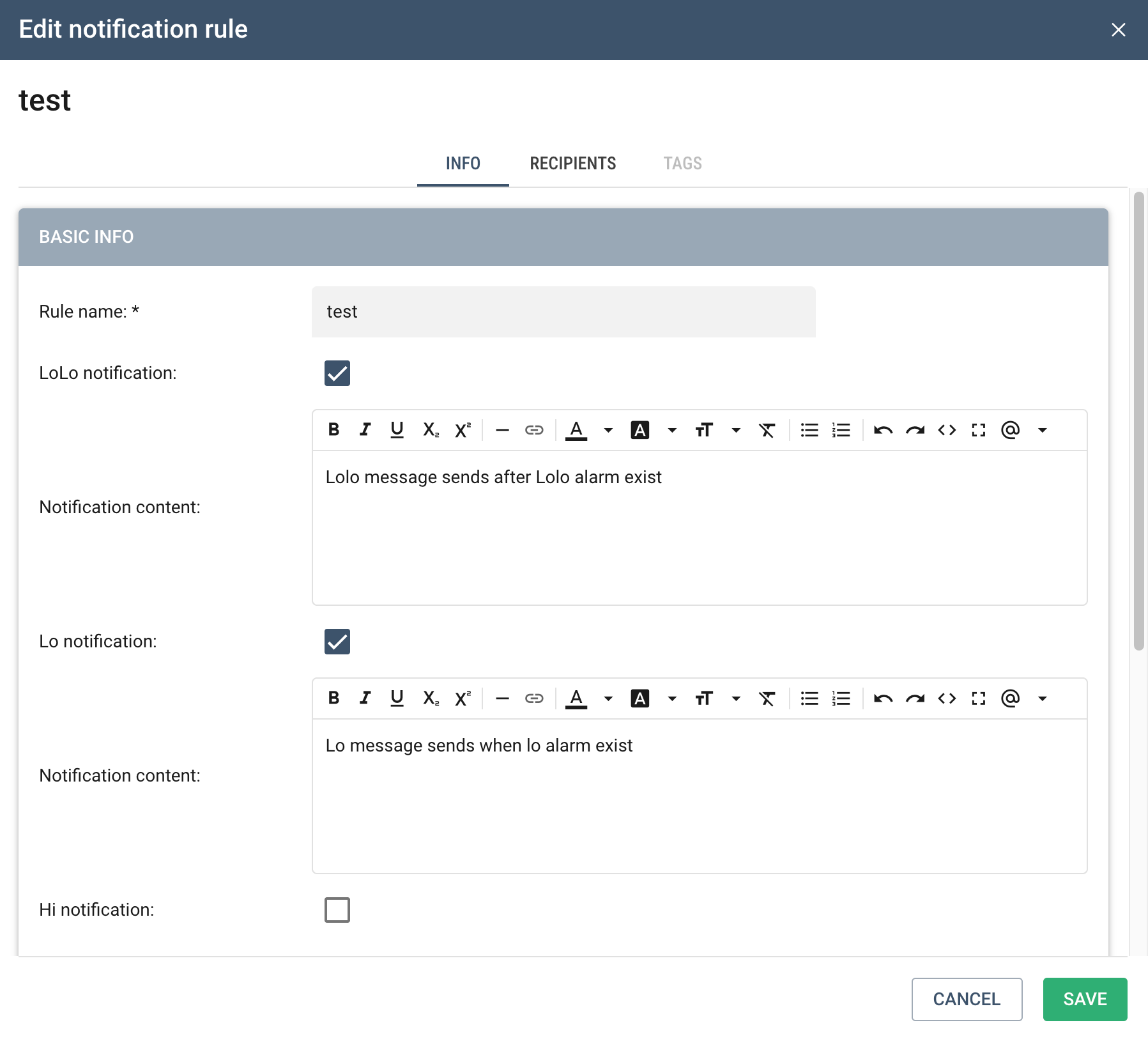
The editor's toolbar offers the following options:
| Button | Function |
|---|---|
| B / I / U | Bold, italic, underline |
| X₂ / X² | Subscript / superscript |
| — | Horizontal divider line |
| Insert a hyperlink | |
| A (font/background color) | Change text or background color |
| TT | Select font style and size |
| Strikethrough | |
| / | Bulleted / numbered list |
| / | Undo / Redo |
<> |
HTML code view |
| Full-screen mode | |
| @ | Insert dynamic variables |
Dynamic variables
Dynamic variables are placeholders replaced with current values at the moment the notification is sent. They can be inserted directly into the message content, or selected from the menu under the @ button in the editor toolbar. In the editor, variables are displayed in distinct colors – orange for alarm-related variables and purple for data source variables.
| Variable | Description |
|---|---|
@dt(user_timedateEU) |
Date and time in the user's time zone (European format) |
@dt(server, dateEU time) |
Server date and time in European format |
@dt(device, dateEU time) |
Device date and time in European format |
@tag_d |
Name and description of the tag that triggered the alarm |
@tag_value |
The tag's measured value at the moment the alarm was triggered |
@tag_units |
The tag's unit of measure |
@datasource_d |
Name of the data source (sensor) |
@datasource_desc |
Description of the data source (sensor) |
@url |
Link to the associated system screen |
Example notification content
Below is a sample message structure for the LoLo threshold (lower alarm level):
- Date and time: @dt(user_timedateEU)
- Alert type: @tag_d - lower alarm level exceeded
- Measured value: @tag_value @tag_units
- Sensor: @datasource_d
- Sensor description: @datasource_desc
The content for the remaining thresholds (Lo, Hi, HiHi) follows an analogous structure – they only differ in the alert type description.
HTML code view
Clicking the <> button switches the editor to raw HTML code mode, allowing advanced formatting not available through the graphical interface, e.g. precise style control or pasting a ready-made template.
After making changes, click SAVE to keep the configuration, or CANCEL to discard the changes.
Deleting a rule
To delete a rule, open its details and click the DELETE button.
Note
Deleting a rule is irreversible. Make sure the rule is not actively used by any tags before deleting it.