Video
The Video tool is used to display a live video image (live streaming) from a camera or other streaming source directly on the SCADA screen.
The object lets you embed a video preview anywhere on the screen and freely scale and position it.
Inserting a Video object onto the screen
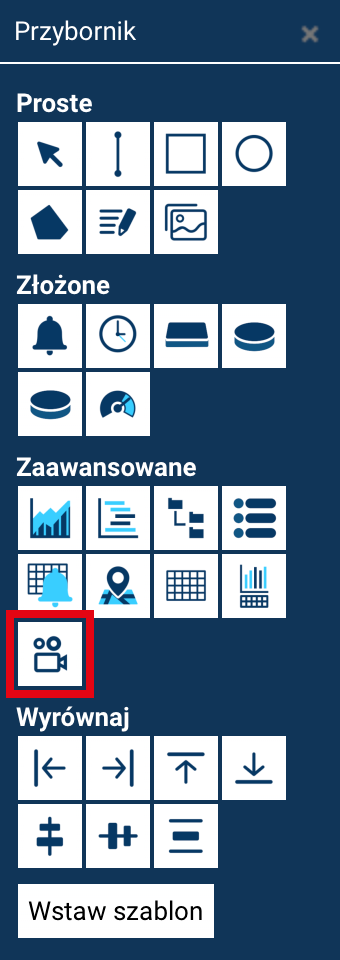
To insert a Video object onto the screen, select the Video tool from the Toolbox, then specify its position and size on the screen by drawing a rectangle in the working area.
If you click on the screen without drawing a rectangle, the object will be added with a default size and you will need to manually set its width and height in the properties panel.
Video object properties
-
Name
The video object's unique name on the screen. Makes it easier to identify the element in the project tree and during configuration. -
Source
A field for entering the address of the video stream source (e.g. the URL of an IP camera or a streaming server).
For the object to work correctly, a valid streaming source must be specified. -
Video transmission type
Specifies the video stream's format. Available options:- MJPEG – a stream of JPEG frames, often used in IP cameras
- MP4 – a video stream in MP4 format
- OTHER – a custom transmission format, depending on the source
-
Position X
The object's position along the horizontal axis, relative to the top left corner of the screen. -
Position Y
The object's position along the vertical axis, relative to the top left corner of the screen. -
Width
The width of the video display area. -
Height
The height of the video display area. -
Angle
The video object's rotation angle, expressed in degrees.
Once you have entered or changed the settings, click the Accept changes button to save the object's configuration.