Standard Chart
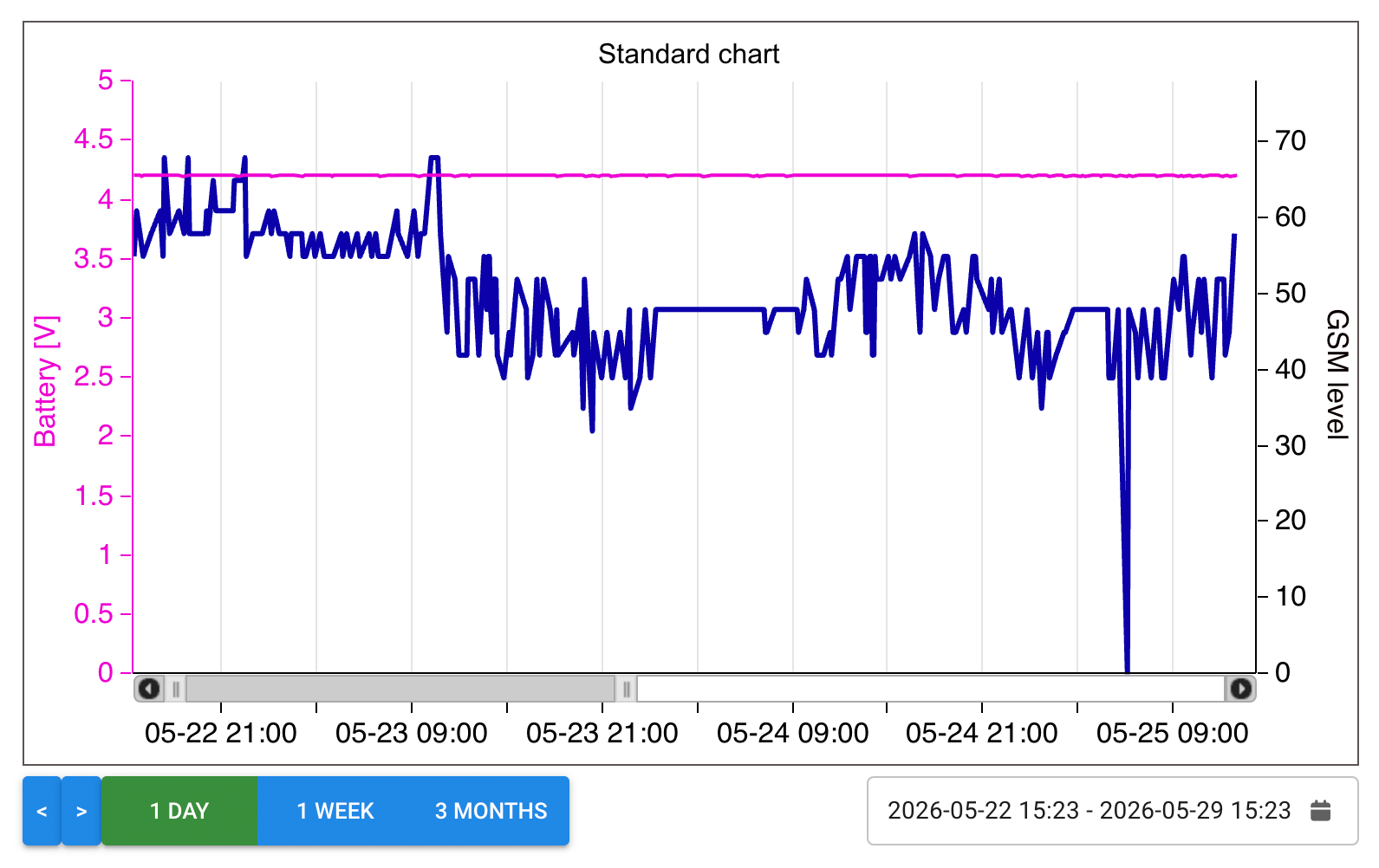
The Standard chart is an advanced object used to present current and historical data in the form of a chart (most often a line chart). It lets you display multiple tags at once and analyze them over time.
Adding a chart to the screen
To add a chart to the screen being designed:
- Select the Standard chart tool from the tool panel (Toolbox).
- Then:
- click once on the screen – the chart will be inserted with a default size, which can be changed later
or - click and drag, marking out a rectangle – the chart will be created immediately at the specified size.
- click once on the screen – the chart will be inserted with a default size, which can be changed later
In both cases, the chart's position and size can be freely modified later.
The standard properties of a chart-type object include position and size. For a chart, the rotation angle is ignored.
Editing the chart
To go to the chart's detailed settings:
- click the Edit button in the properties panel
or - double-click directly on the chart.
A separate Edit chart window will open. It is divided into two main parts:
The top part – configuration tabs contains the tabs:
- GENERAL – basic chart settings,
- AXES – configuring the chart's axes,
- STYLE – the chart's appearance,
- LINKS – links between the chart and other system elements.
Each tab is described in detail further in the documentation.
The bottom part of the window – tags and their presentation - contains:
- a panel for adding and managing tags,
- a list of assigned tags,
- a properties panel for the selected tag, specifying how it is presented on the chart (lines, markers, colors, scaling, etc.).
The buttons in the bottom left corner are used to add tags to the chart.
Added tags appear on the list, and their order can be changed.
Once a tag is selected from the list, its detailed properties are displayed on the right, letting you control how the data is visualized.
Tag configuration
The tag configuration section lets you specify how a specific tag's data is presented on the chart, its appearance, the data processing logic, and the format of the displayed values.
General
The General section contains the tag's basic settings:
-
Custom name
Lets you give the tag its own name, different from the name defined for it in the system. -
Chart type
Specifies how the tag's data is visualized: Line, Bar, Area, Stepped line, or Stepped area. -
Line color
Defines the color of the line on the chart representing the tag's data. -
Line thickness
Specifies the thickness of the line drawn on the chart for this tag. -
Drawing style
Defines how the data is drawn: Line, Markers, or Line + markers. -
Opacity
Specifies the degree of transparency of the tag's drawn elements.
Lines and Markers
The Lines and Markers section lets you specify what data is drawn on the chart and how it is presented:
-
Line style
Defines the line's appearance (e.g. solid, dashed, dotted). -
Marker style
Specifies the shape of the data point markers (e.g. circle, square, diamond, triangle). -
Axis
Indicates which Y axis the tag is linked to (several may be defined). -
Data type
Specifies how the data is processed: Sample (measurement data without processing), Average, Maximum value, Minimum value, Sample closest to average, or Minimum and maximum.
HI Marker and LO Marker
The HI Marker and LO Marker sections let you mark points that:
- exceed the HI value,
- fall below the LO value.
Threshold values are entered in the Value fields and are independent of the HI and LO line values defined in the axis configuration (although they may be the same).
These markers are used to visually highlight points that are significant from a data-analysis point of view.
Empty Marker and Data Processing
The Empty Marker and Data Processing sections are used to handle erroneous or invalid data, most often resulting from measurement errors.
This functionality lets you:
- skip erroneous data on the chart,
- mark it specially,
- assign it specific values (e.g. minimum or maximum), so that it does not distort the entire chart.
Data validity verification can be based on:
- Quality,
- Value,
- another, dependent tag.
Scaling and Formatting
The Scaling and Formatting section allows additional processing of values before they are presented:
-
Scaling
The values measured by the tag are multiplied by a specified factor before being displayed on the chart. -
Formatting
Specifies the number of: - integer digits,
- decimal digits.
The formatting settings affect how the value is presented in the info tooltip, displayed when hovering the cursor over a chart point.
GENERAL tab
The GENERAL tab contains the basic settings for the entire chart, independent of individual tags.
Basic settings
-
Title
The text displayed as the chart's title. -
Time format
Specifies how the date and time are presented on the time axis (e.g.YYYY-MM-DD HH:mm:ss). -
Zoom
Specifies how the chart can be scaled by the user: Horizontal allows scaling only along the X (time) axis, Vertical only along the Y (value) axis, Horizontal and vertical allows scaling along both axes at once, while No zoom completely disables the ability to scale the chart.
General options
-
Allow comments
Lets you add comments to the chart while it is in use (double-click the chart area to insert a comment on the measurement data). -
Historical mode
Once enabled:- disables the automatic updating of the chart with new data (refreshing),
- lets you browse archival data over any time period.
-
Adjust time to time zone
Presents the time according to the user's current time zone. -
Fill background
Enabling the Fill background option causes the chart's defined size to be ignored – the chart automatically fills the entire screen area.
Time intervals
The Time intervals section lets you define the time ranges available to the user:
-
Available intervals
Lets you select from a list of intervals (e.g. 1 hour, 12 hours, 1 day, 1 week, 1 month)
that will be available for selection on the screen while working with the chart. -
Starting basis
Specifies the default time interval set when the chart is launched. -
Fixed chart
The Fixed chart option determines how the chart's time range is calculated. Once enabled, the time range is counted from fixed reference points – e.g. an hour from the start of the current hour, a day from midnight, a month from the start of the month, etc. Once this option is disabled, the time range is counted backward from the current moment, e.g. an hour means the last 60 minutes, a day the last 24 hours, and a month the last 30 days.
AXES tab
The AXES tab is used to configure the chart's axes. By default, a chart has one X axis and one Y axis, but it is possible to add multiple Y axes, which is especially useful when presenting data with different ranges or different parameters (e.g. temperature and humidity on a single chart).
X axis properties
The following groups of settings are available for the X axis:
General
- Axis title, Title size, Label size
- Show on axis – lets you display: grid, labels, title (in various combinations).
Colors
- Title color, Grid color, Label color
Y axis properties
Each Y axis has similar basic settings, plus additional options specific to value axes.
General
- Axis title, Title size, Label size
- Show on axis – grid, labels, title (in various combinations)
- Axis position – on the left or right side of the chart
Colors
- Title color, Grid color, Label color
"For the Y axis" group
The For the Y axis section defines how the value axis is scaled:
-
Axis type (Linear or Logarithmic)
-
Limits
- Automatic – the system automatically chooses the Y axis's minimum and maximum values so the chart is stretched to its fullest.
- Min, Max, or Minimum and Maximum – lets you manually specify the Y axis range based on the values entered in the Min and Max fields.
HI and LO lines
The HI Line and LO Line options let you draw horizontal reference lines on the chart, which can, for example, mark permissible or alarm values of the measured parameter.
For each line, you can set:
- turning its display on/off,
- the value at which the line is drawn,
- its color and stroke thickness,
- the line's label,
- the label position (left or right side of the chart),
- the Z-index, determining its display order relative to other chart elements.
Hidden axis
The Hidden axis option hides the axis (along with its title and labels).
Once enabled:
- the axis is not visible,
- the grid remains visible,
- the HI and LO lines are still displayed, if they have been enabled.
This lets you keep the chart legible while reducing the number of visible axes.
Managing Y axes
To add a new Y axis, click the + button located in the bottom left corner of the AXES tab.
A new Y axis will be added with an automatically (randomly) generated name, which can be changed at any time.
Each Y axis has its own, independent set of properties. A Y axis can be assigned to a tag at the bottom of the edit window, where the tags linked to the chart are configured.
STYLE tab
The STYLE tab gives you full control over the chart's appearance – its title, background, plot area, border, and user interface elements such as buttons, the toolbar, and the legend.
Title
The Title section lets you configure the appearance of the chart's title:
- Font size, Stroke thickness, Font type, Stroke color, Fill color
Background
The Background section relates to the background of the entire chart object:
- Fill style: Solid color, Linear gradient, Radial gradient
- Primary color, Secondary color (for gradients)
- Opacity – the degree of the background's transparency
Plot area background
The Plot area background section defines the appearance of the area in which the data is drawn:
- Fill style: Solid color, Linear gradient, Radial gradient, No fill
- Primary color, Secondary color (for gradients)
- Area coverage – specifies the intensity of the fill
Border
The Border section lets you specify the appearance of the frame around the chart:
- Stroke thickness, Stroke color, Border roundness
Bottom buttons
The Bottom buttons section relates to the appearance of the chart's control buttons:
- Button color, Font color, Active button color
- Active button font color
- Show bottom panel – turns the display of the button panel on or off
- Glossy - sets the button style to glossy
Toolbar
The Toolbar section specifies the position of the chart's toolbar: Left, Right, Center.
The toolbar contains buttons for working with the chart's time range: the leftmost button resets the view and displays the entire time range set by the bottom buttons, the middle button switches the chart into panning mode (available after zooming in), while the right button enables time-range selection mode – after clicking and dragging the mouse over the selected area, the chart is rescaled.
Legend
The Legend section is responsible for the appearance and position of the chart's legend:
- Legend position: Top, Bottom, Left, Right
- Legend size
- Hide legend – completely disables the legend's display
The STYLE tab lets you adapt the chart's appearance to the project's style and improve the legibility of the presented data.
LINKS tab
The LINKS tab lets you link the chart with another chart or with a table in order to synchronize the X axis (time). This makes it possible to simultaneously analyze data on several screen elements over the same time range.
Linking with charts
Linking charts involves designating one chart as the main one, which controls the time range of the other, dependent charts.
- To specify the linked charts, click the Select chart button.
- On the charts that should respond to time range changes, check the Dependent chart option.
For dependent charts:
- the bottom panel with time-range setting buttons is not displayed,
- the time range is automatically synchronized with the main chart.
Synchronization covers not only the time-range change buttons, but also:
- the chart's zoom tools,
- the pan (panning) tools.
Linking with a table
The LINKS tab also lets you synchronize the chart with a data table.
- To create the link, click the Select table button.
- Once a table is specified, its time range will be automatically synchronized with the chart's time range.
As a result, the table always presents data corresponding to the time range currently displayed on the chart, making it easier to analyze and compare numeric data with its visualization.
Editing chart settings in animation mode
In animation mode, the user can interactively edit the chart's settings without having to switch to design mode.
To open the edit window, double-click the chart. This will display the Edit chart settings window, which offers the following functionality:
Date range
This option lets you change the time range of the data displayed on the chart.
The user can narrow or widen the date range in order to analyze a selected fragment of the data history.
X-axis toolbar position
Lets you change the position of the toolbar used to control the view range on the X axis (zooming in, zooming out, and panning the time range), letting you better fit the chart's layout to the available screen space.
Position of additional information text
Lets you specify the position of additional information text that may appear on the chart, e.g. for system messages or information about missing data.
This lets you avoid covering up important elements of the chart.
Visibility of pens (data series)
Lets you turn the visibility of individual pens, i.e. the data series presented on the chart, on and off.
This function makes data analysis easier by letting you temporarily hide selected series.
Exporting data to a CSV file
Lets you export the data currently presented on the chart to a CSV file.
The exported data matches the chart's current settings, such as the date range and the visibility of the data series.
Changes made in the Edit chart settings window only apply in animation mode and do not modify the chart's configuration saved in the project.