Rectangle
Like other simple objects, it has a set of common properties for fill, stroke, and opacity. In addition, it provides parameters for rounding its corners.
Drawing a rectangle
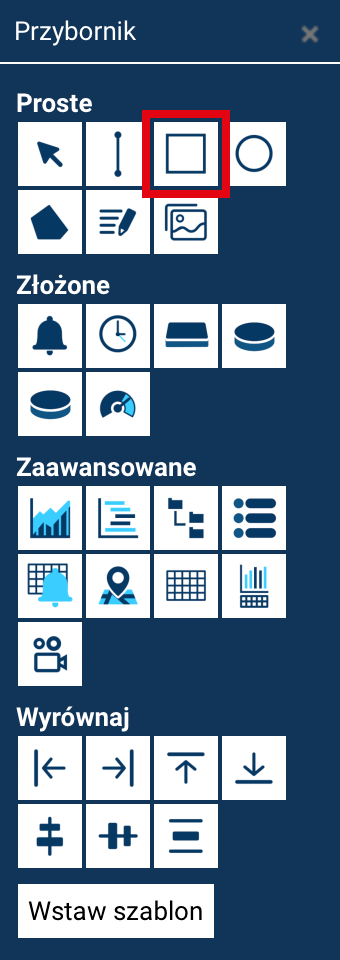
To draw a rectangle:
- Select the Rectangle tool from the Toolbox.
- Click at the point where the first corner should be.
- Drag the mouse to set the object's width and height.
- Release the mouse button to finish drawing.
Drawing squares
To draw a square, hold down the Shift key while dragging the mouse.
Once inserted, the rectangle's position and size can be edited using the scaling handles, or using the numeric fields in the Properties panel.
Rectangle properties
The rectangle has all the common properties of simple objects, including:
- Fill (color, gradient, pattern, or none),
- Stroke color,
- Stroke thickness and style,
- Opacity.
In addition, the rectangle provides parameters responsible for rounding its corners.
Radius X and Radius Y
The Radius X and Radius Y parameters define the shape of the rectangle's corner rounding. Radius X specifies the horizontal rounding of a corner, and Radius Y the vertical rounding of a corner.
Corner rounding
For the rounding to be visible, both values must be greater than 0, otherwise the rectangle will keep sharp corners.
If you want the rectangle to have classic rounded corners, both values should be equal to each other.
This makes the rectangle a very flexible object — it can take the form of a classic geometric shape, a container with rounded corners, or even an elliptical "pill" shape, depending on the set radii and border style.