Image
The Image tool is used to insert raster images (PNG, JPG, JPEG, and GIF) onto the screen.
Image objects can serve as icons, decorative elements, diagrams, photos, or any other graphics used in the project.
Inserting an image
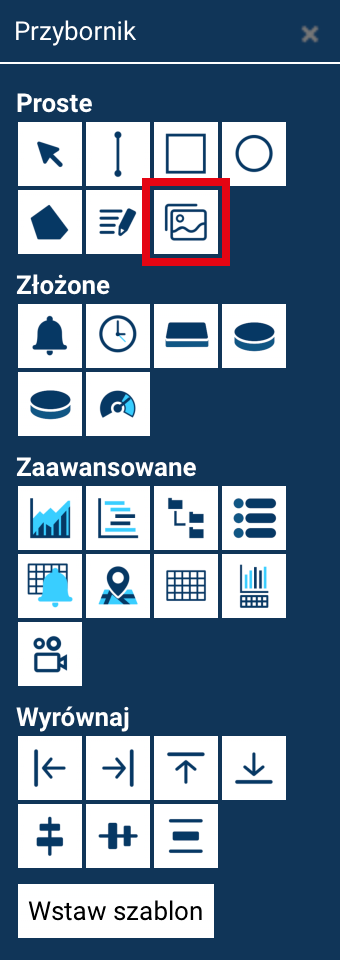
To add an image:
- Select the Image tool from the toolbox.
-
Click and drag to mark out the rectangle defining the position and size of the image.
Image size
If you click only once (without dragging), an image object with zero size will be inserted onto the screen – its width and height must then be filled in its properties.
Once the object is inserted, a default image appears, which needs to be replaced with the actual one.
Selecting an image
To change the image:
- double-click the image object on the screen
or - click the image path in the Properties panel.
A file selection dialog box will open, letting you:
- select an existing image from the user's account,
- upload a new file to the server.
A separate directory is created for each account, in which all graphics uploaded by users of that account are stored.
Uploading a new image to the server
In the image selection window:
- Click Upload file (top of the window).
- Click Select file and choose a file from your local disk.
- (Optional) Check Create thumbnails – the system will automatically generate a thumbnail for the uploaded image.
- Click Upload file.
Once uploaded, the image will appear in the list of files available for your account.
Once selected in the list, a preview of the graphic is displayed at the bottom of the window.
To apply the selected file, click Insert file.
PNG images
We recommend using PNG files, which handle scaling better and support transparency, significantly improving the visual quality of elements on the screen.
Image object properties
Unlike simple graphical objects, an image does not have fill, stroke, or opacity properties.
Instead, it offers a set of parameters typical of raster objects:
- Image path – the file's location on the server.
- Position X/Y – the image's location.
- Width / Height – the object's size (can be changed manually or by scaling).
- Angle – the image's rotation.
Additionally, the following property is available:
Image fit
Image fit specifies how the graphic is scaled and displayed within the object's rectangle. Three modes are available:
-
Stretch (fill) - the default option. The image does not keep its proportions – it is scaled to fully fill the object's area.
The graphic may be stretched or compressed if the image's and the object's proportions differ. -
Fit while keeping proportions (contain) - the image keeps its proportions and fits entirely within the object.
Nothing is cropped — if the image's and the object's proportions differ, empty margins may appear (e.g. on the sides or top/bottom). -
Fill while keeping proportions (cover) - the image keeps its proportions and fills the entire object area.
If the proportions differ, the excess part of the image is cropped, so that no empty margins appear. An ideal mode when the image should completely cover the object without distortion.
These options give you full control over how the image is scaled, cropped, and presented in the project.