Two-Factor Authentication (2FA)
Two-factor authentication - Two-Factor Authentication (2FA) - is an additional login safeguard that, in addition to a password, requires a second factor confirming the user's identity. This means that simply learning or intercepting the password is not enough to gain access to the account, which is especially important when accessing production data and project configuration in DataPortal.
DataPortal currently allows login to be confirmed with a second factor in two ways:
- a code sent to the e-mail address associated with the account,
- an authenticator app installed on your phone (e.g. Google Authenticator).
Opening the configuration window
The 2FA configuration window is opened from the menu available by clicking the user avatar in the top right corner of the top bar, and selecting the 2FA Authentication command.
Before displaying the settings, the system asks you to confirm your identity by entering your account password.
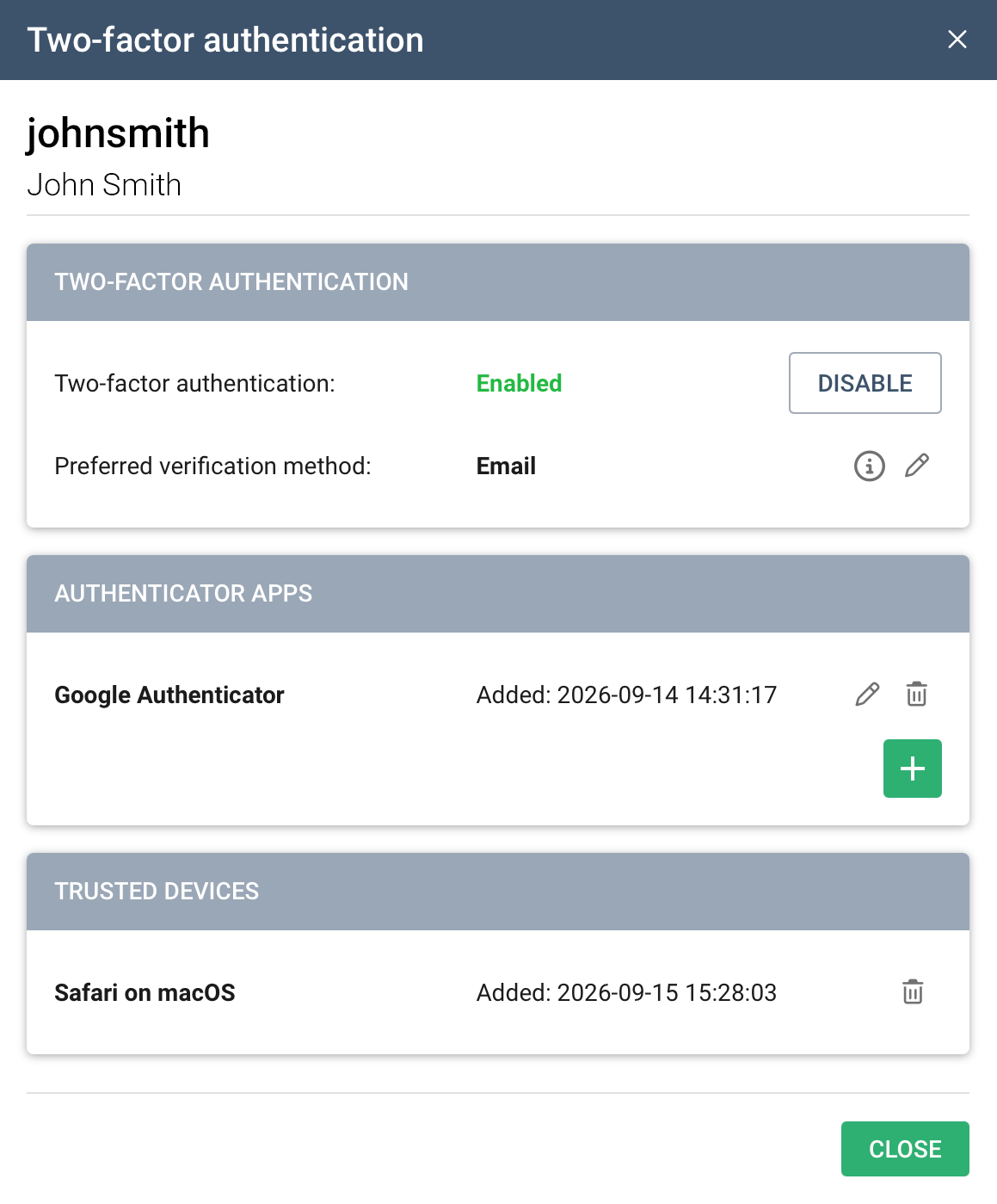
Enabling two-factor authentication
First-time enabling - e-mail verification
Enabling 2FA for the first time requires going through a verification procedure:
- a verification code is sent to the e-mail address associated with the user account,
- the code must be entered in the dialog box that appears.
Resending the e-mail
If the message doesn't arrive, the code can be resent using the Resend button. To protect against spam, it only becomes active 30 seconds after the previous e-mail was sent.
Once the correct code is entered, two-factor authentication is enabled, and e-mail becomes the default verification method.
Adding an authenticator app
To set an authenticator app instead of e-mail as the verification method, you first need to add such an app to your account:
- install an authenticator app on your phone (e.g. Google Authenticator),
- in the 2FA configuration window, in the Authenticator apps section, click the + button,
- in the Add authenticator app window, scan the displayed QR code with the app on your phone — if scanning the code is not possible, you can instead manually enter the key shown next to it in the app,
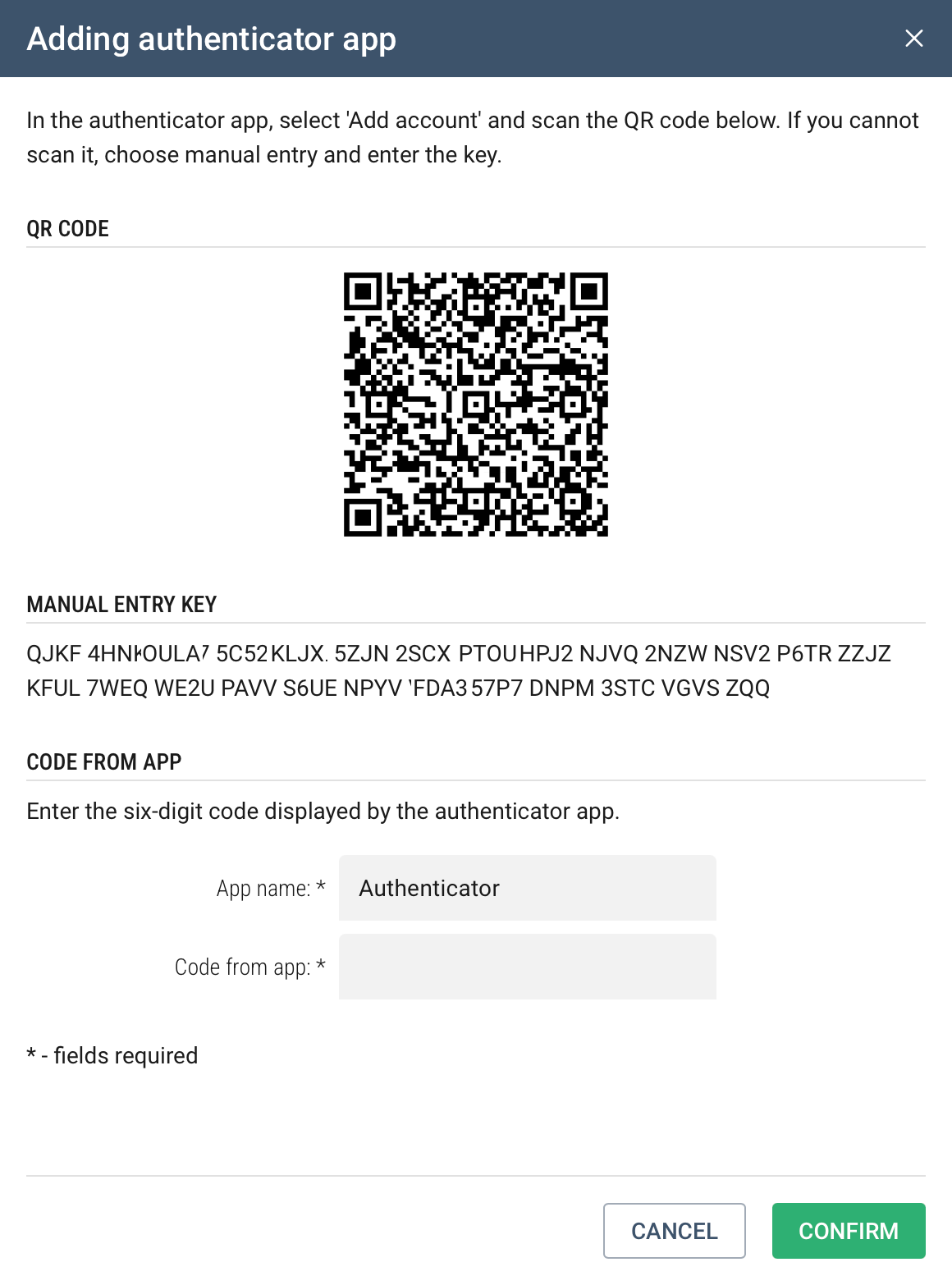
- fill in the App name and Code from app fields, entering the six-digit code just generated by the authenticator app,
- click CONFIRM to finish adding the app.
Once the app has been added, it can be set as the default two-factor verification method - the code is then no longer sent by e-mail, and the phone app becomes its source instead.
Disabling and re-enabling 2FA
To disable two-factor authentication, simply click the DISABLE button in the configuration window.
To enable it again, click the ENABLE button. The system remembers that 2FA authentication was already configured before, so re-enabling it does not require going through the verification procedure described above again.
Logging in with two-factor verification
When two-factor authentication is enabled, after entering the login and password, the system additionally asks for a verification code - the second factor securing the login:
- if the default verification method is e-mail, a code is sent to the address associated with the user, which must be entered into the dialog box that appears; as with enabling 2FA, the message can be resent every 30 seconds,
- if the default method is an authenticator app, no e-mail is sent — you need to enter the code currently generated by the app on your phone.
If more than one verification method is associated with the account, you can choose a different one than the default in the login dialog box at that moment.
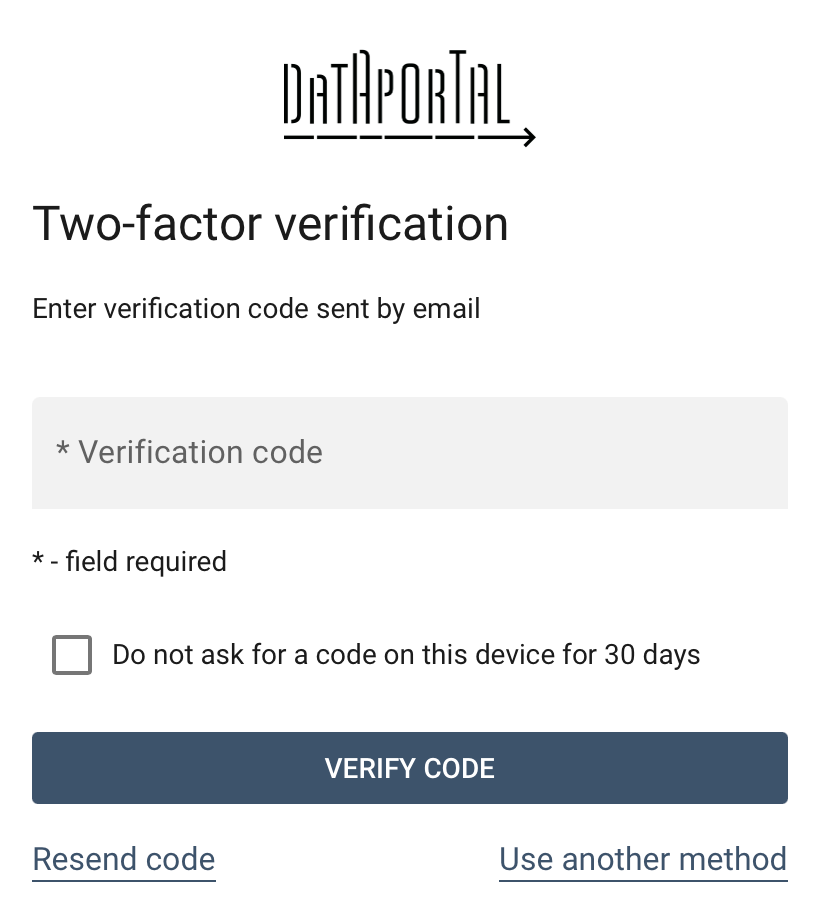
The login window also lets you remember the device you're logging in from — for a period of 30 days. During this time, the system will not ask for a verification code again when logging in from the same device.
Device name
After selecting the option to remember the device for 30 days, the system will ask you to provide a device name — this makes it easier to recognize it later in the list of trusted devices.
Managing apps and trusted devices
Two lists are available in the two-factor authentication configuration window:
- Authenticator apps — apps associated with the account, along with the date they were added,
- Trusted devices — devices (browsers) from which login occurred with the remember option selected, along with the date added.
Both lists have icons available that let you:
- rename an item (pencil icon) — for authenticator apps, this can also be used to tell them apart if more than one has been added to the account,
- remove an item from the list (trash icon) — removing an app requires it to be added again before it can be used for verification again, and removing a device means the system will ask for a verification code again the next time you log in from it.