Table
The Table view is a tool used to present data in tabular form. Depending on the selected table type, it can display current tag values, historical data, or data coming from external sources.
Inserting a table onto the screen
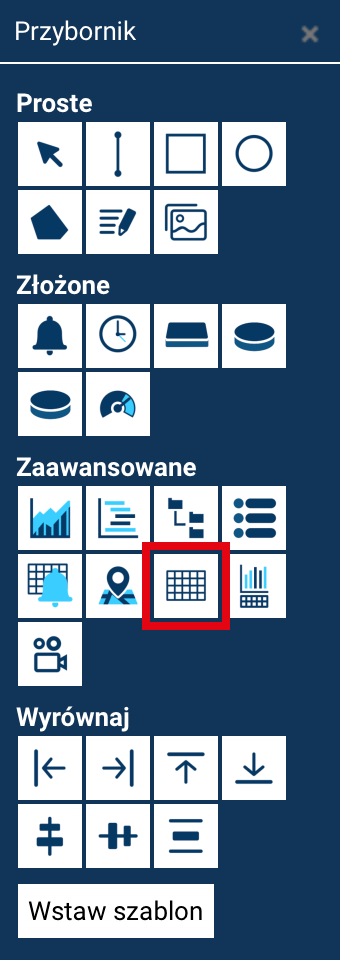
The table view is added in the standard way:
- selecting the Table view tool from the Toolbox,
- clicking on the screen at the place where the table should be inserted, or
- drawing the area intended for the table.
Going to the table's configuration
To go to the table's configuration:
- double-click the table on the screen
or - select the object and click the Edit button in the Properties panel.
The Table settings window will open, where you select the table type and configure how it works.
Table types
The table view offers three different table types, which differ in their purpose and the scope of available settings.
Standard table
The standard table is used to display the latest values of selected tags in tabular form.
Available settings
- Number of columns and number of rows – specify the table's size,
- the Header option – lets you display column headers,
- the Labels option – lets you describe rows.
To edit a row's or column's description, double-click the corresponding field and enter your own text.
Cell content
- double-clicking a table cell lets you select the tag whose latest value will be displayed in it.
Other options
- Export text – lets you change the default name of the Export button,
- Table ID – a read-only value,
- Fill – displays the table across the entire screen.
In animation mode, the table presents the current values of the variables, which can be exported to a CSV file.
Animation mode of the standard table
In animation mode, the latest data from the selected tags is displayed. The user cannot change the appearance or the range of data presented. The export button lets you save the data presented in the table to a CSV file.
External data table
This type of table is intended for presenting external data.
A detailed description of its use and configuration will be added later in the documentation.
Historical table
The historical table is used to display archival data from selected tags for a given time range.
Historical table settings
The left part of the window offers, among others:
- Export text – changes the export button's name,
- Days and Hours – the default time range of the data presented when the screen is launched,
- Sort – the order in which the data is displayed (time ascending or descending),
- Allow sort change – lets the order be changed in animation mode,
- Custom date field name – a custom header for the Date column,
- Convert time – converts the time to the user's local time zone,
- Custom selection field description – a custom name for the Select tags button in animation mode,
- Fill – displays the table across the entire screen.
Selecting and configuring tags
The right part of the window is used to manage the tags displayed in the table:
- + – add one or several tags,
- pencil – edit a tag's settings,
- up / down – change the order of columns,
- trash can – remove a tag.
Additional options:
- double-clicking the Description column lets you enter a custom column header name (instead of the tag name),
- Summary – lets you display the sum, average, difference (1-n), or difference (n-1) in the summary of the selected column,
- Decimals – the number of decimal places,
- Initiate – specifies whether a given tag should be visible right after the table is launched, or only once it is selected in animation mode.
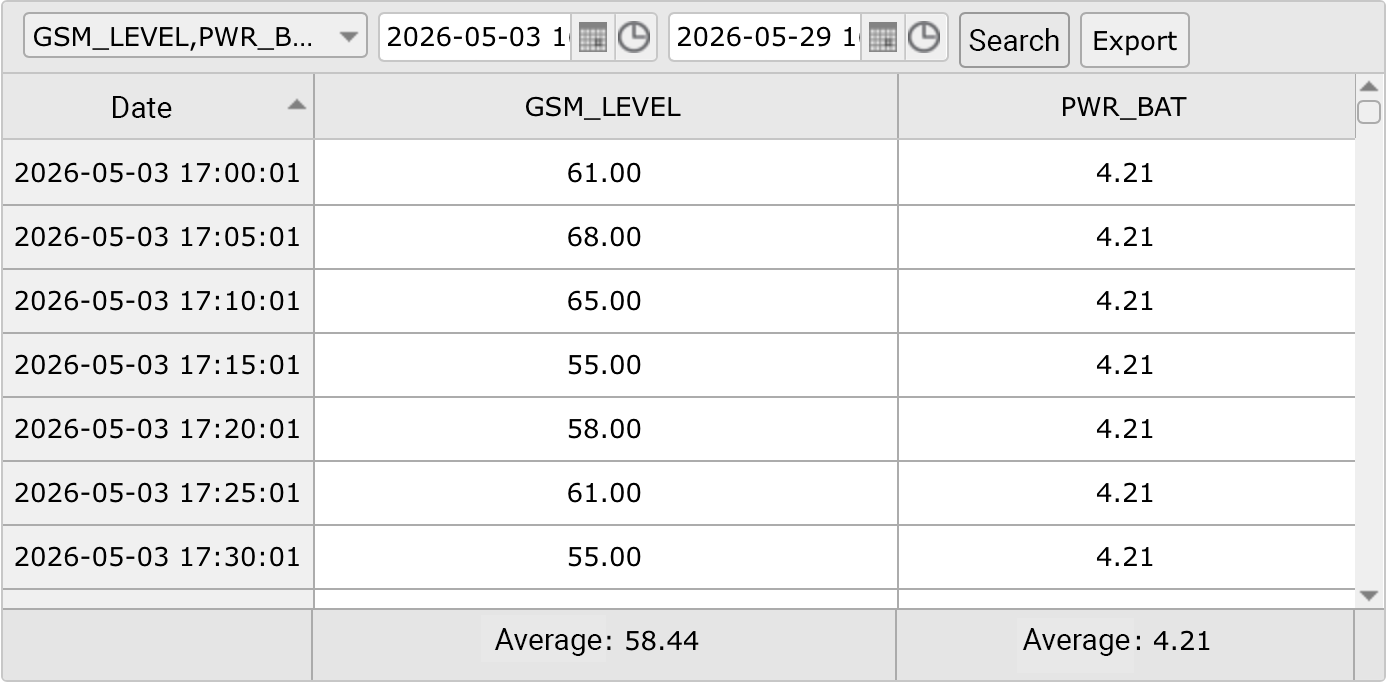
Animation mode of the historical table
In animation mode:
- the Select tags button is available, letting you turn the tags selected in the configuration on and off,
- the date range for which the data is presented can be changed,
- after changing the settings, click the Search button to refresh the data in the table,
- the Export button lets you save the currently displayed data to a CSV file.