Logging In to the System
To log in to the DataPortal system, open your web browser at: https://dataportal.online and enter your details in the login form:
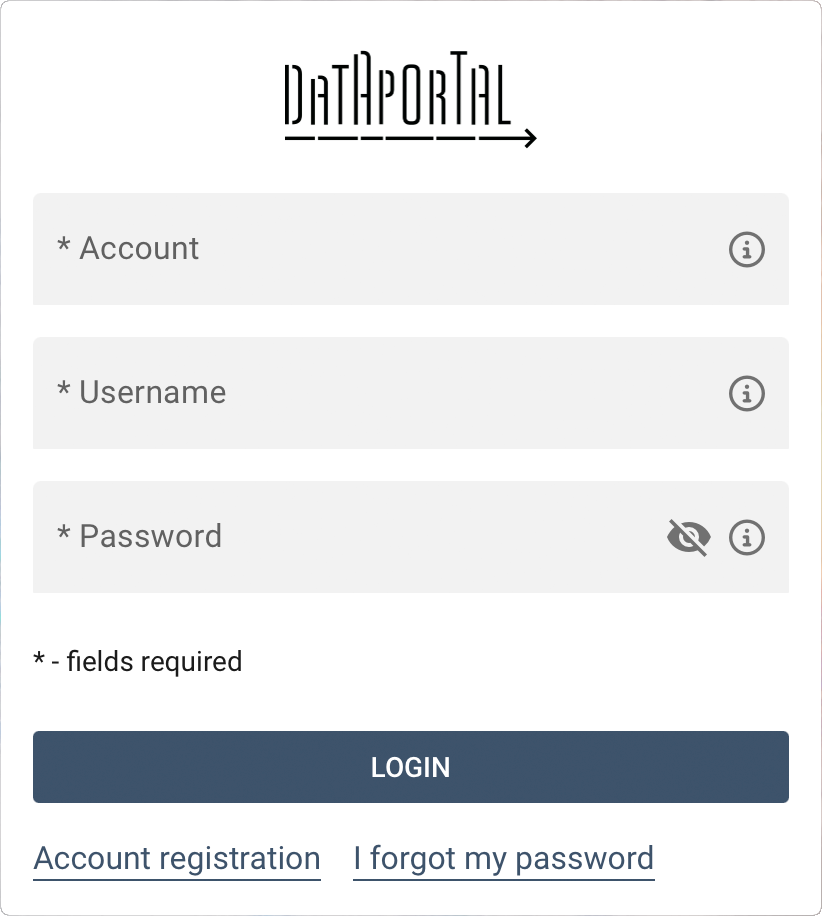
- Account name – enter the name of the system account with which your user account is associated.
- Username – enter your username (login). Note: this is not an e-mail address.
- Password – enter the password assigned to your user account.
- Click the LOG IN button to access the system.
Combined login (account name + username)
For convenience, you can combine the account name and username, separating them with a period, e.g. account.username, and enter this in the Username field. This lets you enter all the details in a single field, making it easier to use your browser's autocomplete feature.
Two-factor authentication
The DataPortal system supports two-factor login (2FA), which significantly increases account security — even if someone learns your password, they won't be able to log in without access to the second authentication factor. It's especially worth using on accounts with administrative permissions.
You can enable 2FA authentication in the 2FA Authentication menu, available in the top menu under the user avatar.
When the feature is enabled, logging in happens in two steps — after correctly entering the login and password, the system will ask you to enter an authentication code.
More information can be found in the chapter: Organization and Account → 2FA Authentication.
First login
If you are logging in to the system for the first time, refer to the previous chapter, which describes the entire first-login process in detail — from setting an individual password, through completing personal and company details, to fully configuring your profile.
Can't log in?
If you're having trouble logging in, first check:
- whether the account name is entered correctly (no spaces, no accented characters),
- whether you're using your username rather than your e-mail address,
- whether Caps Lock is on – the password is case-sensitive.
If you don't remember your password, click the Forgot password link on the login page. A message with password reset instructions will be sent to the e-mail address associated with your user account.
Note
The password reset link is active for 24 hours from the moment it is generated.