Animating Objects
You can select and configure any number of properties from the available list.
For example, the text content, its color, and its size can all be animated. Additionally, each of these properties can be linked to the value of a different tag, which will control its behavior.
Selecting the tag controlling the animation
Once you select the property you want to animate in the animation tree, the animation's main settings will be displayed on the right side of the screen. The first parameter is the Data source.
To select the tag controlling the animation, click the Select button. A window will open with a list of available tags, from which you should choose the appropriate one.
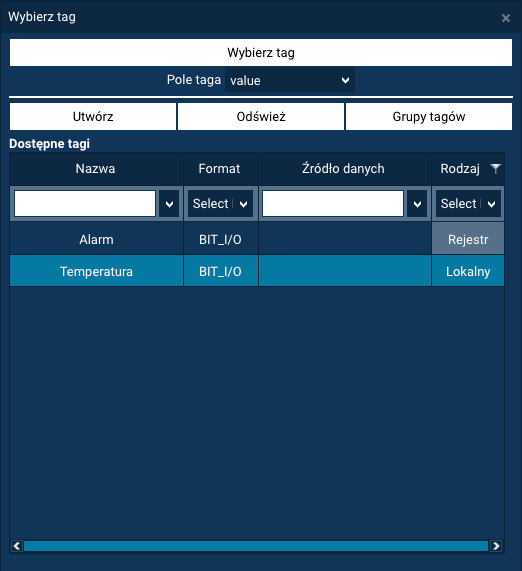
In the tag selection window, you can use tools to make searching easier:
- searching tags by tag name,
- filtering the list by tag format, data source, and tag kind.
Additionally, you can specify which piece of information from the tag should be used to control the animation. The Tag field lets you select the following options:
- value – the tag's current value (default option),
- quality – the data quality,
- time_stamp – the measurement time,
- alarm_hihi, alarm_hi, alarm_lo, alarm_lolo – the selected alarm level.
Once you have selected the appropriate tag in the table, click the Select tag button to confirm the choice of tag controlling the animation.
Smooth animation (Range)
Smooth animation is a way of animating in which property values change continuously and linearly as the input value changes. It allows you to achieve natural, smooth transitions between states, without visible jumps.
Below, as an example, is a step-by-step process for configuring the fill color of an object, which changes smoothly depending on the temperature value returned by the Temperature tag.
1. Selecting the object and opening the animation panel
First, select the object for which you want to configure the color animation.
Then, from the tool panel, select the ANIMATIONS option.
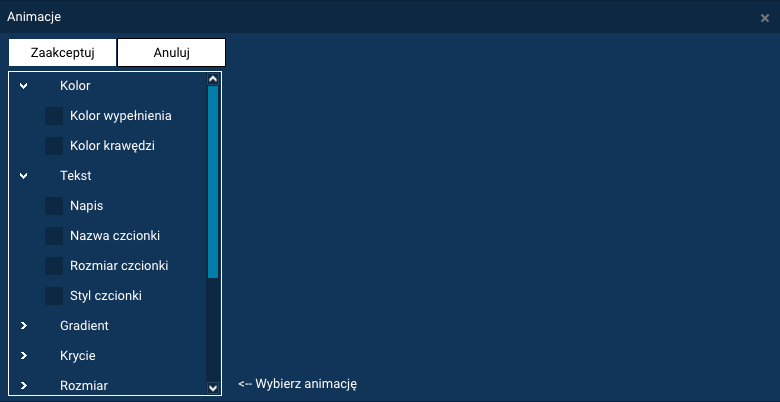
Once selected, the Animations window will be displayed, containing all the options related to configuring animation for the selected object.
2. Selecting the animated property
In the next step, specify the property to be animated.
To do this, check the checkbox next to the selected property in the animation tree. In our example, this is Fill color.
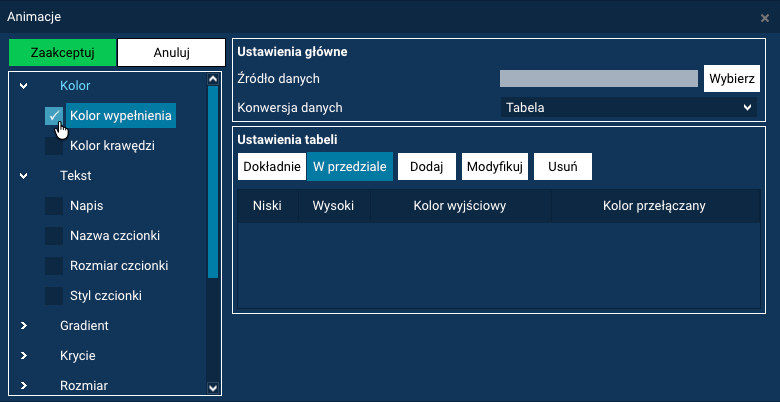
Selecting the property activates it and enables further configuration of the animation parameters.
3. Selecting the controlling tag
In the Main settings section, click the Select button.
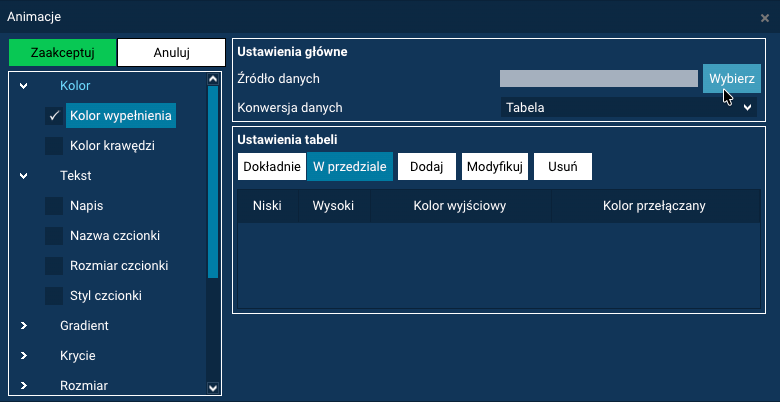
A window will open with a list of available tags.
In the displayed window, select the appropriate tag controlling the animation, then choose the Tag field to be used for control. In our example, this tag is A1_T (we leave the default tag field option value.)
Once you have made your selection, confirm the settings to assign the chosen tag as the animation's control source.
4. Selecting the animation method
In the next step, select the animation method in the Data conversion selection field.
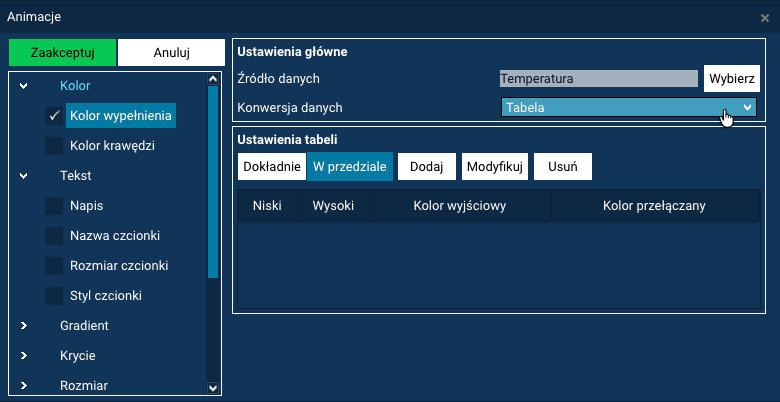
Two animation modes are available:
- Range – smooth animation, in which the output values change linearly depending on the input value,
- Table – stepped animation, in which a fixed output value is assigned for specific input values or ranges.
Choose the mode suited to the effect you want to achieve, in this example - Range.
5. Defining the range of input and output values
For smooth animation (Range mode), you need to define the range of input values and the corresponding output values, between which the change will proceed linearly.
Enter the appropriate values in the Input min and Input max fields, then specify the color displayed for the minimum value (Output min field) and for the maximum value (Output max field). Intermediate values between the minimum and maximum will be presented in a color that smoothly transitions from the first to the second.
In our example, these are the values:
- Input values:
- Input min:
0 - Input max:
100
- Input min:
- Output values:
- Output min:
4FFF6F (green color) - Output max:
FF4242 (red color)
- Output min:
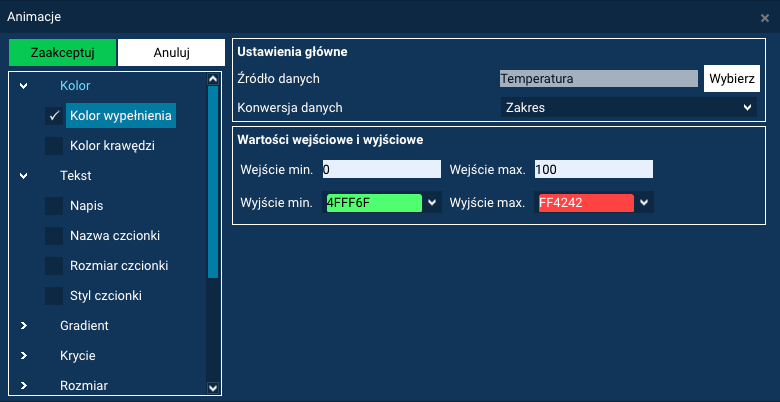
As a result, the object's fill color changes smoothly as the temperature changes — from green to red, proportionally to the tag's current value:
0°C→ green color100°C→ red color
Stepped animation (Table)
Stepped animation involves changing a property's value at specific points or ranges, without intermediate transitions. For defined input values, either a single, fixed output value is assigned, or — in blink mode — two output values are switched alternately, producing an effect often used to signal alarm or warning states.
Point mapping (option: "Exact")
The Exact option is used for stepped animations based on a tag's discrete values (e.g. 0, 1, 2, 3).
To configure a stepped animation with point mapping, proceed similarly to the previous example:
- Select the object, then in the tool panel select the ANIMATIONS command.
- In the animation window, select the animated property.
- Select the controlling tag (as with smooth animation).
- In the Data conversion field, select Table.
-
Select the Exact option and click New.
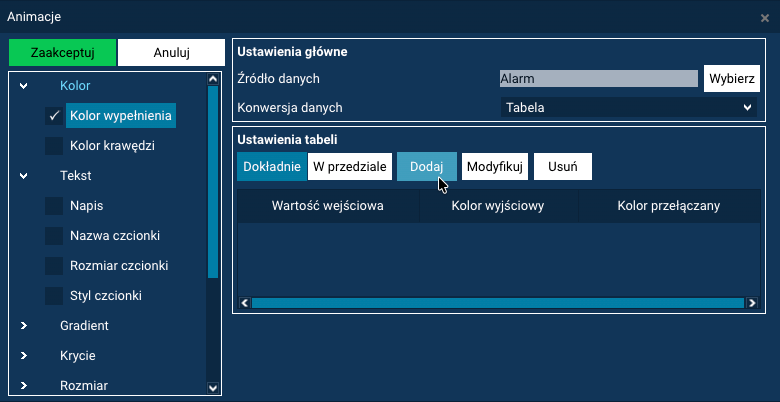
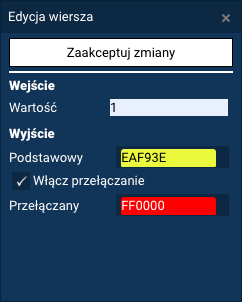
An entry configuration dialog box will open.
-
Fill in the fields:
- Input – a specific tag value (e.g.
0,1,2,3) - Output – the output value, in this example this is the Primary fill color.
- Input – a specific tag value (e.g.
-
Optional: toggle (blinking) effect. If you want the fill color to alternate for a given tag value (a switching effect), check the Enable toggle option and select the Toggle color (the second color the primary color will alternate with).
- Finally, click Accept changes to add the entry to the table.
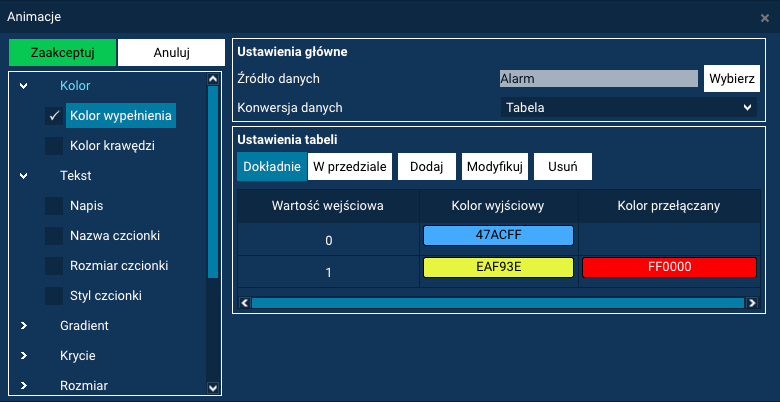
Multiple entries in the table
You can add multiple rows to the table – each input value has its own assigned color (fixed or toggle). To create a new entry, click the New button again.
Range mapping (option: "Range")
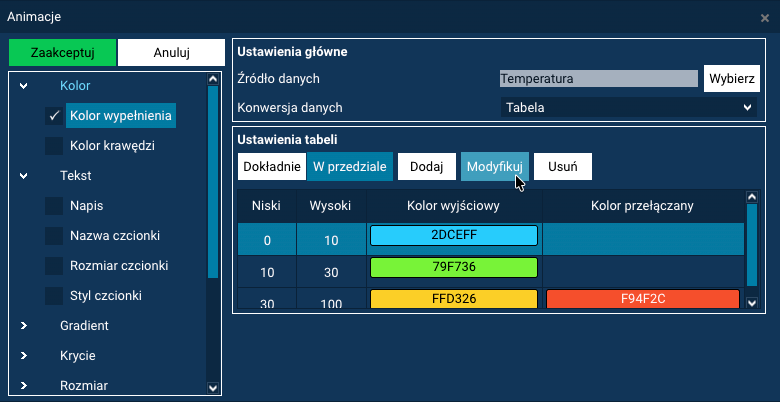
The Range option lets you assign animation output values for a range of input values of the tag.
It works similarly to the Exact option, except that instead of a single value, a range is defined.
To configure a stepped animation with value range mapping, proceed similarly to the previous example:
- Select the object, then in the tool panel select the ANIMATIONS command.
- In the animation window, select the animated property.
- Select the controlling tag (as with smooth animation).
- In the Data conversion field, select Table.
-
Select the Range option and click New.
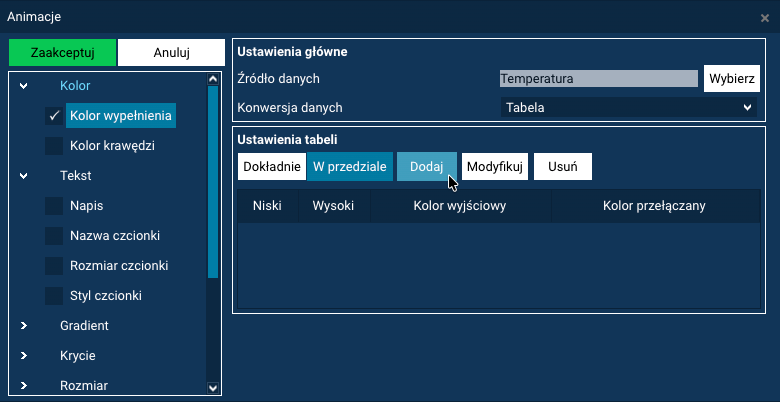
An entry configuration dialog box will open.
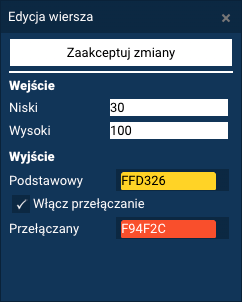
-
Fill in the fields:
- Low – the start of the input value range
- High – the end of the input value range
For tag values falling within this range, the animated property will take on the defined output value.
- Optional: toggle (blinking) effect. If you want the fill color to alternate for a given tag value range (a toggle effect), check the Toggle option and select the Toggle color (the second color the primary color will alternate with).
- Finally, click Accept changes to add the entry to the table.
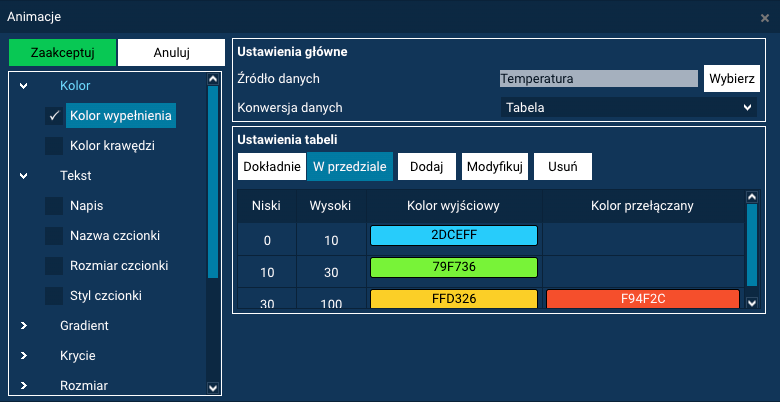
Multiple ranges
You can add multiple rows to the table, defining different value ranges – each with its own color (fixed or blinking).
Modifying and deleting table entries
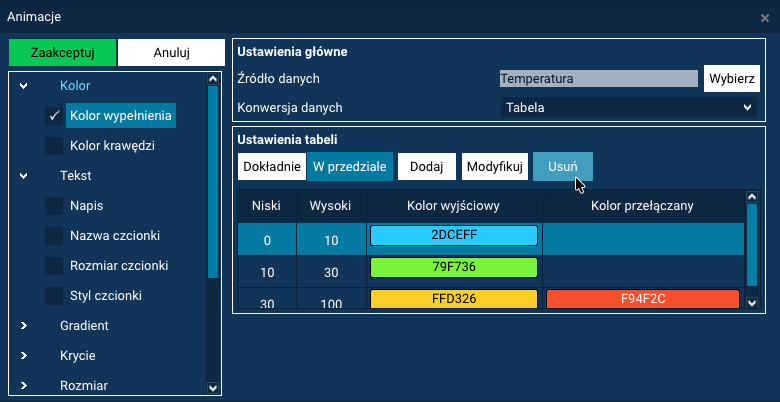
To modify or delete an entry in the stepped-animation table (Data conversion: Table):
- Click the desired row in the table to select it.
- Choose the appropriate action:
- Edit – lets you edit the entry's parameters,
- Delete – permanently removes the entry from the table.
Summary
For most animations, the process of configuring parameters looks very similar. The basic step is choosing the type of transformation, which determines how the input values (e.g. from a tag) affect the change in the object's property.
For most animations, two transformation modes are available:
- Range – allows a smooth change in value between a defined minimum and maximum
- Table – allows a stepped change in value based on defined thresholds, with additional modes:
- Exact – the change occurs only on an exact value match
- In range – the change occurs when the value falls within a specified range
Not all animations support both transformation modes. For animations where a smooth parameter change is not possible, only Table is available. This applies, among others, to:
- changing the text font
- changing the fill style or border style
Some animations have additional settings depending on their type. For example:
- for text animation, you can additionally specify:
- text alignment,
- how it is displayed (number of lines and characters per line),
- the number of integer and decimal digits when presenting numeric values,
- for scaling animation, a transformation point is selected, specifying whether the object should be scaled:
- from the center,
- from one of the edges,
- for rotation animation, a point is defined around which the object will rotate.
An exception to the above rules is the Script animation. For this type of animation, configuration involves:
- selecting the action performed on a single click,
- selecting the action performed on a double click of the mouse,
- specifying the range or ranges (in Table mode) for which the animation should be inactive.