Screen Animation Mode
Animation mode is used to run screens in the operator working view. The screen is presented in the form of the target view for the end user – without editing capability and without design tools.
Characteristics of animation mode
- the screen operates solely based on the saved configuration,
- data is refreshed in real time,
- visualization elements present current tag values,
- control elements are active only for users with the appropriate permissions,
- all editing functions are disabled.
Starting animation mode
Operating mode can be started:
-
from the Projects module by clicking the icon button that appears when you hover the cursor over a selected project,
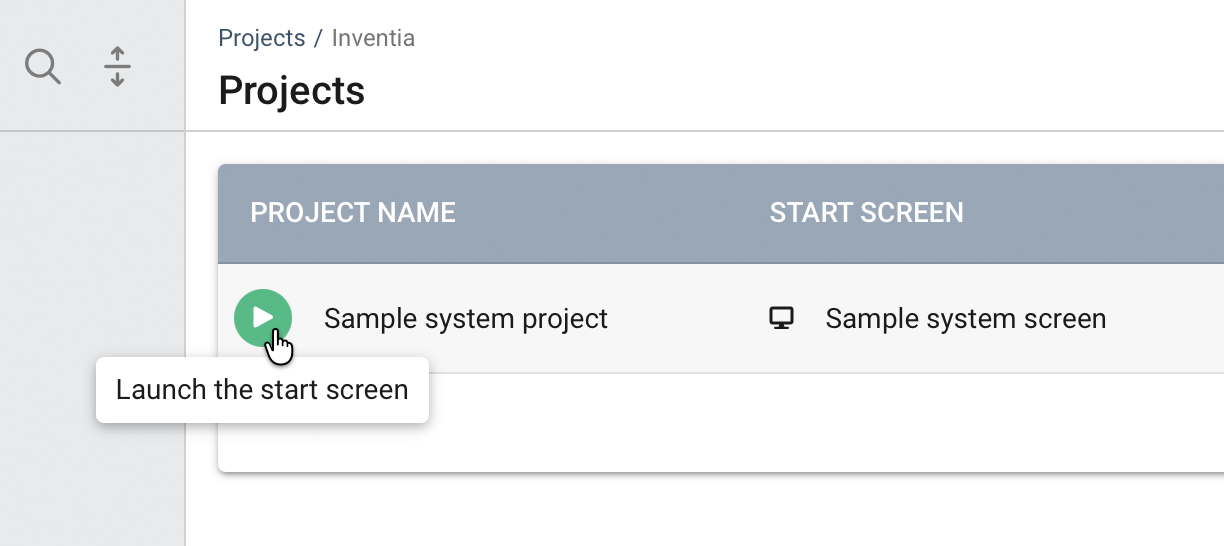
Default screen for a project
The button is only visible if a start screen has been set for the project. The start screen can be specified when editing the project's properties or in the context menu on the screen tree.
-
for testing purposes while working on a project in DataPortal Designer.
Once started, the screen occupies the entire working area, and the list of projects and folders is hidden. The tree panel remains visible and can be hidden using the collapse button to enlarge the working area.
Switching screens in animation mode
While working in animation mode, changing the selection in the tree affects the active screen. In the Projects module, clicking another project will launch its start screen.
Exiting animation mode
To exit animation mode and go back to managing projects and screens, select the Exit animation mode command available in the top right corner of the screen.
Switching modules (e.g. to Screens, Resources, or Reports) will also exit animation mode.
Screen behavior in animation mode
Data updates
Screen components periodically retrieve data from the system. The refresh rate of values depends on the configuration of the data sources and the tag type.
Alarm response
Screen elements can change their appearance (color, border, icon) if the associated tag is in an alarm state.
Control elements
Users with the appropriate permissions can:
- trigger control actions,
- change parameter values,
- use buttons, checkboxes, and other interactive components.
Users without the appropriate permissions will see control elements in an inactive state.
Navigation
Animation mode allows you to move between screens using buttons, links, and navigation elements placed on the screen.
Reports
Animation mode allows you to run reports linked to screen elements — buttons or other components that support a dedicated report-triggering action. Once triggered, the report is displayed in preview mode, with the option to change the data range and download it in PDF or XLS format.
Report options for Observer and Operator
The options for changing the range and downloading the report may be unavailable to users with the observer or operator role if these have been disabled in the account settings.
Animation mode limitations
The following are not available in animation mode:
- editing elements and their configuration,
- changing the screen layout,
- modifying tag bindings,
- design tools.
Any changes must be made in screen design mode within the DataPortal Designer module.