Animations
The Animations window is used to define dynamic behaviors for objects placed on the screen.
It lets you link visual properties and interactive behaviors to tag values, events, or script logic.
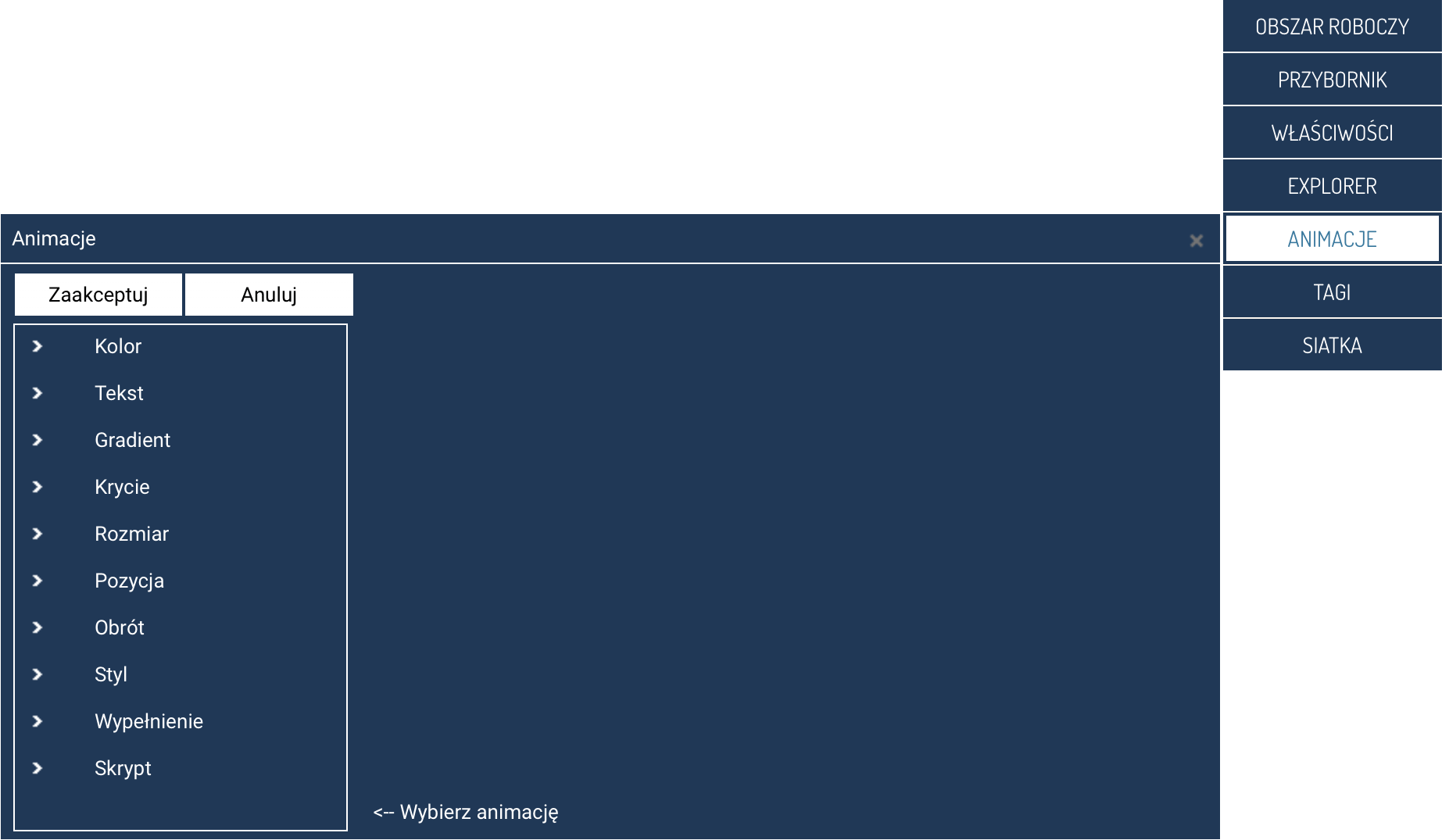
The window is opened by selecting the ANIMATIONS option from the side panel, then selecting an object on the screen.
Window layout
At the top are the buttons:
- Accept – saves all added or modified animations.
- Cancel – discards the changes and closes the window.
The left part of the window contains a list of animation categories that can be assigned to an object.
Each group can be expanded to display the available properties.
Once a parameter is selected, a configuration panel for the animation's details appears on the right (e.g. tag selection, value ranges, colors, transition mode).
Animation categories
The available animation categories cover both an object's visual properties and its interactive behaviors.
Color
Lets you dynamically change colors:
- Fill color and border color.
Color changes can be linked to a tag's value, an alarm state, a threshold, or conditional logic.
Text
Applies to text objects and elements containing text:
- Text – dynamic content substitution,
- Font name, size, and style.
Gradient
Gradient animations let you create smooth color transitions:
- Primary and secondary color,
- Angle and Mix – the direction and proportion of the color blend.
Opacity
Animations related to transparency:
- Opacity – setting the transparency level.
- Display – lets you hide or show the object based on a condition.
Size
Changing the object's dimensions:
- Horizontal and vertical scaling.
Position
Lets you move an object:
- Horizontal and vertical offset.
Rotation
- Angle – dynamically changing the object's orientation.
Style
Lets you animate stylistic properties:
- Fill pattern style and border style,
- Border thickness,
- Corner radius X and Y.
Fill
Parameters related to the percentage fill level (e.g. indicators):
- Horizontal and vertical fill percentage.
Script
Animations related to interactive events:
- onClick – a script executed on click,
- onDoubleClick – a script executed on double-click,
- Inactive – lets you disable the object's response.
Adding an animation
- Select an object on the screen.
- Open the Animations window.
- Check the boxes corresponding to the properties to be animated.
- Configure the details on the right - select the tag driving the animation and the animation parameters.
- Click Accept to save the animations.
Each property can be linked to a tag, a calculated value, an alarm state, or script logic — depending on the needs of the project.
More information
More information can be found in the chapter → Object Animation.
Example applications
- Changing an object's color when an alarm threshold is exceeded.
- Blinking an element when a digital input state is 1.
- Animating a gauge-type indicator based on an analog value.
- Dynamically moving an object depending on a process parameter.
- Hiding or showing elements depending on the system's state.
- Triggering script functions when an object is clicked.
The Animations window lets you create advanced, dynamic visualizations that better reflect the actual behavior of the monitored processes.