Registering an Account in the DataPortal System
To create a new organization account in the DataPortal system, you need an Inventia telemetry device and knowledge of its serial number and activation code.
Preparation
The following are required to register an account:
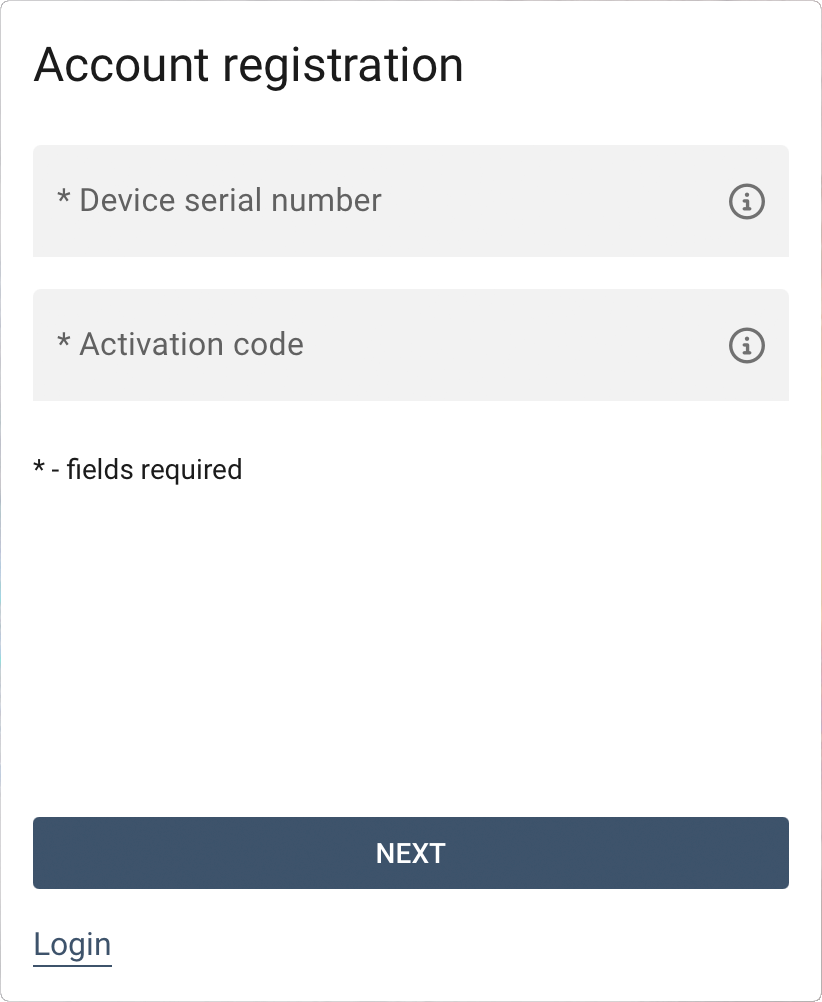
- Serial number – in the format
000-000-000-000, found on the device's rating plate or on the packaging. - Activation code – this is the device's IMEI number preceded by the letter D, e.g.
D353-2290-2997-2201. The IMEI number can also be found on the rating plate or packaging.
Note
The pair serial number + activation code can be used only once – to create one account.
Creating an account
Launch your web browser and open the page at: https://dataportal.online.
Click the Account registration button to go to the registration form:
-
Enter the device's serial number and activation code and click NEXT to proceed to the next step.
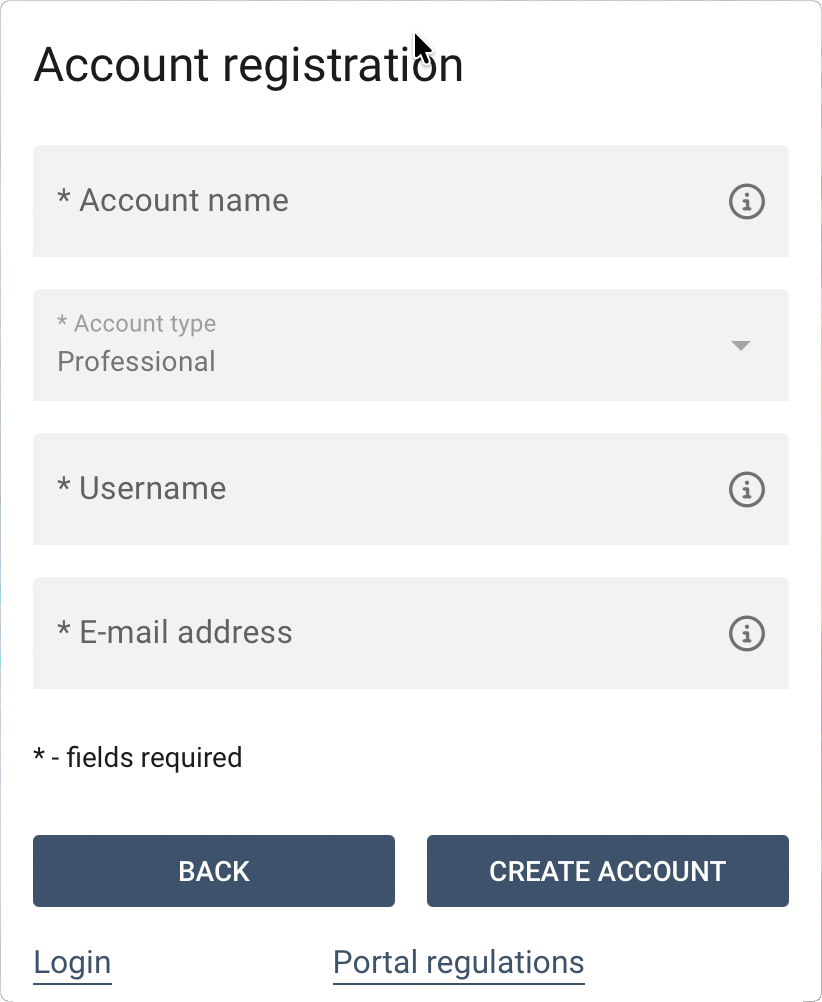
-
Provide the account name – this is usually the name of your company or organization.
Account name tip
The account name must start with a letter (no accented characters), and may contain digits (
0-9), a hyphen (-), and an underscore (_). The account name cannot contain spaces. -
Enter the username (a unique login) that will be used for logging in and identifying the user.
Username tip
The username must start with a letter (no accented characters), and may contain digits (
0-9), a hyphen (-), and an underscore (_). An e-mail address cannot be used as the login. -
Enter the e-mail address – reports, alarms, and system notifications will be sent to this address. A registration confirmation link will also be sent to this address. Then click CREATE ACCOUNT.
First login
After submitting the form, you will receive an e-mail with an activation link. Click it (or copy it into your browser) to proceed with the first login process in the DataPortal system.
Setting a password
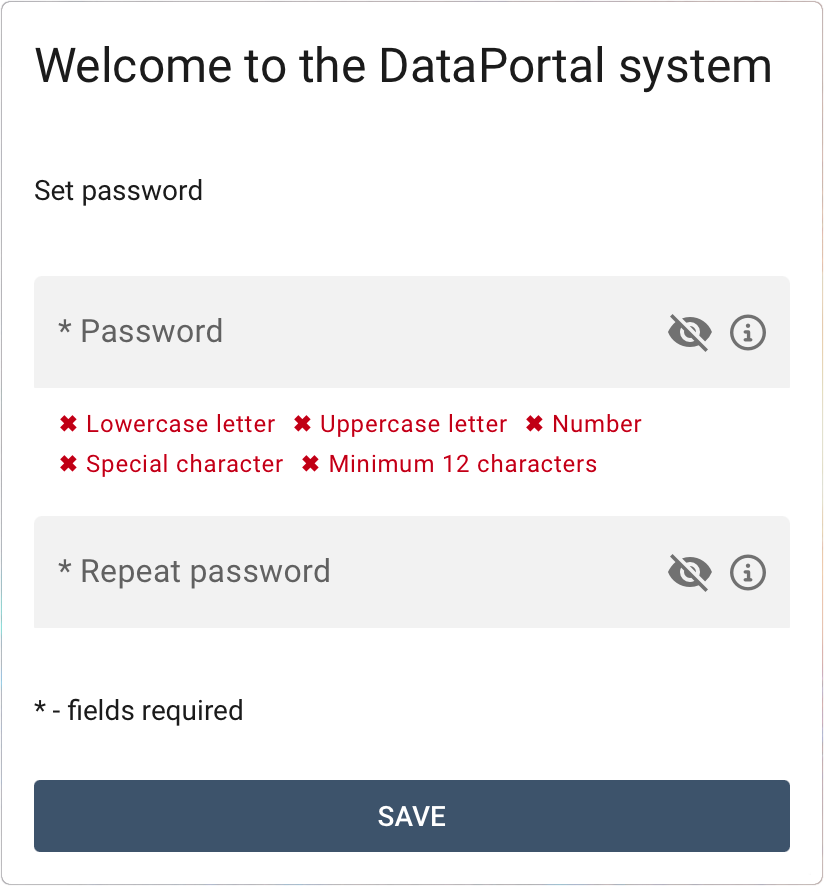
After clicking the link, a form will be displayed where you set a password for your user account.
Password requirements
The password should be at least 12 characters long, and contain lowercase and uppercase letters as well as digits and special characters.
After setting the password, you will be redirected to the login page. To log in to DataPortal, enter the account name, username, and the newly created password.
Accepting the terms and conditions
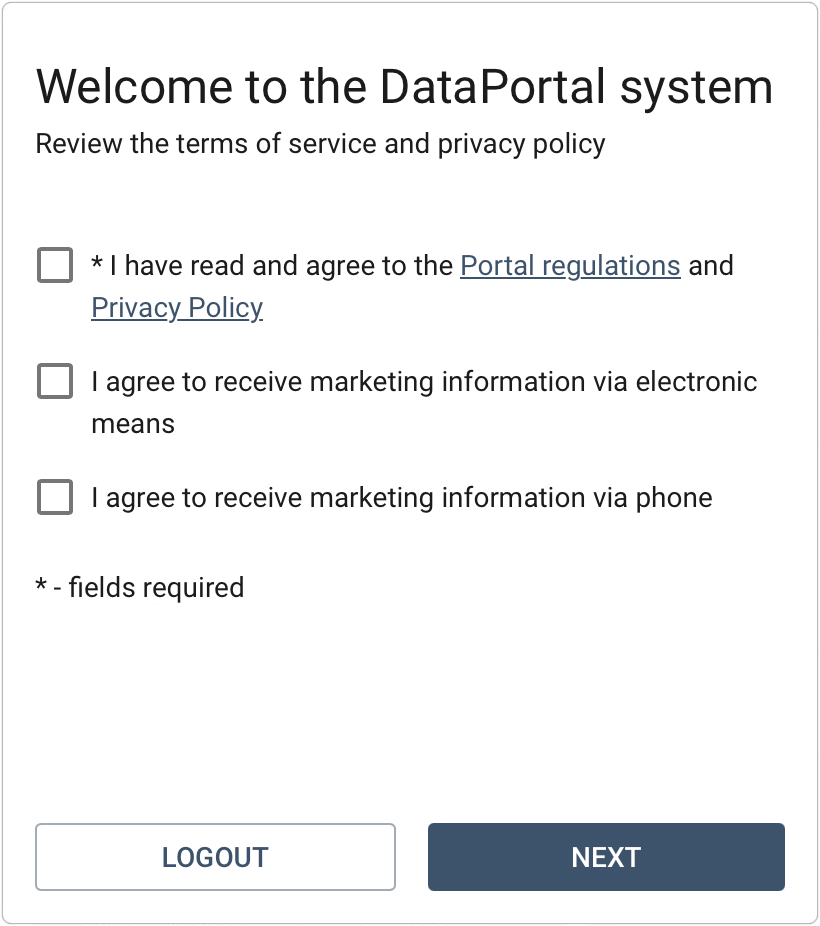
After logging in for the first time, a form will be displayed asking you to confirm acceptance of the terms of service and marketing consents:
- accept the DataPortal Terms of Service and the Privacy Policy,
- give the required consents that enable the account to be created and operated.
Completing personal details
In the next step, fill in your personal details: first name, last name, and phone number. Although these fields are not mandatory, it is definitely worth filling them in — especially if convenience and security of using the account matter to you.
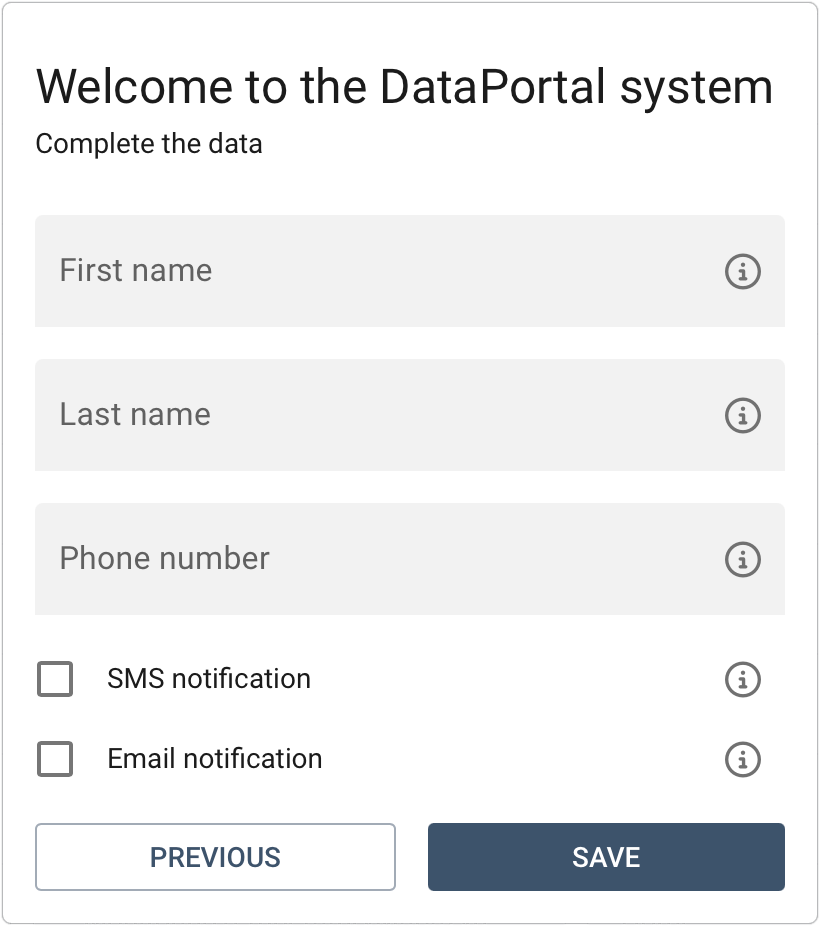
Providing your first and last name allows for more personalized service and makes it easier to identify you when contacting technical support. The phone number, on the other hand, is essential if you want to receive SMS notifications.
User profile
You can fill in or change your personal details at any time - you don't have to do it right away during the first login. To go to the profile form, click your avatar in the top right corner of the screen, then select My profile.
Completing company details
In the next step, fill in your company details, which are required for proper invoicing (this form is displayed on first login only to the administrator who created the company account).
Provide the company name, registered address, and tax ID number. This information is essential — without it, a VAT invoice cannot be generated, which you could otherwise account for as a tax-deductible expense.
Make sure all the details match the current entry in the relevant business register — an incorrect tax ID or address may require an invoice correction to be issued, which lengthens the billing process. If you operate as a sole proprietor, enter the details exactly as they appear in the tax register.
Account details
You can fill in or change your company details at any time - although some of them are required already during the first login. To go to the relevant form, click your avatar in the top right corner of the screen, then select Account.