Toolbox
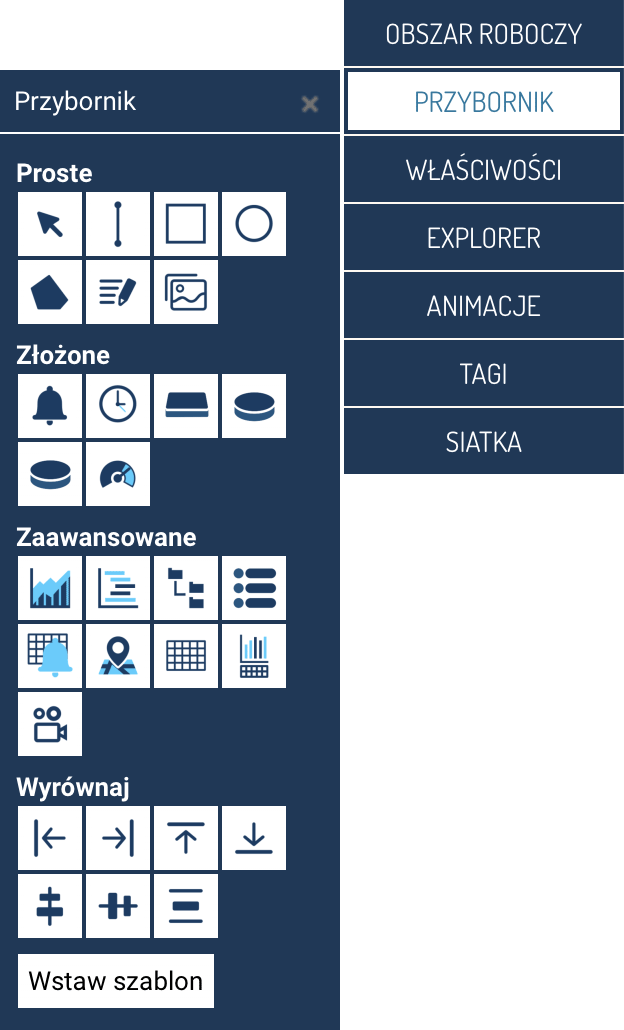
The Toolbox panel is used to insert graphical and functional elements onto the SCADA screen being designed. The tools are grouped into four sections: Simple, Complex, Advanced, and Align. At the bottom of the panel, there is also an option for inserting ready-made screen templates.
Simple
The basic set of graphical elements used when designing a screen:
- Arrow (element selection mode) – used to select, move, and edit objects on the screen. This tool is automatically selected after each object is inserted onto the screen.
- Line – a tool for drawing individual line segments.
- Rectangle – lets you draw rectangles.
- Ellipse – adds circles and ellipses.
- Path – lets you create irregular paths and polygonal shapes.
- Text field – inserts a text object that can be formatted and linked to variables.
- Image – lets you insert graphics from resources.
Complex
Elements with a greater degree of functionality, often linked to system data:
- Alarm counter – displays the number of current alarms.
- Date and time – a field presenting the current system time.
- Rectangular button – a standard action button.
- Round arrow button – used in control interfaces.
- Round X button – an element most often used to stop processes or close windows.
- Gauge indicator – a graphical (dial-type) value indicator.
Advanced
Advanced visualization and system components:
- Standard chart – presenting data as a classic line or bar chart.
- Gantt chart – visualizing time-based dependencies, e.g. device operation.
- Tree view – a hierarchical navigation menu with assigned actions.
- List view – a flat navigation menu in the form of an ordered list.
- Alarm summary – a specialized view for presenting alarms along with their states.
- Map – presenting geospatial data and device locations.
- Table view – a tabular presentation of data, also with the ability to link to tags.
- Balance – an advanced view for presenting summaries, statistics, and aggregation of historical data.
- Video – an element that lets you embed a video stream.
Align
Tools for organizing the position of elements on the screen:
- Align left, right, top, bottom
- Align to vertical center, to horizontal center
- Distribute with offset Horizontally and vertically – opens a dialog box letting you set an even distribution of the selected elements with a specified horizontal and/or vertical offset. The selected objects will be arranged in sequence, starting from the leftmost element (for horizontal distribution) or the topmost element (for vertical distribution). Horizontal distribution aligns objects relative to their left edge, while vertical distribution aligns them relative to their top edge, adding the specified spacing in pixels between them.
These tools operate on the currently selected objects and let you quickly organize the layout of elements.
Templates
The Insert template button opens a window with a library of ready-made screen elements.
A wide range of templates is available to choose from; their description can be found in a separate chapter of the documentation.