Orders and Purchasing inPoints
inPoints are DataPortal's internal billing unit, used to cover the cost of using the system. You top up your account by purchasing inPoint packages. Purchases are made directly in the application, in the Orders and inPoint purchase window. The same window lets you review all previously placed orders and check their status.
Available to business customers only
inPoints can be purchased only by business customers, i.e. entrepreneurs buying as part of their business activity.
Opening the Orders window
To open the Orders and inPoint purchase window, click your avatar in the top-right corner of the top bar and select Orders from the menu.
Order list
The top of the window shows the account name and the description inPoint order summary. Below is a table listing all orders placed under the account. For each order, the table shows:
- Date — the date the order was placed,
- Order number,
- Number of inPoints — the size of the ordered package,
- Net value,
- VAT,
- Gross value,
- Payment method — e.g. Quick payments,
- Status — the current stage of order processing, e.g. In progress,
- Ordered by — the user who placed the order.
You can narrow down the list using the FILTER button in the top-right corner of the table. The X button next to it clears the filter.
Pagination controls at the bottom of the table let you set the number of items per page and move between pages.
Order details
Clicking an order in the list opens the Order details window, showing the order number and date. The window has three sections:
- Packages — the ordered packages, number of inPoints, net value, VAT and amount due,
- Invoice details — company and orderer details,
- Status — the current order status, payment method and the dates of subsequent processing stages.
Placing a new order
You can start a new order in two ways:
- click the NEW ORDER button in the bottom-right corner of the window,
- click the button in the top-right corner of the order table and select New order from the menu.
The Top up account window opens. It guides you through the purchase in four steps: Package → Billing → Summary → Payment. The current step is highlighted on the progress bar at the top of the window. You can use the BACK button at any time to return to the previous step and correct the data you entered.
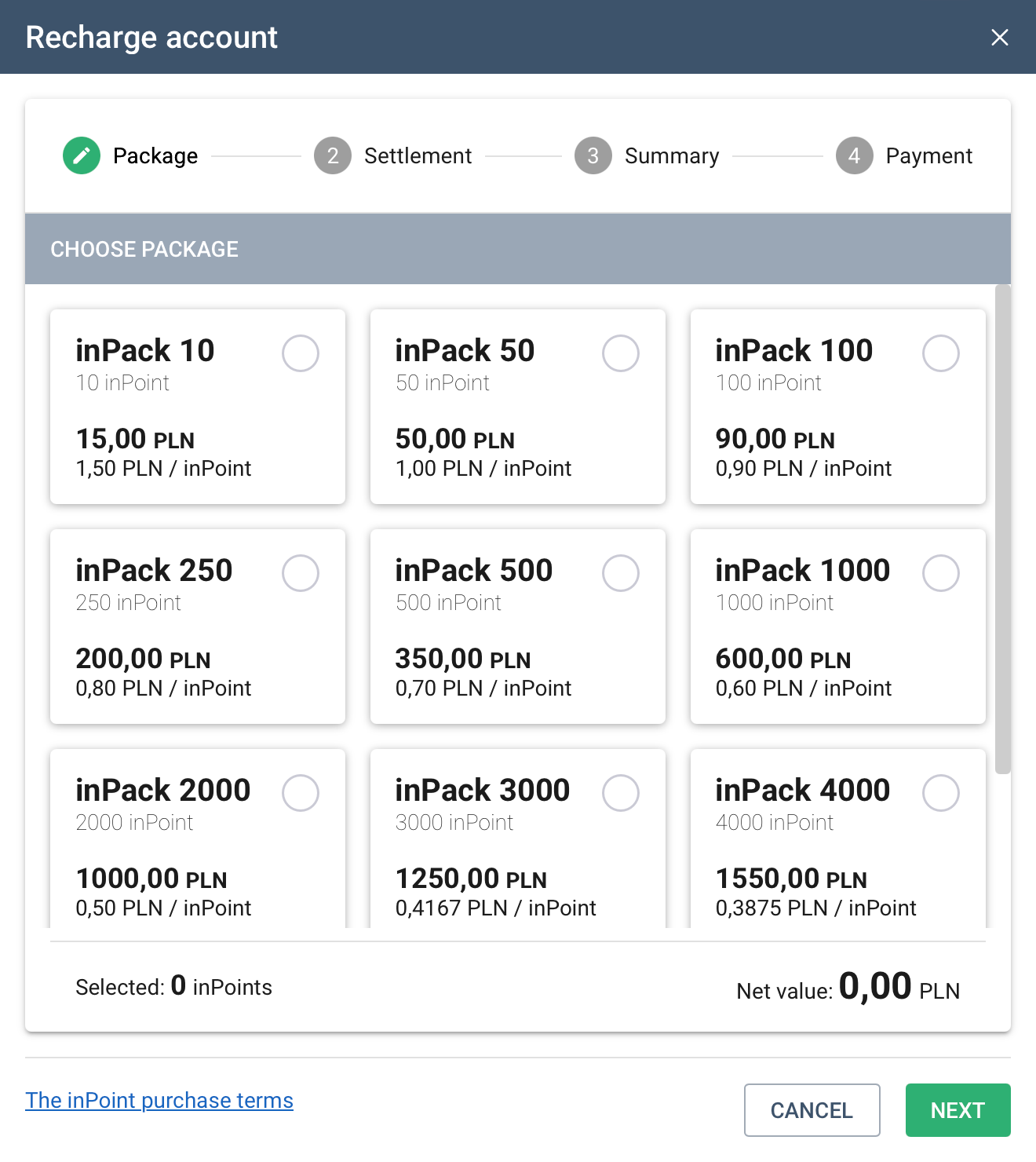
At every stage of the purchase, The inPoint purchase terms link is available at the bottom of the window.
Step 1 — Choosing a package
The Choose a package section displays the available inPoint packages. For each package, you can see:
- the number of inPoints in the package,
- the net price of the package,
- the net price per inPoint.
The larger the package, the lower the unit price per inPoint. Scroll down to see the full list of packages.
To select a package, click its card. The selected package is highlighted and marked with a colored check mark. A summary of your selection appears at the bottom of the section: the number of inPoints selected and the net value of the order.
Click NEXT to continue. The CANCEL button closes the window without placing an order.
Step 2 — Billing details
In the Billing details section, enter the details of the company to be invoiced:
- Company name,
- Billing address,
- Country,
- Tax ID (NIP).
All of the above fields are required. They are pre-filled with the data stored in your account settings, but you can change them if needed.
Below, the details of the orderer are displayed: the first name, last name and e-mail address of the logged-in user.
To continue, you must tick the declaration confirming that you are purchasing as an entrepreneur as part of your business activity and that the tax ID provided is active on the date of the order. The order cannot be placed without this declaration, as we serve business customers only.
Make sure your billing details are correct
Provide correct and complete company details. If the details turn out to be incomplete or incorrect, we will not be able to issue an invoice. In that case, the payment will be refunded, less the payment operator's fee.
Click NEXT to go to the summary.
Step 3 — Order summary
The Order summary section displays:
- the selected package and number of inPoints,
- the net value,
- the VAT amount,
- the total amount due (gross),
- the invoice details: company name, tax ID and address.
In this step, you also choose the payment method:
- Quick payments — online payment via PayU,
- Order via Customer Service — payment by bank transfer based on a pro forma invoice.
Both payment methods are described in detail in the next section.
Before continuing, you must accept the inPoint Purchase Terms and Conditions by ticking the corresponding checkbox. The terms are available via the link at the bottom of the window and at: https://cloud.dataportal.tech/#/shop-terms.
Click NEXT to proceed to payment.
Step 4 — Payment
The last step depends on the selected payment method.
Quick payments (PayU)
With quick payments, the transaction is processed by PayU. Your account is topped up automatically once PayU confirms the transaction. No further action is required.
Order via Customer Service
With this option, the order is forwarded to the Customer Service Department. The window displays the confirmation Order sent to Customer Service along with the next steps:
- Customer Service prepares a pro forma invoice for the order.
- Within a few business days, the pro forma invoice is sent to the e-mail address assigned to the account.
- Pay the invoice by bank transfer. Once the payment is posted, Customer Service tops up the account with the ordered inPoints.
If you do not receive the pro forma invoice, check your spam folder or contact Customer Service:
- e-mail: info@inventia.pl,
- phone: +48 22 545-32-15, +48 22 545-32-04.
Click CLOSE to finish placing the order.
Invoice
The invoice for the inPoint purchase is issued by Customer Service, regardless of the payment method:
- for Polish customers, the invoice is submitted to the National e-Invoicing System (KSeF),
- for foreign customers, the invoice is sent by e-mail.
Order status
A placed order appears in the list in the Orders and inPoint purchase window. Its current status is shown in the Status column and in the Status section of the order details window.