Grid and Guides
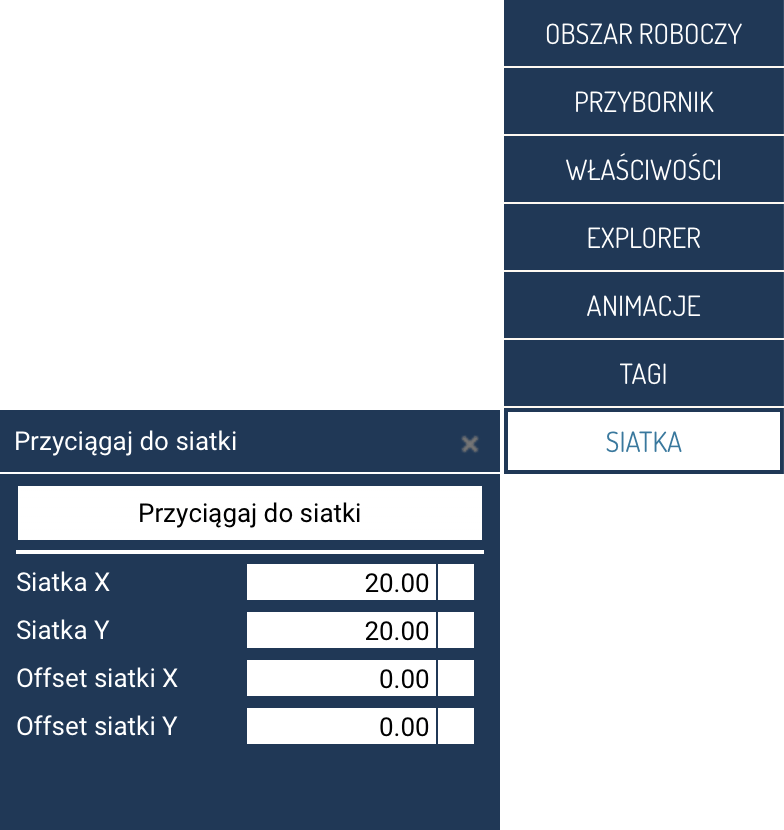
The Snap to grid panel lets you precisely position elements on the screen by aligning them to a defined grid. The tool lets you both enable automatic snapping and align the selected objects once, on demand.
Snap toggle
The top Snap to grid button acts as a toggle:
- On – elements dragged on the screen automatically align to the nearest grid lines.
- Off – design takes place without active snapping.
Once snapping is enabled, an additional button appears in the panel, letting you align the current selection once.
Grid configuration
The panel lets you adjust the grid parameters:
- Grid X – the horizontal spacing of grid lines (in pixels).
- Grid Y – the vertical spacing of grid lines.
- Grid offset X – the horizontal offset of the grid's origin relative to point (0,0).
- Grid offset Y – the vertical offset of the grid's origin.
These parameters determine how objects are aligned, both while being dragged and during a one-time snap.
Snap selection
The Snap selection button only appears when the snapping function is active.
It is used to align all currently selected elements once, adjusting their positions to the nearest grid points according to the configured parameters.
Snapping selected objects
When snapping selected objects to the grid, their top-left corner is moved to align with the nearest grid line intersection. The object's size remains unchanged.