Working with Objects on the Screen
Inserting an object
To place a new element on the screen, use the tool panel (Toolbox). Select any object — e.g. a rectangle, line, circle, text, or image — and click on the design screen to insert it.
Automatic element selection
Once added, an object is automatically selected, and the active tool automatically switches to the selection tool.
This means that if you want to insert another object of the same type, you need to select it again from the tool panel.
Selecting objects on the screen
To select an object (or several objects), you can use one of three methods:
-
Clicking the object on the screen The most natural method — click the object directly to select it.
-
Selecting the object in the Explorer panel In the object tree, click the object's (or group's) name — it will be selected on the screen.
This method is especially useful when objects overlap or are small. -
Outlining the object (so-called marquee selection) Click with the mouse in an empty area of the screen and drag, creating a rectangle that encloses the entire object.
All elements fully contained within the outline are selected.
This method also lets you select multiple objects at once, which is necessary when grouping objects or editing parameters for several of them simultaneously.
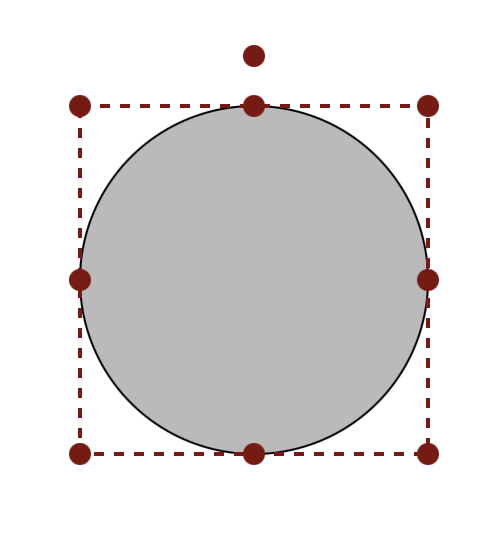
Appearance of a selected object
A selected object has a control frame consisting of:
- eight scaling handles (points at the corners and edges),
- a rotation handle (a single point at the top — the rotation handle),
- an outline frame defining the object's boundaries.
Scaling objects
- using the edge handles — scaling along a single axis only,
- using the corner handles — scaling along both axes simultaneously.
Proportional scaling
To keep an object's proportions while resizing it, drag a corner scaling handle while holding down the Shift key. This makes the object grow or shrink evenly along both axes.
Scaling happens dynamically as you drag with the mouse.
Rotating objects
To rotate an object:
- click the rotation handle (the top dot),
- drag the mouse to set the desired angle (the object will rotate around its center).
The current angle is shown in the object's properties.
Moving objects
An object's position can be changed:
- by dragging it with the mouse,
- or by entering exact Position X / Position Y values in the PROPERTIES panel.
Changing the display order of elements
The order of objects on the screen corresponds to their layering — elements placed "higher" cover those placed lower. To change an object's display order:
- select the element you want to move,
- from the top menu in the Designer, select the appropriate command:
- FRONT – moves the object one layer up,
- BACK – moves the object one layer down.
These commands let you precisely control the visibility of elements and how they overlap on the screen.
Duplicating objects
Duplication lets you quickly create multiple copies of the same object or group of objects. This is especially useful when designing repeating layouts, such as lists, columns, sets of buttons, or indicator panels.
Method 1: Duplicate from the top menu
- Select the object you want to duplicate.
- In the top menu of the Designer, select the DUPLICATE command.
A new copy of the object will be created in exactly the same place as the original.
Method 2: Copy and Paste in the Explorer panel
- In the Explorer panel, select an object or group of objects.
- Select the Copy command.
- Point to the place in the tree where you want to place the copy.
- Select Paste.
This method lets you precisely control the structure of the object hierarchy.
Overlapping of duplicated elements
Duplicated elements always appear exactly on top of the source object, so it's not immediately visible that they have been duplicated.
To make sure a copy has been created, check the Explorer panel or gently move one of the objects.
Quickly arranging multiple elements
If you want to quickly create multiple evenly spaced objects: 1. Duplicate the object several times (the copies may overlap each other). 2. Select all the copies — the easiest way is to outline them with the mouse. 3. Use the Horizontal and vertical command from the Toolbox – to evenly distribute the objects in a row or column. This command lines the objects up one after another, with equal spacing between them.
Grouping objects
Grouping lets you combine multiple elements into a single object, making it easier to move, scale, and rotate them together, and to manage the screen's structure. This is especially useful when building more complex visual layouts.
What can be grouped?
You can group any elements visible on the screen, including:
- individual paths,
- simple objects (e.g. rectangle, line, circle),
- compound objects,
- other groups.
The system does not impose any restrictions — groups can contain any combination of objects.
Creating a group
To create a group:
- select the objects on the screen (by clicking them while holding Shift, or by outlining them with a marquee)
- select the Group command from the top menu of the Designer.
Once the group is created, the system automatically assigns it a name, but we recommend changing it to something more descriptive — this makes managing objects easier later on, especially in complex screens.
Group behavior on the screen
Once grouped, the selected elements become a single object:
- they can be moved as a whole,
- scaled while keeping their mutual proportions,
- rotated as a single element.
A group behaves the same as any other object, but the internal structure of its elements is still visible and available in the Explorer panel.
Ungrouping elements
To ungroup an existing group:
- select the group on the screen or in the Explorer panel,
- select the Ungroup command from the top menu of the Designer.
This command only removes the top level of grouping:
- if the group contained other groups, they remain grouped,
- ungrouping needs to be repeated to fully "flatten" the structure of nested groups.
This way of working is convenient and lets you precisely control complex object layouts.
Editing parameters in properties
All geometric properties — position, width, height, angle — can also be entered manually in the PROPERTIES panel, which ensures a high degree of precision when setting them.
Summary
- Once inserted, an object is automatically selected.
- To add another object of the same type, you need to select it again from the tools or use duplication.
- Objects can be selected in three ways: by clicking, in the Explorer panel, or by outlining them with the mouse.
- A selected object can be easily scaled, rotated, and moved using the edit handles.
- Precise geometry values can be set in the PROPERTIES panel.