Alarm Counter
The Alarm counter is an advanced object that displays the number of all active alarms in the project. The value presented on the screen is updated automatically while the system is running.
Inserting the counter onto the screen
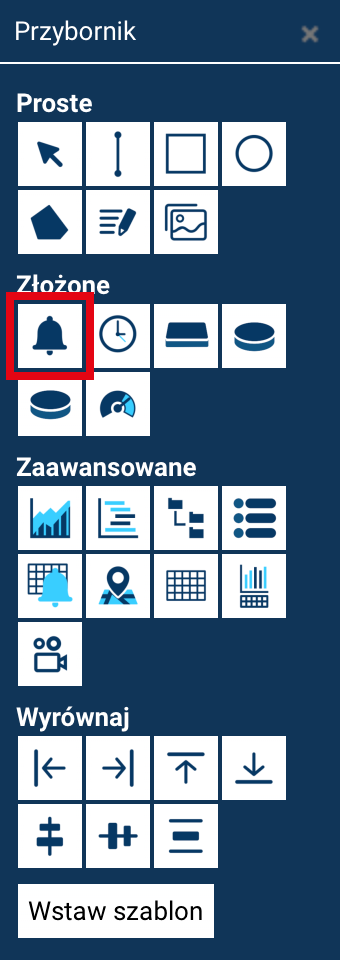
To add the counter:
- Open the Toolbox.
- Select Alarm counter.
- Click on the screen at the place where you want to put the counter.
Once inserted, the counter can be moved, scaled, and rotated.
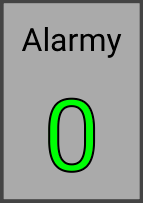
How the counter works
- It retrieves from the server the current number of active alarms in the project.
- It refreshes its value dynamically, without needing to manually reload the screen.
- It includes alarms from all tags associated with the project.
At least one tag linked on the page is required
For the alarm counter to work correctly, the system needs to know which project the screen is currently associated with. This requires the screen to have at least one animated tag present — i.e. a tag attached to any object through animations.
Object properties
The alarm counter offers the standard set of properties common to all objects in the Designer:
- Name – the object's identifier, visible in the tree and used in screen logic.
- Position X / Y – the object's position on the screen.
- Width / Height – the object's size in pixels.
- Angle – the object's rotation around its center.
In addition, the alarm counter has the following option:
- Play sound signal – enables playing a short sound signal when a new alarm arrives (when the number of alarms increases). The sound signal works locally in the user's browser. When this option is enabled, an alarm-mute button appears on the control (in run mode).