Tags
The Select tag panel is used to browse, filter, create, and edit the tags available in the project. It is used wherever an object needs to be linked to data — e.g. in animations, charts, indicators, alarms, or text fields.
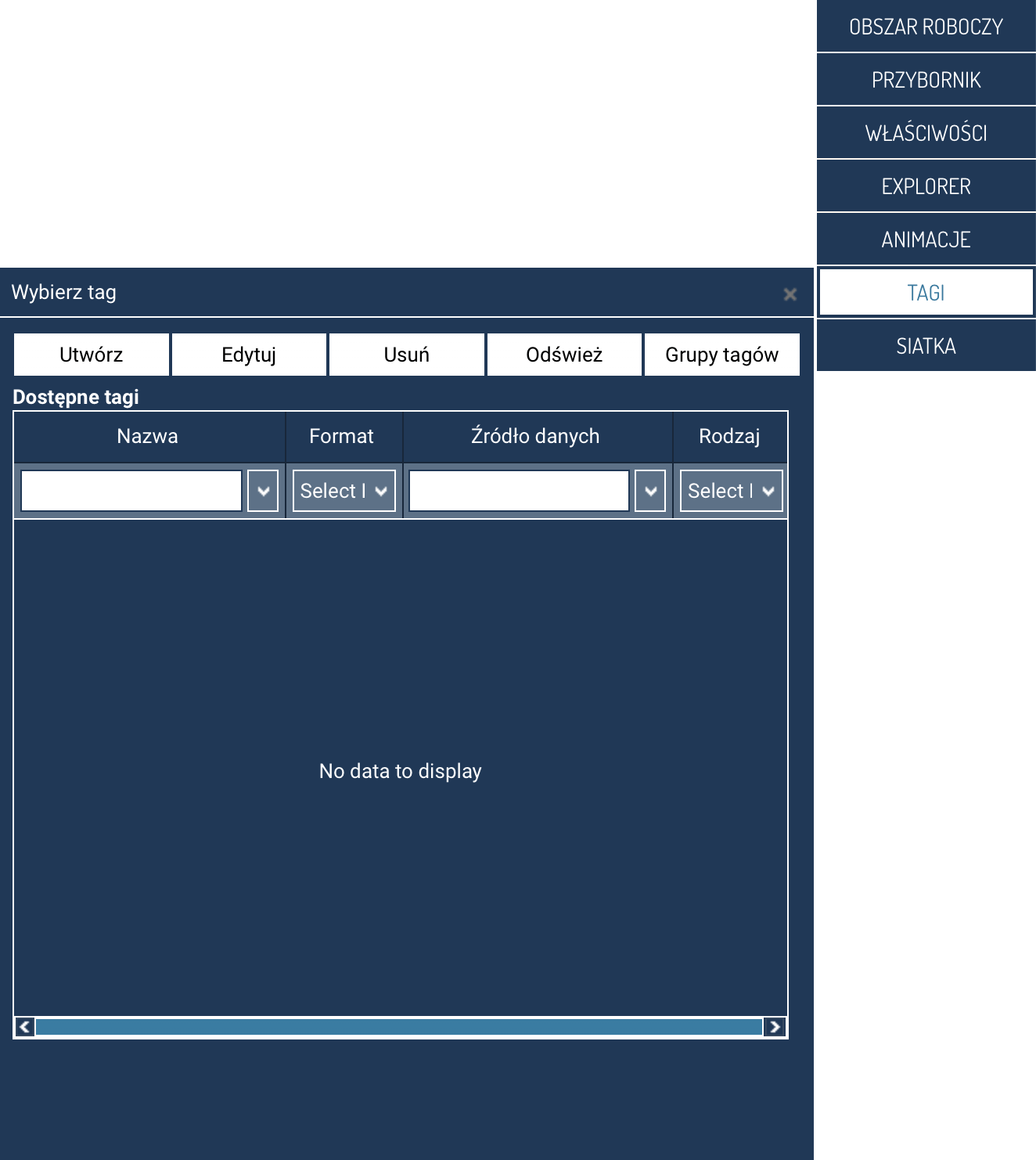
The panel displays a list of all tags available in the project, along with the most important information: name, format, data source, and tag kind.
Action buttons
At the top of the panel are the buttons:
- Create – opens the form for adding a new tag to the project.
- Edit – lets you edit the selected tag.
- Delete – removes the selected tag from the project.
- Refresh – reloads the tag list.
- Tag groups – takes you to tag group management (linking placeholders with tags).
These buttons let you fully manage the tag lifecycle: from creation, through modification, to organizing and grouping.
Table of available tags
The central part of the panel is a table with the tag list. Each row represents a single tag, and the columns show:
- Name – the tag's unique name.
- Format – the data type, e.g. BINARY, BIT_I/O, UINT, FLOAT, etc.
- Data source – the data source the tag is associated with.
- Kind – the tag type, e.g. Register, Virtual, Calculated.
The table lets you quickly find the right tag, observe its structure, and assess where the data comes from.
Filtering tags
Above the table are filter fields — independent for each column:
- filtering by name,
- filtering by format,
- filtering by data source,
- filtering by kind.
This makes it easy, in large projects, to narrow the list down to tags of a specific type, device, or format.
Filtering works immediately — the results update as the criteria are changed.
Creating and editing tags
Creating a new tag
After clicking Create, a form is displayed where you can define:
- the tag name,
- the data source,
- the format,
- the value range,
- alarm properties,
- membership in a tag group.
The newly created tag will appear on the list and can be used immediately in animations or screen objects.
Editing a tag
To edit an existing tag:
- select it on the list,
- click Edit,
- change the required parameters,
- save the changes.
The system automatically checks whether the tag is being used in a way that would conflict with the new configuration.
Deleting tags
A tag can only be deleted if it is not used in:
- animations,
- alarms,
- charts,
- other screen object properties.
If the tag is in use, the system will inform you that it must first be unlinked.
Working with tag groups
The Tag groups button takes you to the group management module.
Groups let you logically link placeholders with tags.
Panel applications
The Select tag panel is used in many places within the Designer:
- when assigning animations,
- when defining chart configurations,
- in text fields displaying values,
- in alarm objects,
- with fills and indicators,
- in scripts.
As a result, it is one of the key tools for managing data in the SCADA screens being designed.