Path
The Path is the most flexible tool for drawing simple objects in the Designer. It lets you create both classic polygons and open paths, as well as advanced shapes based on Bézier curves. This makes it possible to design elements that cannot be achieved with other simple objects.
Visually, a path has all the common properties of simple objects, namely:
- fill (color, gradient, pattern, or none),
- stroke (color, thickness, style),
- opacity.
Drawing a polygon (closed path)
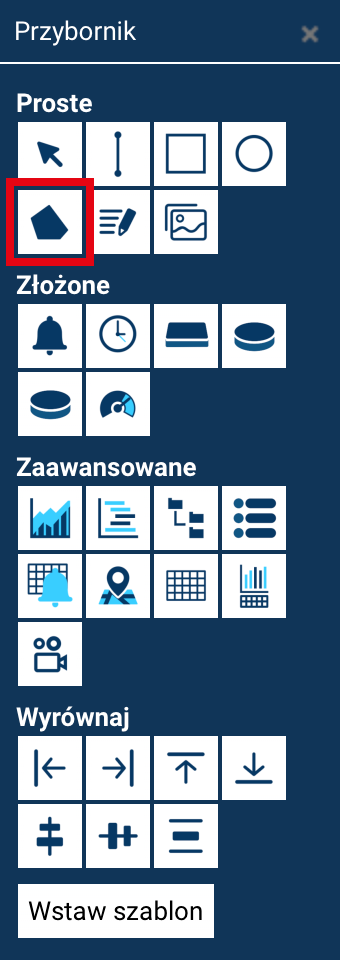
The basic use of the Path tool resembles creating a polygon:
- Select the Path tool from the Toolbox.
- Click at the point where the first corner should be.
- Click subsequent points, creating the shape's further vertices.
- To close the shape and finish drawing, click the first point of the path again.
A path created this way behaves like a polygon — it forms a closed area that can be filled with a color or a pattern.
Open path
The second working mode is drawing open paths, i.e. lines made up of multiple segments:
- Select the Path tool.
- Click successively on the points marking the path's vertices.
- To finish drawing the path, double-click at the point where you want to place the last point.
Double-clicking creates the last point and simultaneously ends the path's editing, leaving it as an open shape — with a fill, but with an open outline.
Drawing Bézier curves
A path also lets you create smooth, rounded shapes using Bézier curves.
Each point of a path can be one of two types:
-
Sharp (corner) point — created by a normal click.
Successive segments meet at a sharp angle. -
Smooth (curve) point — created by clicking and dragging the mouse.
This action produces direction handles (so-called control handles), which determine:- the direction of the outgoing and incoming segment,
- the degree of the curve's curvature,
- the smoothness of the transition between segments.
The longer the handles and the more they are angled, the more the curve will bend.
How to draw curves?
- Select the Path tool.
- Click to create sharp points, or click and drag to create smooth points with direction handles.
- Continue adding further segments.
- To finish creating the path:
- click the first point (closes the path),
- or double-click to finish it as an open path.
Editing paths
To edit an existing path, double-click the selected path on the screen.
This will open the Path Tools panel, containing functions for modifying its shape.
Active vertex
During editing, the selected vertex is marked in white, while inactive vertices remain in a dark color.
Functions available in the path tools panel
-
Close path - closes the path, connecting the last vertex with the first — used for open paths.
-
Sharp vertex - changes the selected point into a sharp vertex, i.e. one where the segments meet at a distinct angle. Direction handles (if any) are removed.
-
New vertex - adds a new point between the selected vertex and the next vertex in the order in which the path was created. The new point is always a sharp vertex.
-
Delete vertex - removes the specified point and joins the adjacent segments into a single line.
Changing a vertex's position
To change a vertex's position:
- Click it to select it.
- Drag it with the mouse to a new location.
This is the basic method for modifying a path's shape.
Vertex types
Each vertex on a path can be:
- a sharp vertex — segments meet at an angle, no direction handles,
- a smooth vertex (smooth point) — segments transition smoothly, without a break; it has direction handles usually set in a single line, generally of equal or different lengths.
A smooth vertex lets you achieve natural, soft transitions typical of Bézier curves.
Converting a sharp vertex into a smooth one
If you have added a sharp vertex, you can convert it into a smooth one:
- click and drag the vertex while holding down the Shift key — direction handles (control points) will be created, which determine the curvature.
Manipulating the curvature (direction handles)
Each smooth vertex has two control handles, which define:
- the direction the curve runs in,
- the degree of curvature,
- the smoothness of the transition from one segment to the next.
They can be dragged to precisely shape the curve.
Moving one handle independently
Dragging one end of a handle without any additional keys:
- creates a sharp vertex with handles,
- lets you achieve a sharp transition on one side and a smooth one on the other.
Useful when you need to independently control the segments meeting at a vertex.
Moving handles symmetrically (maintaining smoothness)
Dragging a handle while holding down the Shift key:
- moves both handles simultaneously and symmetrically,
- maintains a smooth transition between segments,
- prevents a sharp corner from forming.
Changing a sharp vertex with handles into a smooth vertex
If you have a sharp vertex with handles and want to convert it into a smooth one:
- click and drag one handle while holding down Shift.
The other handle will then position itself symmetrically relative to the handle you clicked.