Screen Design Basics
DataPortal Designer is the module for creating and editing synoptic screens used in system data visualization. In the editor, you can build screen structures, add graphical elements and interactive components, and link them to tags, alarms, and other data coming from sources.
This chapter describes the editor's key functions, such as:
- managing layers and the object hierarchy,
- element properties and their links to data,
- configuring interactive behaviors,
- rules for publishing and versioning screens.
The goal is to present the basics of working with DataPortal Designer, enabling you to quickly and precisely create visualizations that support process monitoring and system operation.
Switching to design mode
You can switch to screen design mode in several ways:
- From the screen table
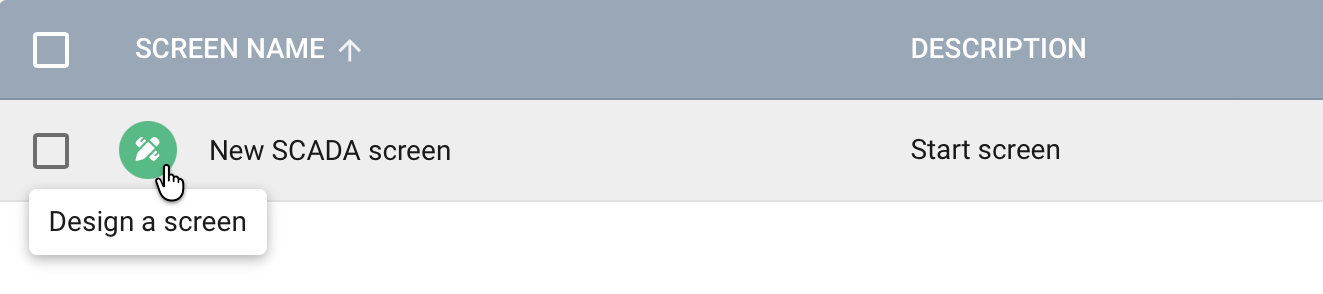
Hover the cursor over the selected screen in the list - a button with the design icon will appear on the left: . Click it to open the screen in DataPortal Designer.
-
From the screen details window
Click a screen in the table to go to its details. The DESIGN button will be available at the bottom of the window — use it to launch design mode. -
From the screen tree
Select a screen in the tree on the left side of the module. Right-click and select the DESIGN option from the context menu. -
From a running screen
In animation mode, at the top right of the screen, click the Go to design button.
Each of these methods opens DataPortal Designer, where you can edit the structure and content of the selected screen.
DataPortal Designer interface layout
The DataPortal Designer interface is divided into several functional areas that make designing and editing synoptic screens easier.
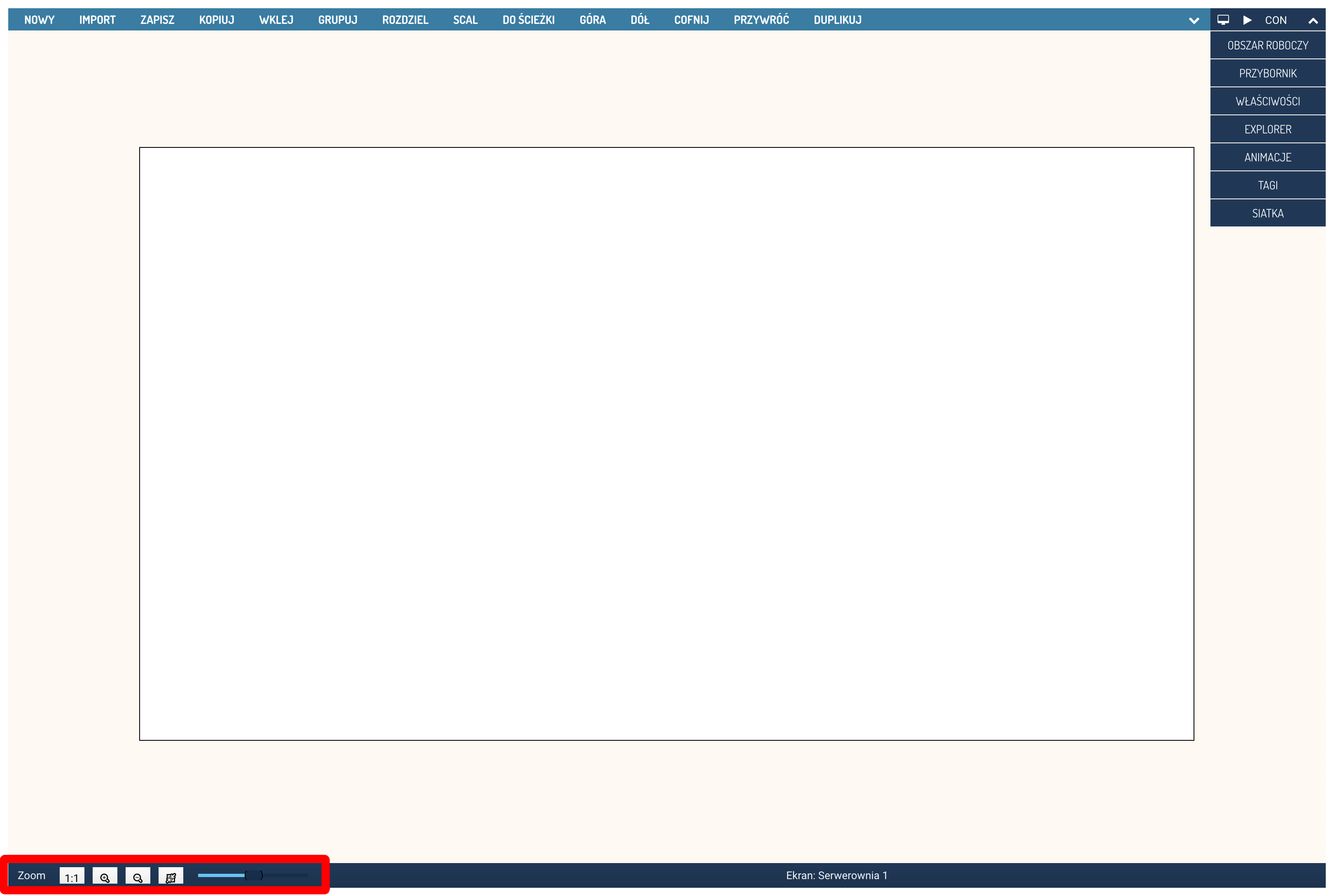
Design area (center of the screen)
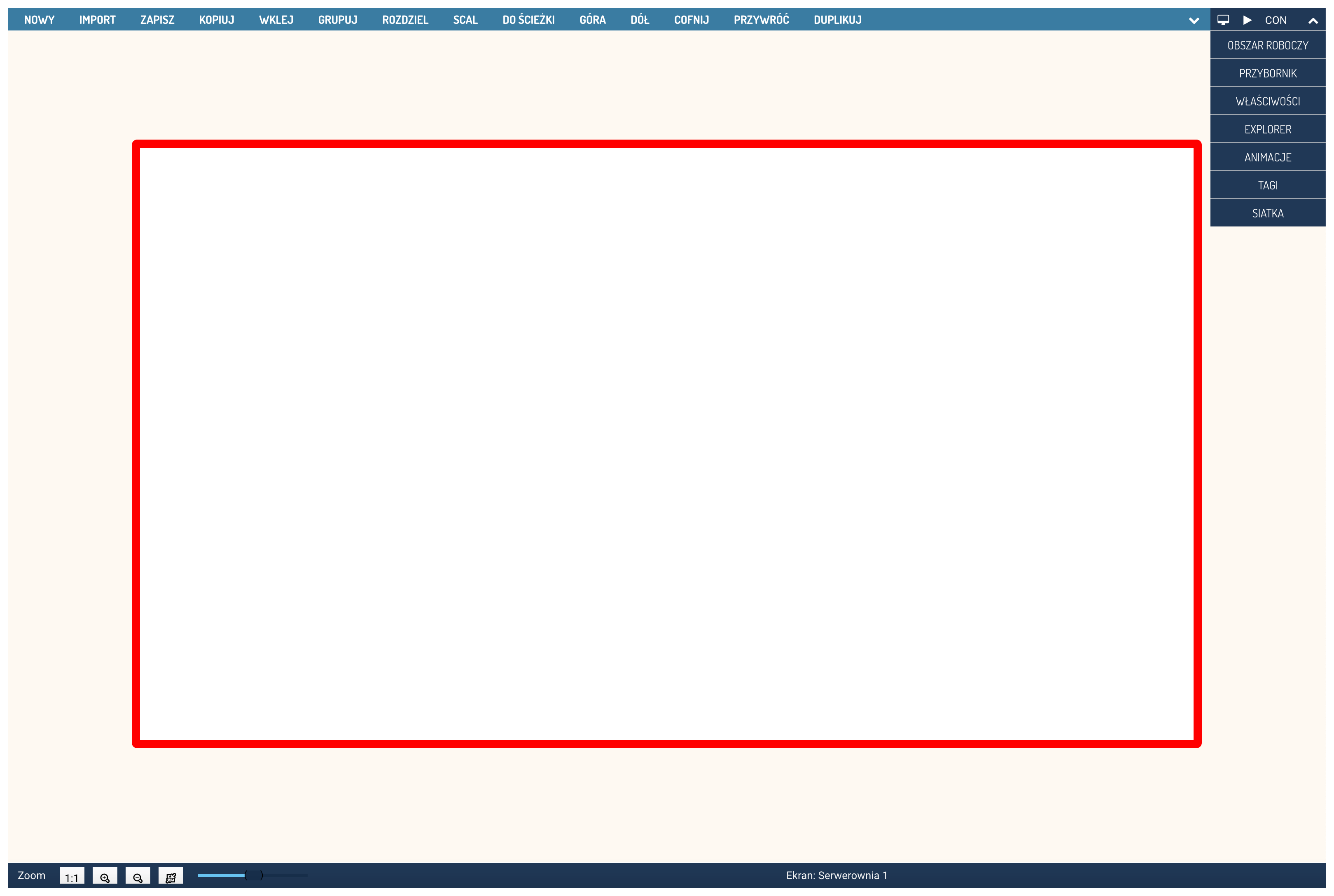
The central part of the interface is the working area, where the screen being designed is displayed. This is where graphical elements, components, and data-linked visualizations are placed.
The working area is bounded by a frame reflecting the actual size of the synoptic screen.
Main toolbar (top)
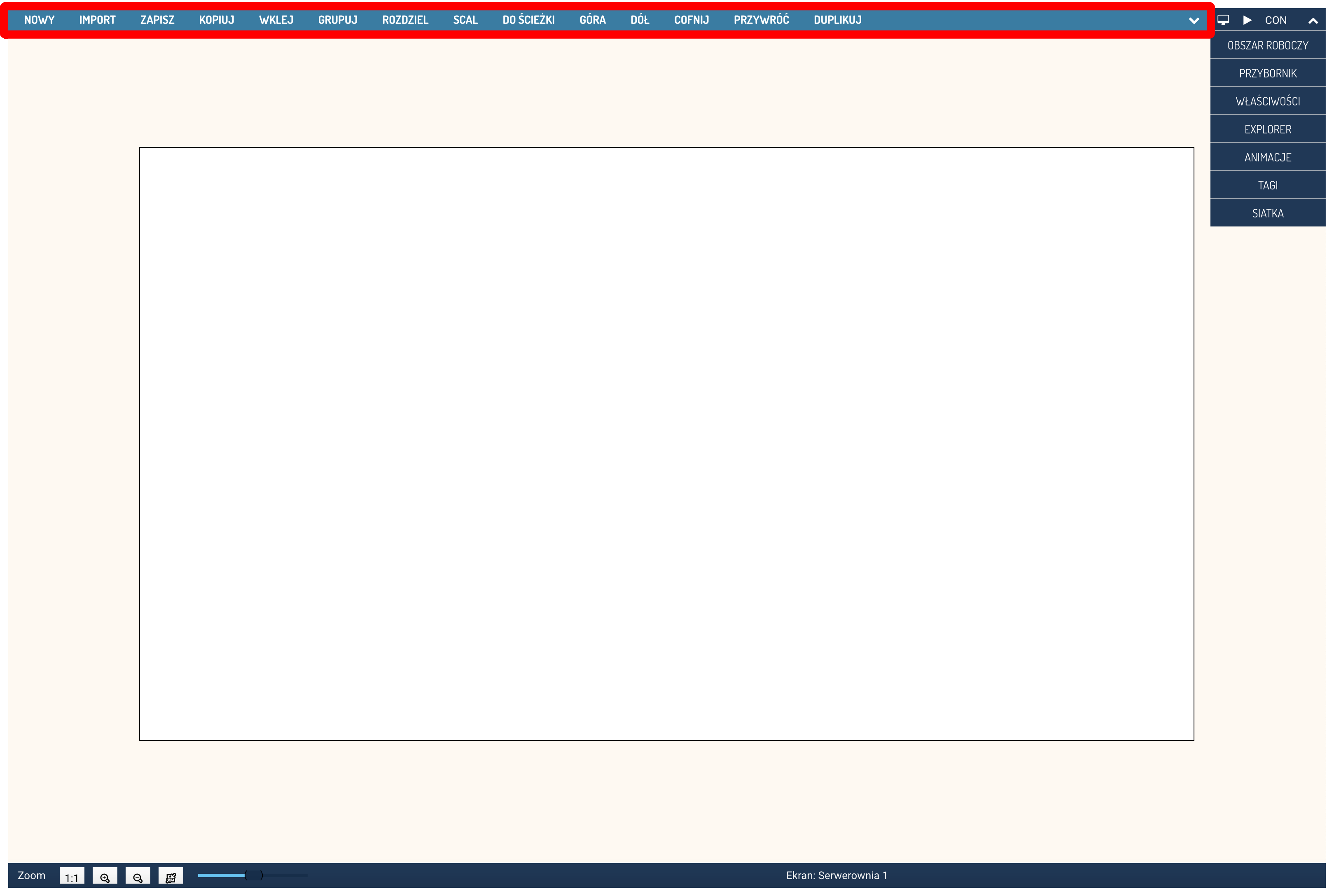
At the top of the screen is a toolbar that lets you perform basic operations on the screen being designed, such as:
- NEW – create a new screen,
- IMPORT – load a project from a file,
- SAVE – save changes,
- COPY / PASTE – operations on screen elements (the selected elements will be duplicated),
- GROUP / UNGROUP – working with groups of elements (grouping selected elements and ungrouping elements),
-
MERGE - combines the selected paths into a single path,
Merging paths
The MERGE option only works on paths. If a selected object other than a path is included, the merge will not be performed. For the operation to work correctly, select only the paths you want to combine.
-
TO PATH – converts simple objects into editable paths (rectangles and ellipses are supported; when multiple objects are selected, only these types are converted),
Converting simple objects into paths
Converting an object into a path is not directly visible – after conversion, a rectangle or ellipse looks no different, either on the screen or in the Explorer. The change only becomes noticeable after double-clicking the object on the screen: for a path, the path editing tool is then displayed, confirming that the object was correctly converted.
-
BRING FORWARD / SEND BACKWARD – changing the display order of layers,
- UNDO / REDO – history operations,
- DUPLICATE – creating copies of the selected elements.
Tool panel (right side)
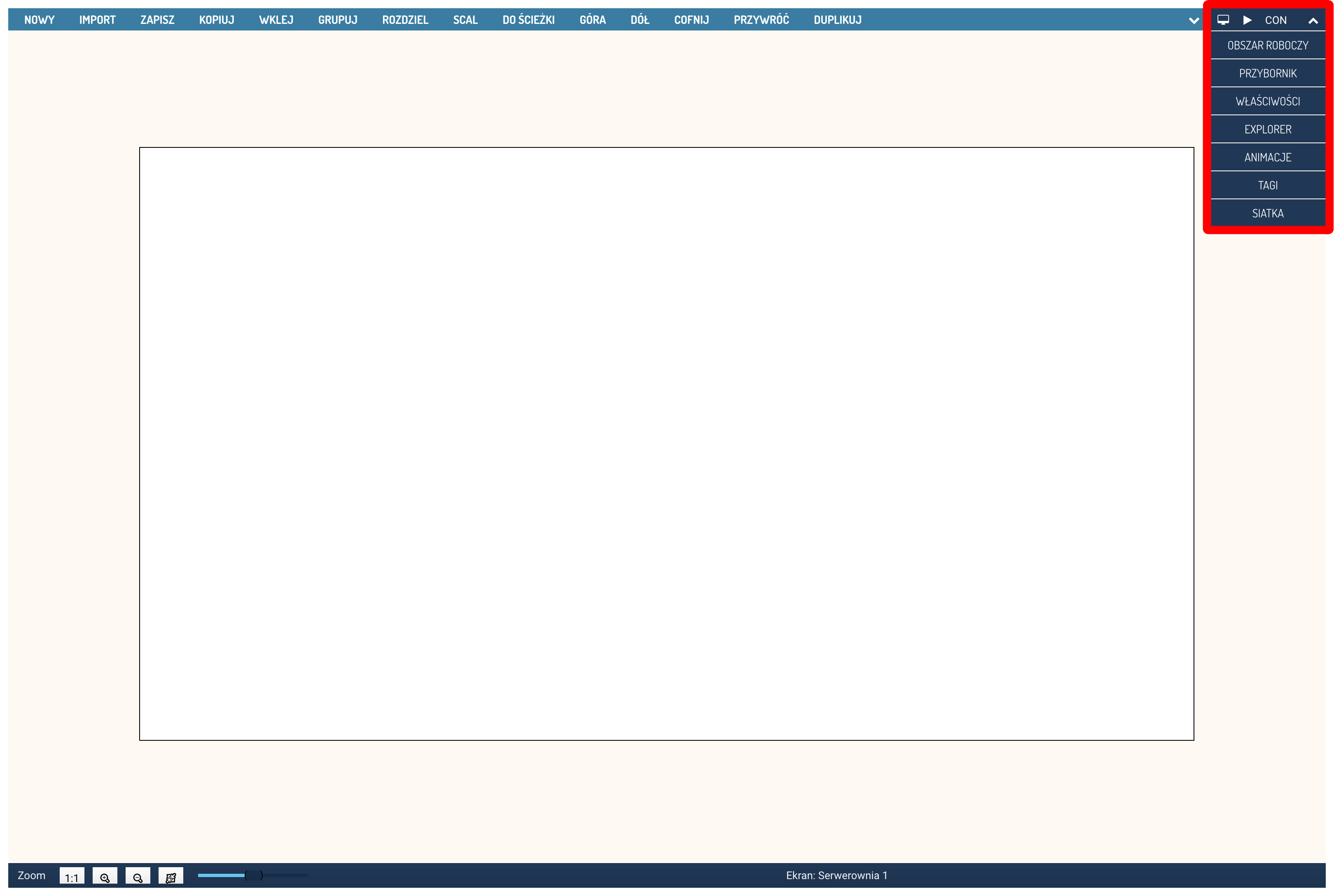
A menu is placed on the right side, from which you can display configuration panels and tools for managing elements found on the screen:
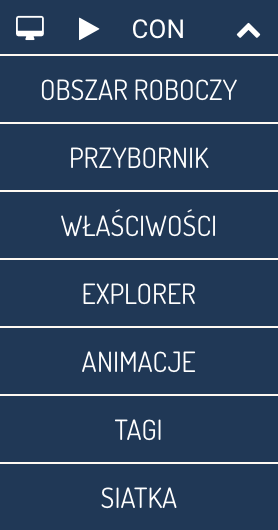
- - full-screen mode,
- - test-run the screen in Animation mode,
- CON - switch to working with domains mode (advanced design),
- - collapse the tool panel,
- WORKSPACE - settings for the properties of the entire screen,
- TOOLBOX - a list of available elements (components) that can be placed on the screen,
- PROPERTIES - detailed properties of the selected element,
- EXPLORER - the hierarchy of all elements found on the screen,
- ANIMATIONS - configuration of animations and dynamic behaviors,
- TAGS - selecting, creating, searching for, and assigning tags to screen elements,
- GRID - alignment and guide settings.
Clicking an item in the menu displays the corresponding tool panel. Selecting another panel will automatically hide the previous one (unless you have changed its position).
Changing the position of individual panels
Moved panels remember their position and size — they can be shown and hidden independently by clicking the menu item or the close icon in the header. Opening new panels does not close panels whose position has been changed.
Restoring panel position
To restore a panel to its default position (dock it), click its header and drag the panel near the toolbox — to the place where it is normally located.
When the panel is brought close to the correct area, the command that opens this panel will be highlighted in the toolbox, signaling that it can be docked again.
Zoom toolbar (bottom left corner)
The bottom left corner contains buttons responsible for changing the zoom level of the working area:
- 1:1 - display the designed screen at actual scale,
- Zoom in - increase the view scale,
- Zoom out - decrease the view scale,
- Fit - automatically fit the screen to the visible area.

The scale lets you conveniently edit both large and small screen elements.
Navigating the working area
In design mode, you can quickly change the view of the working area:
- Ctrl + mouse wheel – scales (zooms in or out) the working area.
- Space + drag the mouse with the left button held down – pans the working area.
Screen preview in animation mode
While working in DataPortal Designer, you can check at any time what the designed screen will look like during the system's actual operation — with animated elements, current variable values, and charts and tables populated with data. This is what the animation preview mode is for.
To start the preview, click the Play button () at the top of the tool panel. The screen will switch to animation mode — elements will start updating just as they do in normal system operation.
Preview mode toolbar
In animation preview mode, a small toolbar appears at the top of the screen with the following buttons:

- Full screen — switches the view to full-screen mode,
- Exit preview — ends animation mode and returns to design mode,
- Screenshot — takes a snapshot of the screen's current state and saves it as a preview thumbnail.
Custom screenshot
The Screenshot button lets you save the screen's current appearance — including populated data, animated indicators, and charts — as a thumbnail assigned to the given screen. A custom screenshot replaces the default preview automatically generated by the system when the project is saved.
This is especially useful for screens containing charts or data tables that appear empty in the automatic preview — such data is only available in animation mode. A screenshot taken this way will be visible:
- as a thumbnail in the screens table in the Screens module,
- on the PREVIEW tab in the screen details window.
Restoring the default preview
If you want to remove your custom screenshot and go back to the automatically generated preview, go to the screen's details in the Screens module and click the RESTORE DEFAULT PREVIEW button.
Exiting design mode
Switching to another main program module – e.g. Projects, Resources, or Reports – automatically exits design mode.
To finish designing the current screen while staying in the Screens module, click the Exit design mode command available in the designer module's header, above the toolbar.
Save your changes
Before leaving design mode, make sure all changes to the screen have been saved.
Switching to another screen in design mode
To switch to designing a different screen without closing the Designer, select the desired screen in the project tree. The system will automatically switch design mode to the selected screen.