Balance
The Balance is an advanced analytical object used to present summaries, statistics, and aggregations of historical data for selected variables (tags) over a given time range. The object lets you present data simultaneously as a chart and a table, as well as export it to external files.
Inserting the balance
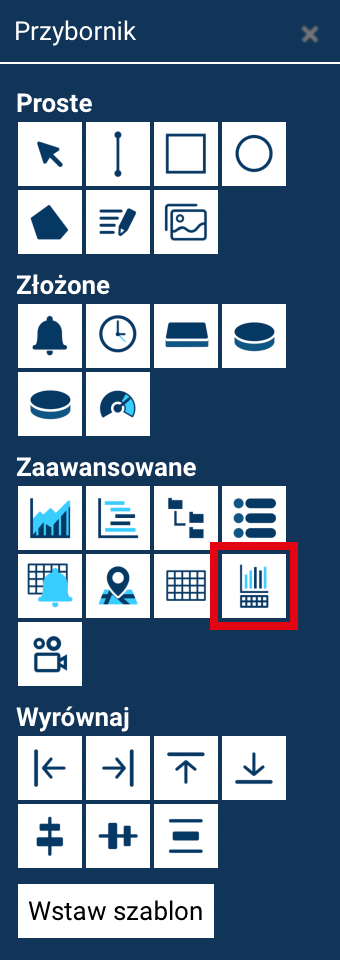
The Balance object is inserted in the standard way from the Toolbox. To go to its configuration, double-click the object on the screen. The Edit Balance window will then open.
The edit window is divided into two main parts:
- the top part – used for general configuration, the layout, and the object's style,
- the bottom part – used for selecting tags and defining how they are analyzed and presented.
Main configuration
GENERAL tab
The GENERAL tab contains the basic settings for the entire summary:
-
Title - the main title of the entire balance, displayed above the chart and table.
-
Subtitle - an additional description supplementing the title, e.g. giving information about the data range or the context of the analysis.
-
Time format - specifies how the date and time are presented.
-
Sort type - defines the order of rows in the data table: Ascending – chronologically, or Descending – from the newest to the oldest values.
-
Adjust time to time zone - once this option is enabled, dates and times are converted to the user's local time zone, which matters when analyzing data collected in different time zones.
-
Fill area - causes the Balance object to automatically stretch to fill the entire available screen area.
-
Available intervals - specifies which data aggregation ranges will be available in animation mode (Hour, Day, Week, Month, and Year).
-
Starting basis - defines the default data aggregation unit when the screen is launched (Day, Week, or Month).
-
Calculation start time - lets you shift the moment daily calculations begin. Set by default to
00:00. -
Export options (CSV, XLS) - specify the visibility of the buttons for exporting the tabular data in animation mode to files (CSV, XLS).
LAYOUT tab
The LAYOUT tab is used to define the object's visual structure:
-
Chart type
Specifies the relative position of the chart and the table:- chart on top, table at the bottom (default),
- table on top, chart at the bottom,
- horizontal layout (in various arrangements),
- chart only,
- table only.
-
Chart / table proportions - let you set the relative size of both elements (e.g. 50/50, 30/70, etc.).
-
Reverse proportions - quickly swaps the proportions without needing to re-select the values.
-
Button positioning - specifies the location of the data aggregation change buttons (day / week / month), e.g. at the top or bottom of the object.
STYLE tab
The STYLE tab is responsible for the appearance of the buttons controlling the data aggregation:
-
Button color - the background color of the buttons in the inactive state.
-
Text color - the text color for the inactive option.
-
Active color - the color of the button for the currently selected interval.
-
Active font color - the text color for the active option.
-
Glossy - enables a visual effect that gives the buttons a glossy style.
Tag and calculation configuration
The bottom part of the Edit Balance window is used to select variables (tags) and define how they are analyzed.
Managing tags
The bottom left corner has buttons letting you:
- add tags,
- edit the selected tag,
- copy selected tags,
- delete a tag from the summary.
Tags are selected from the list of available system variables. Once a tag is added, it appears on the list on the left.
Tag settings
Once a tag is selected on the list, its settings are displayed on the right:
-
Custom name
Lets you give the tag its own, readable name instead of the system tag name. -
Calculation type
Specifies how the data is processed over the selected period:- Add – the sum of all values in the period,
- Difference – the difference between the final and initial value,
- Average – the arithmetic mean of the values,
- Minimum – the smallest value in the period,
- Maximum – the largest value in the period.
-
Summary
Adds a row at the end of the table summarizing the entire analyzed period.
The same aggregation functions are available to choose from as for the base calculation. -
Sort
Includes the given tag in the table's sorting, by the selected value. -
Add prefix
Adds, in the table header, before the tag name, information about the current aggregation period (e.g. day, week, month). -
Show raw data
Adds an extra column (with its own name), in which the unprocessed value from the last day/hour of the given period is displayed. -
Initialization
Once this option is enabled, the data for the tag is automatically displayed on the chart when the screen is launched.
Otherwise, the user must add it manually in animation mode. -
Decimal places
Specifies the number of decimal places with which numeric values are presented in the table and on the chart.
Balance – animation mode
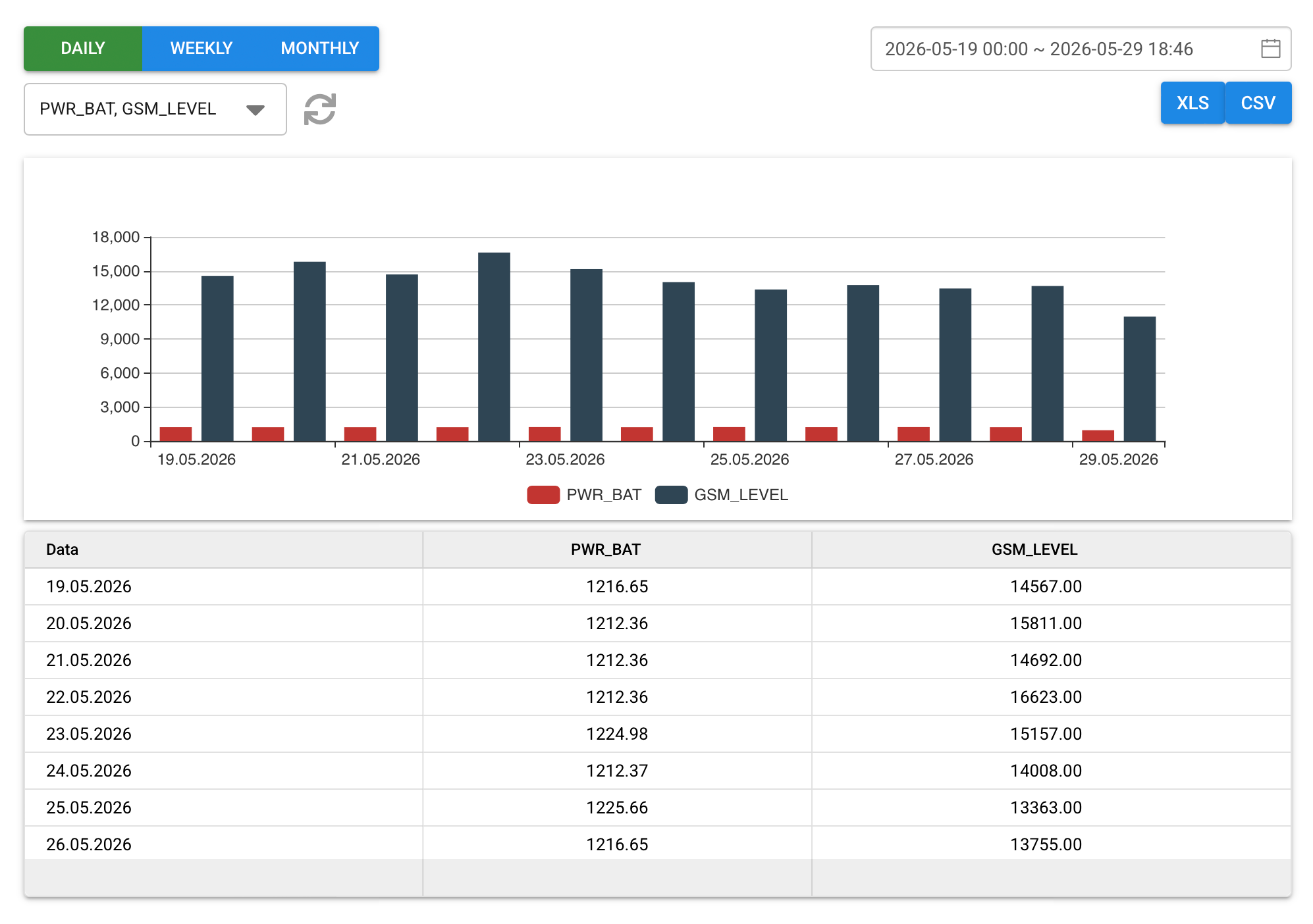
In animation mode, the Balance object lets you analyze historical data based on the previously defined configuration. The user works with an interactive view of the chart and table, without access to the design settings.
Changing the aggregation and time range
The aggregation buttons (e.g. hourly, daily, weekly, monthly, yearly) let you change how the data is grouped.
Changing the interval or the time range automatically recalculates the data and updates the view.
Chart and table
- The chart presents the values aggregated over successive time periods.
- The table contains the periods' dates, the calculated values, and optionally columns with raw data.
A summary of the entire range may be displayed at the end of the table (if this option has been set).
The order of the data follows the configured sorting.
Display and export
If initialization has been enabled for a given tag, its data is visible as soon as the screen is launched. The tag selection button lets you turn selected variables on and off. Once you have changed the selection, click the refresh-view button.
The available XLS and CSV buttons let you export the currently displayed data.