Built-in Actions
DataPortal provides a range of built-in actions that can be assigned to objects placed on a synoptic screen. Actions let you define the system's responses to user interaction — for example, clicking a button, double-clicking an object, or the occurrence of a specific event.
Adding an action
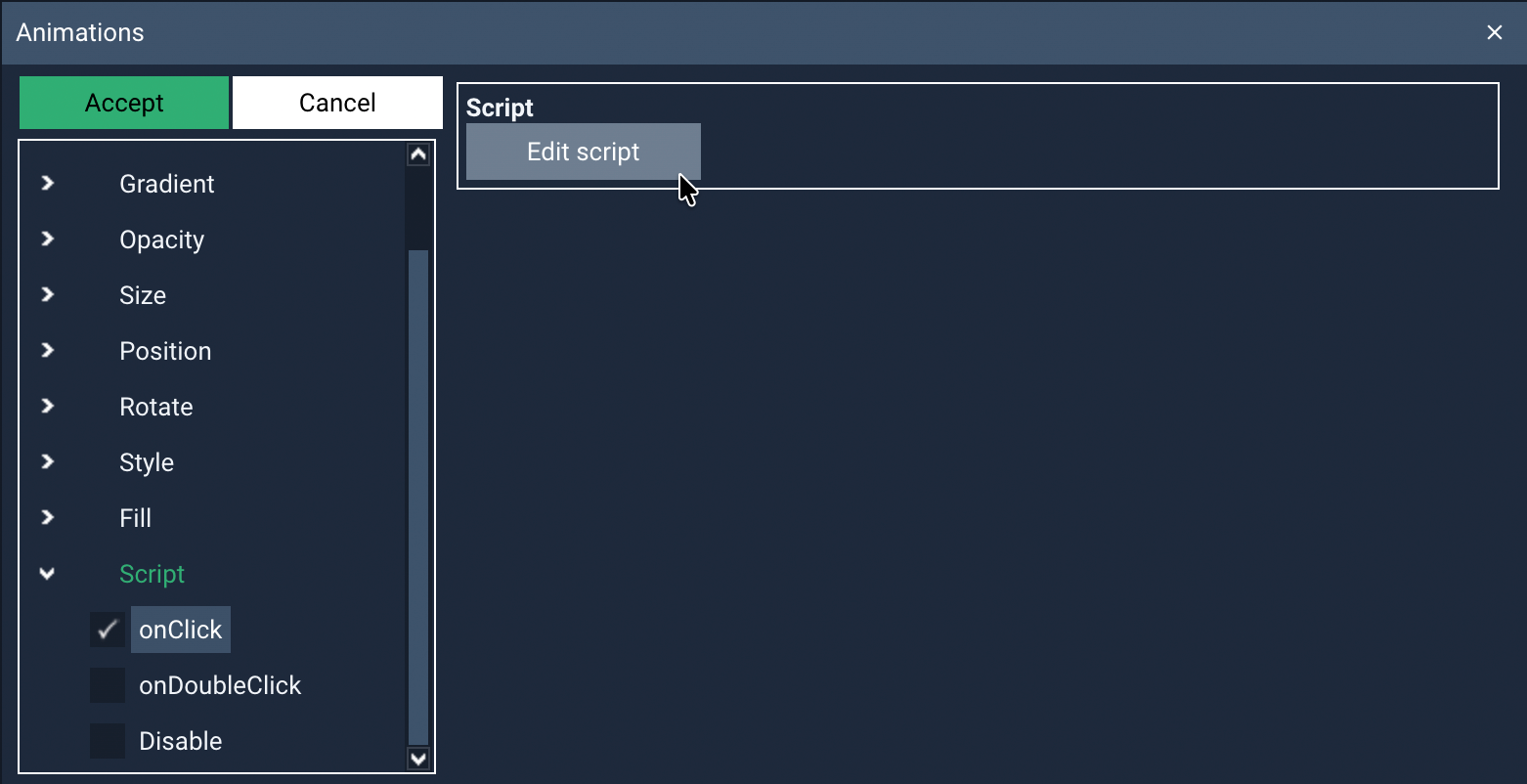
Actions are configured from the Action Editor, available in the Animations panel, under the Script branch. Thanks to ready-made actions, functionality can be quickly added to interface elements without having to write your own scripts.
To configure an action:
- Select the object on the screen you want to associate the action with (e.g. a button).
- Open Animations from the Tool panel.
- Expand the Script branch.
- Select the event for which the action should be performed:
- onClick — a single click,
- onDoubleClick — a double click.
- Click the Edit script button to open the Action Editor and configure the selected action.
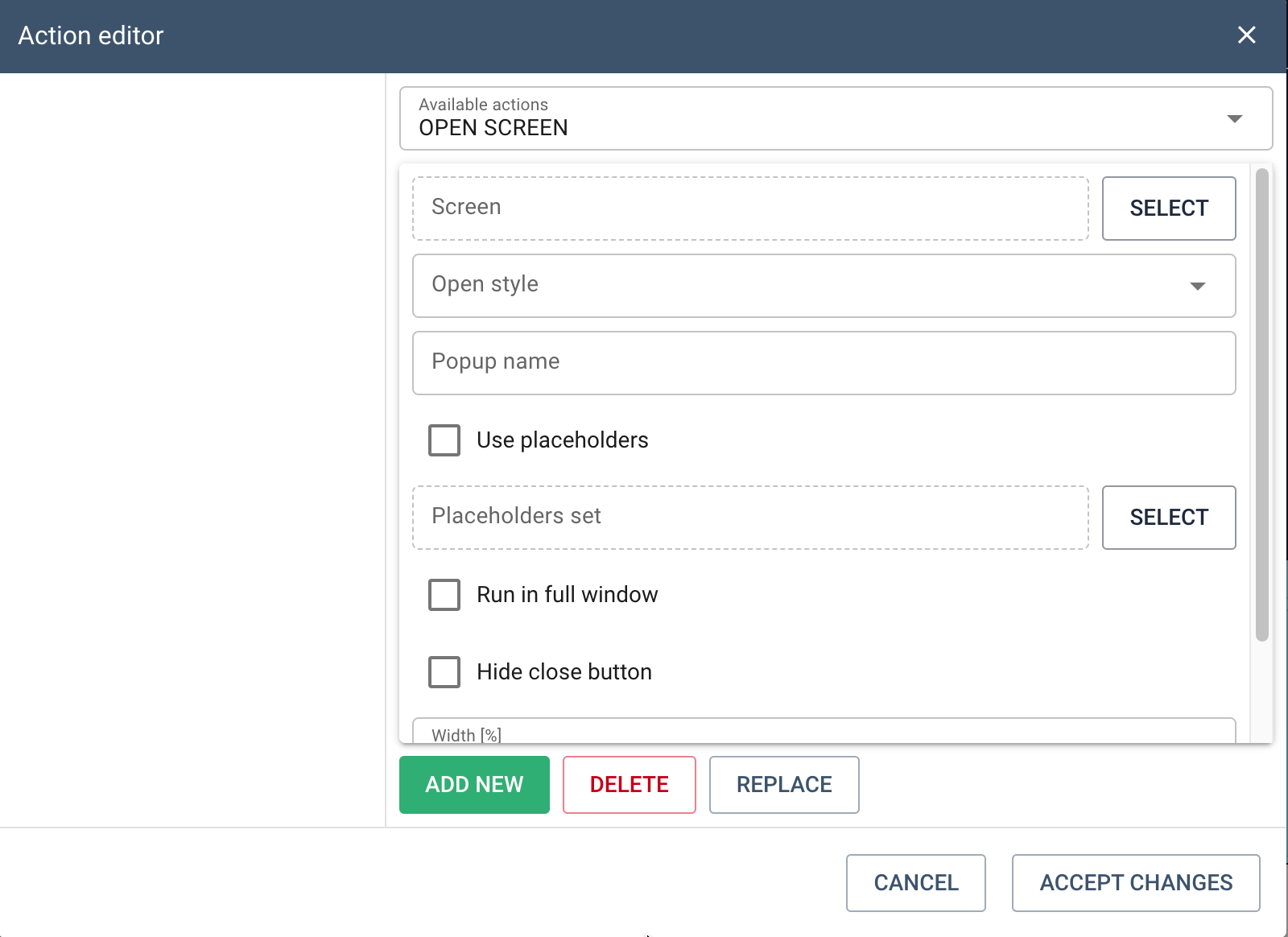
In the Action Editor, select one of the available actions from the drop-down list:
- OPEN SCREEN – opens the specified Screen in a window or replaces the open one
- SEND VALUE – sets a numeric value defined in the script for the selected TAG
- INSERT VALUE – opens a window where you can set and send a numeric value for the selected TAG
- TOGGLE VALUE – changes the state of a two-state TAG
- SET LOCAL VALUE – sets a value locally for a variable (without saving it to history)
- LOAD TAG GROUP – loads a new group of variables onto the Screen
- OPEN CONFIGURATION WINDOW – opens the device parameter configuration window
- ACK ALARM – acknowledges an alarm for the selected TAG
- CALL SCRIPT – calls a user script
- GO BACK – returns to the previously opened Screen
Fill in the required fields and click ADD NEW, then ACCEPT CHANGES.
Calling multiple actions at once
Several actions, executed one after another, can be assigned to a single event (e.g. a button click). To add another action, select it in the Action Editor, configure its parameters, then click the ADD NEW button.
The added actions form a list of associated actions visible on the left side of the Action Editor.
Available actions
OPEN SCREEN
The OPEN SCREEN action is used to open a specified screen in animation mode. It lets you move between visualization screens, both statically (to a specific screen) and dynamically – using placeholders linked to tags.
Configuring the action
The following options are available when configuring the action:
-
Screen
Specifies the screen to be opened when the action is triggered. -
Display method
Specifies how the screen is opened:- Replace – the currently displayed screen is closed and replaced by the new screen.
This is the basic mode of navigation between screens. - As popup – the screen is opened as a popup window over the currently displayed screen.
The base screen remains active in the background and is visible beneath the popup window.
- Replace – the currently displayed screen is closed and replaced by the new screen.
-
Popup title
A field available when the screen is displayed as a popup.
Lets you set a title displayed in the popup window's header. -
Use Placeholders
An option that lets you dynamically substitute values into placeholders defined on the screen being opened.
Placeholders on the target screen are linked to tags belonging to the specified tag group.How it works:
- placeholders are placed on the target screen,
- when the screen is opened, the system substitutes tags from the selected group in their place,
- this allows a single screen to be reused multiple times to present data for different objects or devices. -
Placeholders
A field used once the Use placeholders option is checked.
Used to select the placeholder group that specifies which tags will be substituted in place of the placeholders on the screen being opened. -
Run in full window
Once this option is checked, the screen will be opened in full-screen mode.
The popup's width and height settings are then ignored. -
Hide close button
An option available for screens opened as a popup.
Hides the close button in the window's header.
Closing such a screen should be handled by another action, e.g. a button placed on the screen. -
Width [%]
Specifies the popup's width as a percentage relative to the width of the application window.
This parameter only applies when the screen is not launched in full-screen mode. -
Height [%]
Specifies the popup's height as a percentage relative to the height of the application window.
As with width, this setting is ignored when the screen is launched in a full window.
Behavior
When the OPEN SCREEN action is triggered, the system:
- Opens the specified screen,
- If placeholders have been configured – links them with tags from the selected group,
- Launches the screen with the data already substituted, ready for presentation or interaction.
Application
The OPEN SCREEN action is used, among other things, for:
- navigating between SCADA screens,
- building a hierarchy of screens (parent screens → details),
- creating universal, reusable screens thanks to the placeholder mechanism.
SEND VALUE
The SEND VALUE action is used to send a specified value to a given tag. It is most often used to control executive objects (e.g. digital or analog outputs) by writing a new value to a tag.
Configuring the action
The following options are available when configuring the action:
-
Tag This field specifies the tag to which the value will be sent. The tag is selected by clicking the SELECT button, which opens a window for selecting the available tags in the project.
The action can only be linked to tags that support writing values.
-
Value The value that will be sent to the selected tag when the action is triggered. The type and range of allowed values must be matched to the tag type (e.g. a logical value, a numeric value).
Behavior
When the SEND VALUE action is triggered (e.g. by pressing a button on the SCADA screen), the system writes the specified value to the given tag and forwards it to the associated device.
Application
The SEND VALUE action is used, among other things, for:
- turning devices on and off,
- changing setpoints and operating parameters,
- manually controlling a process from the visualization screen.
INSERT VALUE
The INSERT VALUE action lets the user enter a value while the screen is running and save it to a given tag. Unlike the SEND VALUE action, the value is not defined at design time, but entered dynamically by the operator in a dialog box that is displayed.
Configuring the action
The following options are available when configuring the action:
-
Tag
Specifies the tag to which the value entered by the user will be saved.
The tag is selected by clicking the SELECT button.
The action can only be used with tags that support writing values. -
Window title
Text displayed in the header of the dialog box in which the user enters the value. -
Description
An additional description or instructions visible in the dialog box, helping the user enter data correctly. -
Label
A description of the edit field in which the user types the value (e.g. a unit or parameter name). -
Text value
Once this option is checked, the entered value is treated as text.
Used for text tags or situations where numeric limits do not apply. -
Hide entered value
Masks the value being entered (e.g. as dots).
Useful when entering passwords, codes, or confidential values. -
Min value
The minimum allowed value the user can enter.
Applies only to numeric values. -
Max value
The maximum allowed value the user can enter.
Applies only to numeric values. -
Multiplier
The value by which the number entered by the user will be multiplied before it is saved to the tag.
Lets you, for example, enter values in different units than those saved in the system. -
Show slider
Once enabled, a slider appears in the dialog box, letting you change the value without manually typing a number. -
Slider step
Specifies the value increment when moving the slider.
Behavior
When the INSERT VALUE action is triggered, a dialog box is displayed allowing the value to be entered according to the specified limits. Once confirmed, the system saves the entered value (possibly converted by the multiplier) to the selected tag.
Application
The INSERT VALUE action is used, among other things, for: - manually entering setpoints and parameters, - changing threshold values and limits, - letting the operator control a process while keeping range and data-format checks in place.
TOGGLE VALUE
The TOGGLE VALUE action lets you switch a tag's value between two states (e.g. 0 ↔ 1, FALSE ↔ TRUE).
It is especially useful for handling on/off-type buttons.
Configuring the action
The following options are available when configuring the action:
-
Tag
A field for selecting the tag whose value is to be toggled.
After clicking the SELECT button, specify the tag to which the new value will be sent. -
Use another tag to check the value
An option that lets you separate the controlled tag from the tag used to check the current state.Once this option is checked:
- the toggled value is determined based on a different tag than the one the value is sent to,
- this allows, for example, controlling one tag based on the state of another object or signal. -
Tag to check the value
A field used once the Use another tag to check the value option is checked.
Used to select the tag whose current value will be used to determine which state should be sent to the controlled tag.
Behavior
When the action is triggered, the system:
- reads the current value of the tag (or the tag used to check the value),
- determines the state opposite to the current one,
- sends the new value to the controlled tag.
As a result, each subsequent triggering of the action toggles the state.
Application
The TOGGLE VALUE action is used, among other things, for:
- implementing ON/OFF-type buttons,
- controlling relays and binary outputs,
- changing device operating states without having to define a specific value,
- handling simple toggle functions in SCADA interfaces.
SET LOCAL VALUE
The SET LOCAL VALUE action is used to set the value of a specified local tag, only within the context of the currently running screen or user session.
Unlike the SEND VALUE action, it does not send the value to a device or to the system's communication layer.
Configuring the action
The following options are available when configuring the action:
-
Tag
A field for selecting the tag whose local value is to be set.
After clicking the SELECT button, you can choose one of the available tags. -
Value
The value that will be assigned to the tag locally.
The type and range of the value depend on the tag type (e.g. binary, numeric).
Behavior
When the action is triggered, the system:
- sets the specified value only within the screen's local context,
- does not send this value to any device or data source,
- does not change the tag's actual value in the system.
The change only applies to the current screen (or session) and can be used by other objects, visual rules, or actions on the same screen.
Application
The SET LOCAL VALUE action is used, among other things, for:
- controlling user interface logic without affecting devices,
- setting auxiliary and temporary values,
- changing states used in visibility conditions or object styles,
- preparing data for further local actions or calculations,
- simulating states or testing screen behavior in animation mode.
This action is especially useful in situations where interface logic needs to be separated from actual communication with devices.
LOAD TAG GROUP
The LOAD TAG GROUP action is used to dynamically load a group of tags and link it to the placeholders found on the screen.
It lets you change the set of data presented on the screen without having to reopen it.
Configuring the action
The following options are available when configuring the action:
- Placeholders
A field for selecting the placeholder group to be loaded.
After clicking the SELECT button, specify the placeholder group defining the link between placeholders and specific tags.
Behavior
When the action is triggered, the system:
- loads the specified placeholder group,
- substitutes the corresponding tags in place of the placeholders on the currently open screen,
- updates all objects using these placeholders without reloading the screen.
The change takes effect immediately and applies to the current screen context.
Application
The LOAD TAG GROUP action is used, among other things, for:
- dynamically changing the data source on a single screen,
- creating reusable screens (e.g. for different devices, zones, or objects),
- implementing context switches (e.g. selecting a machine, production line, or installation section),
- reducing the number of screens by reusing a single layout,
- building "master–detail"-type interfaces, where selecting an item loads the corresponding data.
This action lets you flexibly manage the data presented on a screen without modifying its structure.
OPEN CONFIGURATION WINDOW
The OPEN CONFIGURATION WINDOW action is used to open a device configuration window (currently unused).
ACK ALARM
The ACK ALARM action is used to acknowledge active alarms in the system.
Using it means the user has reviewed the alarm and consciously acknowledged it.
Behavior
When the action is triggered, the system:
- marks the active alarm as acknowledged,
- changes its visual state (e.g. from "unacknowledged" to "acknowledged"),
- does not delete the alarm or deactivate the alarm condition.
If the alarm condition still exists, the alarm remains active, but with an acknowledged status.
If the alarm recurs (after clearing), it will need to be acknowledged again.
Application
The ACK ALARM action is used, among other things, for:
- letting system operators acknowledge alarms,
- implementing "Acknowledge alarm" or "ACK" buttons,
- reducing the number of unacknowledged alarms requiring a response,
- fulfilling operator procedures.
This action is an important part of alarm handling in SCADA systems and does not affect the alarm's underlying cause, only its status.
UPDATE DATA NOW
The UPDATE DATA NOW action is used to manually force an immediate update of the data presented on the screen.
It lets you refresh tag values independently of the system's standard refresh cycle.
Behavior
When the action is triggered, the system:
- initiates an immediate retrieval of current data from the data sources,
- updates the values of all tags used on the current screen,
- refreshes the view of objects associated with this data.
The action does not change the refresh configuration or communication intervals – it acts once, at the moment it is called.
Application
The UPDATE DATA NOW action is used, among other things, for:
- manually refreshing data by the operator,
- quickly verifying the current state after performing a control operation,
- working under conditions of slow or irregular data updates,
- creating "Refresh" or "Update data" buttons,
- diagnosing and testing the correctness of communication with data sources.
This action gives the user greater control over the timeliness of the presented information without modifying the system's configuration.
CALL SCRIPT
The CALL SCRIPT action is used to call a previously defined script when the action is triggered, e.g. after clicking a button.
It lets you implement more advanced logic that cannot be described using the standard actions.
Configuring the action
The following options are available when configuring the action:
- Select script
A field for selecting the script to be run.
After clicking the SELECT button, you can choose one of the available scripts defined in the system.
Behavior
When the action is triggered, the system:
- calls the specified script,
- executes the logic contained within it according to its implementation,
- gives the script access to the current context (e.g. tag values, placeholders, screen state).
The way it works, the scope of its operations, and the effects of calling it depend entirely on the script's content.
Application
The CALL SCRIPT action is used, among other things, for:
- implementing complex control logic,
- performing conditional operations on multiple tags,
- handling unusual business or process scenarios,
- integrating with other system mechanisms,
- replacing a sequence of multiple actions with a single, centrally managed piece of logic.
This action offers the greatest flexibility, but it requires scripts to be prepared and maintained in advance.
GO BACK
The GO BACK action is used to return to the previous view or screen from which the user navigated to the current context.
It works similarly to the "back" function known from application or browser navigation.
Behavior
When the action is triggered, the system:
- goes to the previous screen or view in the navigation history,
- retains the context of the previous screen (if it was available),
- does not require specifying a specific target screen.
If there is no earlier screen in the history within the current session, the action has no effect.
Application
The GO BACK action is used, among other things, for:
- implementing "Back" or "Return" buttons,
- making navigation between screens easier without having to define paths,
- closing screens opened contextually (e.g. from lists or details),
- improving the ergonomics of the user interface,
- simplifying navigation logic in projects with a large number of screens.
This action works particularly well in operator interfaces and detail screens, where the user often returns to the parent view.
CLOSE POPUP
The CLOSE POPUP action is used to close the currently open popup window.
It is used on screens displayed as a popup, when closing the window needs to be handled in a controlled way.
Behavior
When the action is triggered, the system:
- closes the current popup window,
- returns to the screen from which the popup was opened,
- does not affect the state of the data or tag values.
The action only works when the current screen was opened as a popup.
If the screen is not a popup, the action has no effect.
Application
The CLOSE POPUP action is used, among other things, for:
- implementing "Close", "Cancel", "OK" buttons in popups,
- controlled closing of windows where the standard close button has been hidden,
- ending user interaction with a modal screen,
- improving the ergonomics and clarity of the user interface,
- enforcing a specific workflow in configuration or dialog popups.
This action is the basic mechanism for handling screens opened as a popup.
COPY TAG VALUE
The COPY TAG VALUE action is used to copy the current value from one tag to another tag.
It provides a simple way to transfer data between tags without having to define scripts or additional logic.
Configuring the action
The following options are available when configuring the action:
-
Source tag
A field for selecting the tag from which the current value will be read.
After clicking the SELECT button, specify the tag acting as the data source. -
Target tag
A field for selecting the tag to which the value copied from the source tag will be assigned.
After clicking the SELECT button, specify the target tag.
Behavior
When the action is triggered, the system:
- reads the source tag's current value,
- assigns this value to the target tag,
- overwrites the target tag's current value.
The action does not modify the source tag and does not perform any additional logical operations or validation.
Application
The COPY TAG VALUE action is used, among other things, for:
- copying setpoints and parameters between tags,
- transferring measured values to other areas of logic,
- synchronizing data between different elements of the system,
- storing current values (e.g. into auxiliary tags),
- simplifying control logic without using scripts.
This action is especially useful in situations where a quick and unambiguous value assignment between two tags is required.
OPEN REPORT
The OPEN REPORT action is used to open a selected report directly from the visualization screen.
It provides quick access to reports without having to go to the Reports module.
Configuring the action
The following options are available when configuring the action:
- Report
A field for selecting the report to be opened when the action is triggered.
After clicking the SELECT button, you can choose one of the reports defined in the system.
Behavior
When the action is triggered, the system:
- opens the specified report,
- switches to the report view within the current application context,
- presents the report data according to its configuration.
The action does not modify the report's parameters or source data – it is only responsible for opening it.
Application
The OPEN REPORT action is used, among other things, for:
- creating shortcut buttons to reports,
- quickly moving from SCADA screens to analyses and summaries,
- providing operators and users with contextual reports,
- integrating visualization with the system's reporting layer,
- improving navigation and shortening the path to historical data.
This action is especially useful on summary and diagnostic screens, and in operator panels.