Line
This tool lets you draw simple line segments used, among other things, as connectors, technical elements, underlines, or as part of more complex graphical constructions.
Drawing a line
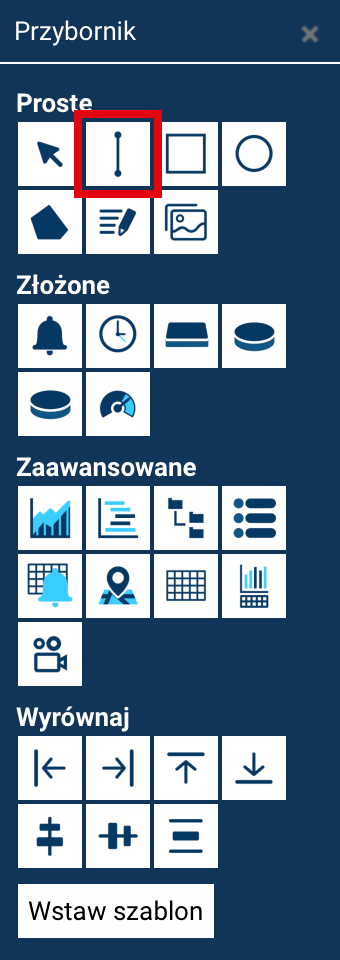
To draw a line:
- Select the Line tool from the Toolbox.
- Click at the point where the line should start.
- Drag the cursor toward the end of the line and let go of the mouse button.
- Release the mouse button to finish drawing.
Once inserted, the line appears on the screen along with handles that let you edit it. Unlike most objects (rectangles, ellipses, images), a line does not have eight scaling handles or a rotation handle. This results from its geometric nature — a line is defined by two endpoints.
A line provides three handles:
- Two end handles
These let you: - change the line's length (scaling),
- change its angle by moving one of the ends,
-
drag the end of the line to any place on the screen.
-
One middle handle
Used to move the entire line, without changing its shape, the position of its ends, or its angle.
Thanks to this approach, editing a line is simple and precise — you can drive each of its ends independently, while the middle handle lets you quickly move the object without deforming it.
Line properties
Once a line is selected, the Properties panel provides, among others:
- Name — the object's identifier on the screen.
- Fill — has no effect on the displayed line's style.
- Stroke color — the color of the drawn line.
- Stroke thickness — the line's width in pixels.
- Stroke style — solid, dashed, dotted line.
- Opacity — the line's transparency.
- Position X / Y — the object's location.
- Width / Height — the distances between the endpoints along the X and Y axes.
- Angle — the line's angle relative to horizontal (a value indicating the rotation of a previously drawn line).