Tree View
The Tree view is an advanced tool that can act as a navigation menu on the screen. It lets you build a hierarchical menu structure in the form of a tree with expandable and collapsible branches, to which actions performed when individual items are clicked can be attached.
This form of visualization makes it possible to create clear, scalable menus that allow convenient navigation between screens or trigger other system functions.
Important! The tree works like a switch, not a button
Actions under tree items are triggered only when the selection changes - clicking an already active item will not trigger it again (it behaves like a switch, not a button).
Adding a Tree view to the screen
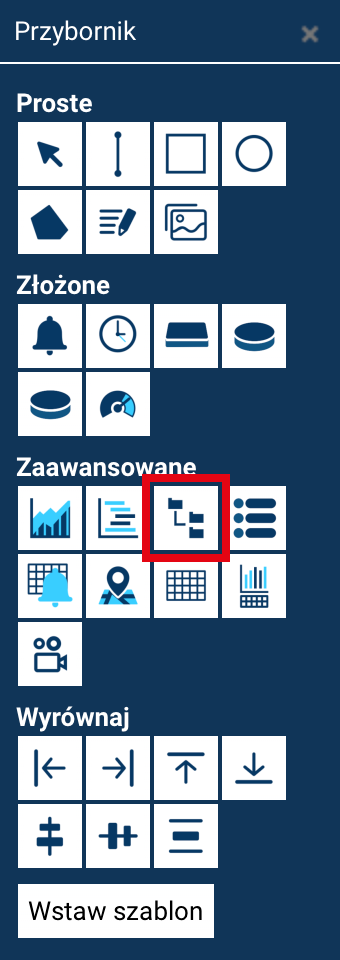
The tree view is added in the standard way:
- by selecting the Tree view tool from the Toolbox,
- clicking on the screen at the place where the menu should be inserted, or
- drawing right away the area it should occupy.
The object's width has a minimum value, while its height adjusts to the number of items.
If the menu items do not fit within the available space, the tree area is automatically scrolled.
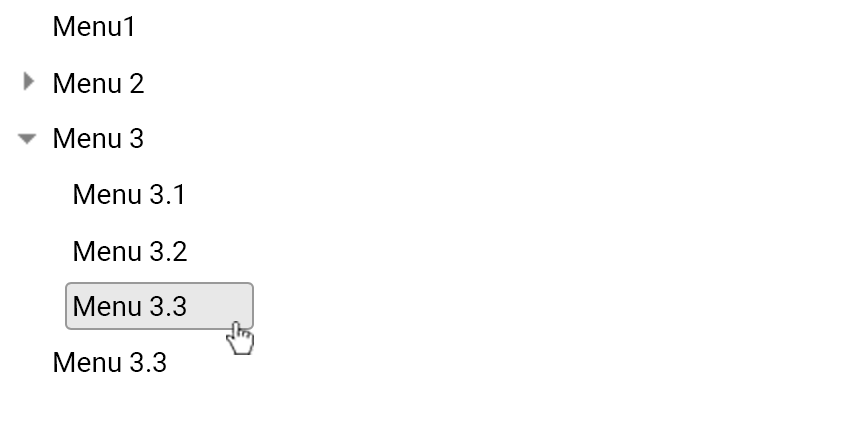
Editing the tree structure
To edit the menu structure:
- double-click the Tree view on the screen
or - select the object and click the Edit button in the Properties panel.
The Tree view – data editing window will open.
In this window:
- on the left, a list of menu items is shown as a tree,
- on the right, the properties of the currently selected item are presented.
Adding menu items
Adding a new top-level item
To add a new menu item:
- Click the Add button.
- A new item with the default name "New item" will be added to the tree.
- Once this item is selected:
- its label can be changed in the Title field,
- the Edit script button lets you specify the script (or several scripts) to be executed when this item is clicked.
Scripts are selected from a list, and a detailed description of them can be found in the chapter →Built-in Actions.
Adding a nested item
To add a child item:
- Select the branch under which the item should be added.
- Click the Insert button.
- A new item (with the default name New item) will be added under the specified item.
- For the new item, set:
- the Title,
- the script to be executed when it is selected.
Menu items can be nested at multiple levels, forming an extensive hierarchical structure.
Deleting menu items
To delete a menu item:
- Select it in the tree on the left.
- Click the Delete button.
The selected item, along with its entire child branch, will be deleted.
The "Fill" property
The Fill option causes the Tree view to be stretched to fill the entire screen area.
It can be used in situations where the menu is meant to act as the screen's main navigation element.
Actions triggered by menu items
Individual menu items can perform one or several actions. The following are available:
- OPEN SCREEN – opening another screen.
- SEND VALUE / INSERT VALUE / TOGGLE VALUE – operations on tags.
- SET LOCAL VALUE - operations on local tags.
- LOAD TAG GROUP - loading a group of tags linked to placeholders.
- OPEN CONFIGURATION WINDOW – opening the configuration window (currently unused).
- ACK ALARM acknowledging an alarm.
- UPDATE DATA NOW - refreshing data.
- CALL SCRIPT - calling a script.
- GO BACK – returning to the previous screen.
- CLOSE POPUP – closing a popup window.
- COPY TAG VALUE – copying a tag's value.
- OPEN REPORT – opening a report.
A detailed description of the configuration and behavior of individual actions can be found in the chapter →Built-in Actions.