List View
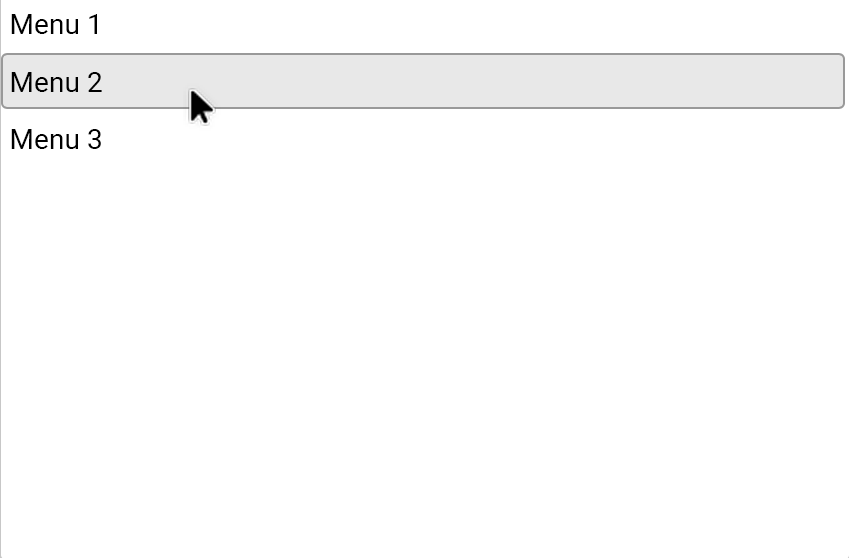
The List view is an advanced tool used to present a navigation menu as a flat list of items. It works similarly to the Tree view, but in this case there is no hierarchical structure – all menu items are on a single level.
The list view works well in situations where a simple, linear selection menu is needed, without the need to group items into branches.
Adding a List view to the screen
The list view is added in the standard way:
- by selecting the List view tool from the Toolbox,
- clicking on the screen at the place where the list should be inserted, or
- drawing the area it should occupy.
The object's width has a minimum value, while its height depends on the number of items.
If the number of elements exceeds the available area, the list is automatically scrolled.
Editing the list
To edit the List view:
- double-click the object on the screen
or - select the object and click the Edit button in the Properties panel.
The List view – data editing window will open.
In this window:
- on the left is the list of menu items,
- on the right, the properties of the currently selected item are displayed.
Adding list items
To add a new item to the list:
- Click the Add button.
- A new item with the default name "New item" will be added to the list.
- Once the item is selected:
- its label can be changed in the Title field,
- the Edit script button lets you specify the script to be executed when this item is clicked.
Scripts are selected from a list, and a detailed description of them can be found in the chapter →Built-in Actions.
Changing the order of items
The list view lets you change the order of items you have already entered.
To do this:
- Select the desired item on the list.
- Use the buttons:
- ↑ – moves the item up,
- ↓ – moves the item down.
This provides a simple way to set the display order of the menu items.
Deleting list items
To delete an item from the list: 1. Select it on the list on the left. 2. Click the Delete button.
Only the selected item will be deleted.
The "Fill" property
The Fill option causes the List view to be stretched to fill the entire screen area.
It can be used when the list is meant to be the main element of the user interface.